
msi PRO MP341CQ E12
4.2Editor score
3440 x 1440 UWQHD
120Hz adaptive refresh
DisplayPort 1.4a
VESA 100 x 100 mount
A cheap ultrawide monitor can replace a conventional display with a wider workspace, but the lowest cost does not always mean the best balance of resolution, motion performance, and useful features. The right model depends on whether you value fast gaming, effortless multitasking, accurate color, or convenient laptop connectivity.
We compared ten 29.5-inch and 34-inch options using their supplied specifications, customer ratings, panel formats, refresh rates, resolutions, adaptive-sync support, ports, stands, and eye-care features. The list covers curved and flat screens, UWQHD and WFHD models, and options aimed at gaming, office work, media, and creative workflows.
Each review identifies the strongest reasons to consider the monitor, along with its limitations and the users it suits best. The top choices reflect the strongest balance of specifications rather than a simple ranking by cost, while current prices and availability can change at any time.
4.2Editor score

4.4Editor score

4.4Editor score
As an Amazon Associate we earn from qualifying purchases.
This side-by-side comparison highlights the differences in screen resolution, refresh rate, panel technology, and connectivity, helping you identify the ultrawide monitor that best matches your desk, games, and daily workflow.


The SANSUI 34-Inch Curved Gaming Monitor combines a 3440 x 1440 UWQHD panel with a 200Hz refresh rate, giving it one of the most performance-oriented specifications in this guide. Its 4.4 customer rating also places it among the stronger-rated options here, although that should be considered alongside the absence of built-in speakers and the relatively limited physical adjustment offered by its stand.
We may earn a commission when you buy through this link, at no additional cost to you.
The strongest attraction is the combination of resolution and speed. A 200Hz refresh rate is particularly useful for fast competitive games, while the 3440 x 1440 canvas provides enough detail for desktop work as well as gameplay. The Fast VA panel is paired with a claimed 1ms OD response time, and VRR support through HDMI 2.1 helps synchronize the display with compatible graphics hardware. DisplayPort 1.4 and two HDMI 2.1 inputs provide modern, high-bandwidth connections for a gaming desktop or laptop.
SANSUI also includes several gaming-oriented tools. The listed AI features cover blue-light reduction, crosshair assistance, picture quality adjustment, and a sniper scope. PIP and PBP support can divide the ultrawide screen for separate tasks, although gaming utilities and multitasking features should be considered carefully against the monitor's fixed 21:9 proportions. The ergonomic stand provides tilt adjustment, and VESA 100 x 100 compatibility allows a different mount to be used if desk space is tight.
This is the strongest all-around choice for a buyer who prioritizes motion performance and wants a detailed gaming display without paying for a more productivity-focused model. It is less compelling for people who need integrated audio, extensive stand movement, or USB-C charging. Even so, the combination of 200Hz refresh, UWQHD clarity, adaptive-sync support, and modern ports makes it an unusually competitive entry for the best cheap ultrawide monitor category.
The 200Hz refresh rate provides a substantial advantage over the 100Hz models in this list when paired with a capable graphics card and game. Its VRR support and 1ms advertised response make it better suited to competitive shooters, racing games, and other fast-moving titles.
Two HDMI 2.1 inputs and DisplayPort 1.4 give the monitor a strong connection foundation. The absence of USB-C charging and built-in speakers means laptop users may still need separate accessories, but desktop gamers can connect directly and efficiently.
We may earn a commission when you buy through this link, at no additional cost to you.
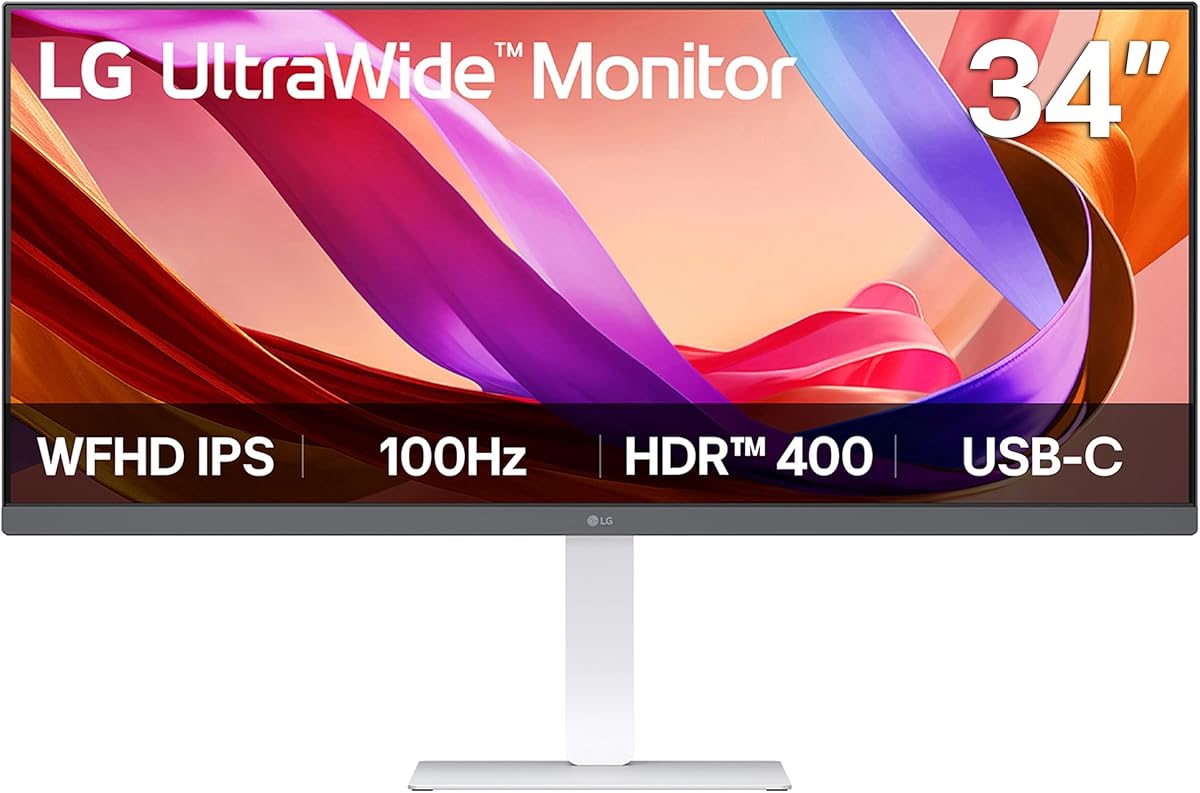
The LG 34U530A-W is a 34-inch, 21:9 IPS monitor designed primarily around productive desktop workflows. Its 2560 x 1080 resolution and 100Hz refresh rate do not match the UWQHD models elsewhere in the list, but the USB-C connection, height, tilt, and swivel adjustments make it especially practical for a modern office. It carries a 4.3 customer rating.
We may earn a commission when you buy through this link, at no additional cost to you.
The IPS panel offers wide viewing angles, while VESA DisplayHDR 400 and up to 99% sRGB coverage support everyday media and creative use. Its most useful productivity feature is the Switch app, which can divide the screen into as many as six sections and provide quick access to common workflows. USB Type-C handles display and data connections, potentially simplifying a laptop setup, and the integrated Waves MaxxAudio speakers remove the need for desktop speakers for casual media playback and meetings.
The trade-off is resolution. At 2560 x 1080, the monitor provides substantially fewer pixels than 3440 x 1440 alternatives, so small text, detailed timelines, and dense application interfaces can feel less expansive. The 100Hz rate is smooth for general use but not competitive with the higher-refresh gaming options in this guide. Its white finish may also fit some workspaces better than others.
Choose the LG 34U530A-W if you prioritize a clean desk, simple laptop connectivity, integrated speakers, and flexible screen division over high-end gaming performance. It is a sensible cheap ultrawide monitor for office productivity, study, streaming, and general home use, particularly when USB-C and an adjustable stand matter more than maximum pixel density.
The Switch app can split the display into several sections, making it easy to keep documents, messages, media, and calls visible. This software-led approach is particularly useful for users who want a wide workspace but do not need the pixel density of a 3440 x 1440 panel.
USB Type-C provides display and data connectivity in one cable, while the built-in stereo speakers are useful for calls, presentations, and casual listening. These features reduce desk clutter, although they do not make the monitor a dedicated gaming display.
We may earn a commission when you buy through this link, at no additional cost to you.
The msi PRO MP341CQ E12 combines a 3440 x 1440 resolution with a 120Hz refresh rate, offering a useful balance of detail and motion performance. It has a 4.2 customer rating, which is slightly lower than several nearby alternatives, but its resolution, adaptive-sync support, and broad port selection make it a strong budget-oriented pick for buyers who want more than a basic office ultrawide.
We may earn a commission when you buy through this link, at no additional cost to you.
The supplied feature list emphasizes productivity and viewing comfort. Adaptive Sync is compatible with FreeSync, DisplayPort 1.4a supports the stated UWQHD and 120Hz target, and HDMI 2.0b includes HDMI-CEC for compatible single-remote control. TÜV Rheinland certification covers flicker-free and low-blue-light operation, while the Eye-Q Check tool helps assess display settings. The listed 1500:1 contrast ratio and 178-degree viewing angles are useful for wide-format work.
Physical setup is simpler than on some competing models. The stand tilts from negative five to positive 20 degrees, but it does not offer the height and swivel range seen on the LG models. VESA 100 x 100 mounting provides an upgrade path for monitor arms, while the included speaker capability adds basic audio without requiring another device for system sound.
This monitor makes the most sense for a mixed-use setup that needs detailed resolution, smooth 120Hz motion, and adaptive synchronization without chasing the highest refresh rate. It is also a sensible choice for office users who value eye-care features and firmware improvements. Those wanting a premium stand, USB-C charging, or 165Hz-or-higher gaming performance should look elsewhere.
The 3440 x 1440 panel supplies substantially more usable space than a standard 16:9 display, while 120Hz and Adaptive Sync support make it practical for casual and competitive gaming. That combination gives the monitor broader appeal than a pure office model.
TÜV Rheinland certification for flicker-free operation and low blue light, combined with MSI's Eye-Q Check feature, adds value for people who spend long periods reading, studying, or working. Comfort settings should still be adjusted to match the room and individual needs.
We may earn a commission when you buy through this link, at no additional cost to you.
The LG 34WR55QK-B stands out as a productivity-focused 34-inch ultrawide with a 4.6 customer rating, the highest rating among the ten products. Its 3440 x 1440 WQHD panel provides a roomy, detailed workspace, while 100Hz motion and 5ms response time make it suitable for everyday computing, media, and less demanding games.
We may earn a commission when you buy through this link, at no additional cost to you.
Its office credentials are strong. OnScreen Control allows the display to be split and basic options adjusted, while Picture-by-Picture can show content from two separate sources simultaneously. USB Type-C supplies up to 65W of laptop power delivery, reducing cable clutter. The port selection also includes two HDMI ports, two USB ports, DisplayPort, and a headphone jack, giving users more flexibility than many competing models.
Reader Mode adjusts the display for reading by reducing blue light, and HDR10 with up to 99% sRGB coverage supports vivid media and reasonably rich color. The stand allows both height and tilt adjustment, and a three-sided virtually borderless design gives the monitor a clean appearance. These qualities prioritize a comfortable, flexible workstation rather than competitive gaming performance.
The principal limitation is the 100Hz refresh rate. Fast games will not benefit from the 165Hz, 180Hz, or 200Hz alternatives in this guide, and no adaptive-sync capability is explicitly listed. For office users, programmers, editors, and multitaskers, however, the high rating, ample resolution, USB-C charging, and adjustable design make this a particularly complete cheap ultrawide monitor choice.
Picture-by-Picture lets users view two separate inputs at once, while OnScreen Control can divide the workspace into customized areas. These functions are particularly helpful for laptop-and-desktop arrangements, trading applications, and reference material.
USB Type-C can carry video and data while providing up to 65W of charging. A single-cable setup is convenient for professionals who frequently connect a laptop, although the included USB ports and additional video inputs provide useful flexibility.
We may earn a commission when you buy through this link, at no additional cost to you.
The LG 34U650A-B is a polished 34-inch curved ultrawide for users who want refined productivity features and convenient connectivity. It combines a 3440 x 1440 IPS panel with 100Hz motion, HDR10, and a 4.4 customer rating. Its 3800R curve is subtler than many gaming displays, creating an immersive format without an aggressively curved appearance.
We may earn a commission when you buy through this link, at no additional cost to you.
The monitor's standout feature is USB-C connectivity with display, data, and up to 96W laptop charging through one cable. That makes it especially attractive for users who regularly move between a powerful laptop and a desktop-oriented workspace. The Switch app can split the screen into as many as six sections, while built-in DepthSound speakers provide audio for calls, presentations, and media without adding separate desktop speakers.
Up to 99% sRGB coverage, HDR10 support, and wide-angle IPS consistency make it a solid general-purpose display for documents, creative work, and entertainment. The stand supports tilt, swivel, and height adjustment, and one-click mounting is included. Reader Mode provides warmer tones for extended reading, while 5ms response time and 100Hz refresh keep ordinary motion smooth.
Its cost places it above several alternatives, and a 100Hz refresh rate is modest for modern competitive gaming. It also lacks the high-refresh specifications of the SANSUI, CRUA, Acer Nitro, and KTC options. Even so, the combination of curve, IPS quality, USB-C charging, integrated audio, multitasking software, and adjustable ergonomics makes it the most premium-feeling general-purpose pick here.
The subtle 3800R curve surrounds the user while maintaining a relatively natural viewing geometry. A narrow-bezel design, clean stand, and adjustable height, tilt, and swivel make the display appropriate for a polished home or professional workspace.
Up to 96W of laptop power delivery can support a demanding mobile workstation through one connection. The same USB-C path handles display and data, helping users create a cleaner desk than a multi-cable setup would allow.
We may earn a commission when you buy through this link, at no additional cost to you.
The Samsung ViewFinity S50GC is a 34-inch Ultra-WQHD monitor with a 4.4 customer rating and a specification set aimed at balanced work and entertainment. Its 3440 x 1440 resolution, 300 cd/m² typical brightness, 3000:1 static contrast ratio, and HDR10 support make it a capable general-purpose display.
We may earn a commission when you buy through this link, at no additional cost to you.
Eye-care functionality is particularly comprehensive. An ambient light sensor automatically adjusts brightness according to the workstation lighting, Eye Saver Mode limits excessive blue light, and Flicker Free technology is included. These features are valuable for people who spend extended periods editing documents, studying, coding, or otherwise using the display throughout the workday.
The monitor supports 100Hz refresh, a 5ms response time, and AMD Radeon FreeSync for smoother synchronized output. Two HDMI 2.2 inputs and one DisplayPort 1.2 input provide connections for several devices. PIP and PBP can display two sources simultaneously, with PBP supporting native-resolution views for separate projects or applications.
For gaming, 100Hz and FreeSync are functional but not competitive with the faster models in this list. The absence of USB-C also makes it less convenient for a modern single-cable laptop setup. Nonetheless, the strong contrast, automatic brightness control, eye-care suite, and detailed resolution make this ViewFinity a good option for office and mixed-use buyers.
The ambient light sensor can adjust brightness as room conditions change, while Eye Saver Mode and Flicker Free address common sources of visual fatigue. These automatic and selectable features are particularly useful in changing daylight and nighttime environments.
A stated 3000:1 static contrast ratio gives the ViewFinity deeper blacks than many general-purpose displays, while HDR10 supports greater perceived range in compatible content. The 21:9 format also provides a cinematic canvas for supported movies.
We may earn a commission when you buy through this link, at no additional cost to you.
This Samsung ViewFinity S50GC listing offers the same core 34-inch Ultra-WQHD format and 4.4 customer rating as the earlier ViewFinity entry. The 3440 x 1440 resolution, 100Hz refresh rate, 5ms response time, HDR10 support, and 3000:1 static contrast ratio form a capable foundation for productivity, media, and general gaming.
We may earn a commission when you buy through this link, at no additional cost to you.
Its strongest productivity feature is PBP, which can show two input sources at native resolution. That makes it useful for a laptop paired with a desktop, for comparing applications, or for keeping a separate project visible while working on another. PIP offers a smaller secondary source for alerts, calls, or reference material. The virtually bezel-free design also helps a wide monitor look clean on its own or within a dual-monitor arrangement.
Samsung's eye-care features include an ambient light sensor, Eye Saver Mode, and Flicker Free. AMD FreeSync helps reduce tearing by synchronizing the monitor with compatible graphics hardware, while 100Hz provides smoother motion than a standard 60Hz panel. The same basic brightness and contrast specifications are stated at 300 cd/m² and 3000:1.
This model is a practical two-screen alternative in one enclosure, but its 100Hz rate does not serve competitive gaming as well as the higher-refresh choices. There is also no USB-C for charging and data over a single cable. It remains attractive for buyers who value a large, detailed screen, eye comfort, and flexible picture-in-picture or picture-by-picture workflows.
Picture-by-Picture lets two separate sources appear at native resolution, reducing the need for a second physical monitor. This is particularly useful for financial review, media monitoring, coding, and hybrid laptop-and-desktop workflows.
Thin, virtually borderless edges make the large screen feel more cohesive and leave more visual focus on the content. The 21:9 aspect ratio supports wide timelines, side-by-side documents, and more of the field of view in compatible games.
We may earn a commission when you buy through this link, at no additional cost to you.
The CRUA 34 Inch 165Hz monitor is an ambitious gaming-oriented ultrawide with 3440 x 1440 resolution, a 165Hz refresh rate, and a 4.2 customer rating. Its specification set is especially interesting because it combines high refresh with an IPS panel, wide color coverage, high brightness, and multiple modern video inputs.
We may earn a commission when you buy through this link, at no additional cost to you.
For competitive and fast-paced games, 165Hz provides a noticeable increase over 100Hz models. AMD FreeSync is included to reduce tearing and micro-stutter when paired with compatible hardware. The 21:9 screen also supplies more peripheral visibility in supported games and can reveal additional battlefield or track content, depending on the title.
Color specifications include 120% sRGB coverage, 8-bit color depth, 380 cd/m² peak brightness, and a 1000:1 contrast ratio on an IPS panel. These figures make the monitor relevant to photo viewing, design work, and general media use. PIP and PBP modes allow two sources to be displayed simultaneously, while two HDMI 2.0 ports and two DisplayPort 1.4 inputs support several connected devices.
Dual built-in speakers and a 3.5mm audio jack provide flexible everyday audio. The physical stand, however, offers only tilt from five degrees forward to 15 degrees backward, and the supplied mounting information lists 75 x 75mm compatibility rather than the more common 100 x 100mm pattern. Overall, this is a strong value for a buyer who wants fast gaming, rich color, and extensive connectivity in one affordable ultrawide.
The 165Hz rate gives the display more headroom for competitive games than standard 100Hz models. IPS technology, wide viewing angles, and 120% sRGB coverage also make it more versatile for mixed work and entertainment.
Two HDMI 2.0 and two DisplayPort 1.4 inputs make it easy to keep a gaming computer and laptop connected. PIP and PBP add value when one device is running a game or stream while another handles communication or reference content.
We may earn a commission when you buy through this link, at no additional cost to you.
The Acer Nitro ED300C X1 is a 29.5-inch curved gaming monitor that prioritizes speed over pixel density. It combines a 2560 x 1080 UWFHD resolution with a 200Hz refresh rate, 1ms response time, and AMD FreeSync Premium. Its 4.3 rating makes it a credible choice for gamers who want fluid motion in a slightly smaller ultrawide footprint.
We may earn a commission when you buy through this link, at no additional cost to you.
The 200Hz rate is the monitor's defining feature. It updates frames more frequently than the 100Hz and 120Hz models in this guide, potentially improving clarity during rapid movement, gunfire, and high-speed driving. FreeSync Premium synchronizes compatible frames between the graphics card and display, helping reduce tearing, while the stated 1ms response time targets minimal smearing and ghosting.
The 1800R curve wraps around the user and aims to keep peripheral portions of the picture at a more consistent distance. At 2560 x 1080, however, the screen has fewer pixels than 3440 x 1440 alternatives. That lower resolution is the principal compromise for buyers who also edit detailed media, read dense documents, or want a finely rendered desktop.
Tilt adjustment from negative five to positive 15 degrees is the only stated stand movement, so a monitor arm may be desirable for a carefully aligned setup. Nevertheless, the Acer is a focused gaming choice: high refresh, low-latency specifications, and a modest 29.5-inch size make it appealing to competitive players who prioritize responsiveness over maximum workspace density.
A 200Hz panel and 1ms claimed response time are intended to make fast movement look clearer and more immediate. FreeSync Premium adds synchronization support, making the monitor most appropriate for users with compatible graphics hardware.
At 29.5 inches, the curved display offers an ultrawide viewing experience without the footprint of every 34-inch model. It can suit smaller desks, though buyers should account for the reduced pixel count compared with 3440 x 1440 alternatives.
We may earn a commission when you buy through this link, at no additional cost to you.
The KTC H34S5 pairs a 3440 x 1440 UWQHD resolution with a 180Hz refresh rate, giving it one of the strongest combinations of detail and speed in this guide. Its 4.5 customer rating is also the second highest among the ten products. The 34-inch display uses a curved 1500R HVA panel and supports adaptive synchronization and a stated 1ms MPRT.
We may earn a commission when you buy through this link, at no additional cost to you.
The monitor is well suited to games because the high refresh rate can make rapid movement feel more fluid, while 125% sRGB color coverage, 1.07 billion colors, 300 cd/m² brightness, and a 4000:1 contrast ratio support vivid imagery. The wide 21:9 format is also useful for productivity, providing enough room for multiple windows, wide editing timelines, and more of the field of view in compatible games.
Ergonomics are better than on many gaming-focused alternatives. The stand supports negative five to positive 20 degrees of tilt, 45-degree swivel in either direction, five degrees of pivot, and height adjustment up to 110mm. VESA 100 x 100 compatibility broadens mounting options, while PIP and PBP modes can display separate sources for work or streaming.
Connection bandwidth differs by interface. The two DisplayPort 1.4 inputs support the full 3440 x 1440 and 180Hz target, while the two HDMI 2.0 inputs are listed at up to 100Hz. There is no USB-C charging. The KTC is therefore a compelling choice for a desktop gaming system that uses DisplayPort and also needs a detailed, adjustable ultrawide workspace.
The combination of UWQHD detail and 180Hz motion is ideal for gamers who want both sharp visuals and fast response. It also provides enough desktop space for serious multitasking without moving to a larger or more expensive display.
Height, swivel, pivot, and tilt controls make it easier to align the curved panel and reduce neck strain. The 100 x 100mm VESA support also allows an arm or bracket to be added for even greater positioning flexibility.
We may earn a commission when you buy through this link, at no additional cost to you.
The best cheap ultrawide monitor is not determined by screen size alone. Resolution, refresh rate, panel behavior, curvature, connectivity, ergonomics, and eye-care features should be matched to your primary activities and the capabilities of your computer.
A 34-inch 21:9 monitor provides much more horizontal space than a conventional 16:9 screen, but the resolution determines how much detail that space can display. The 3440 x 1440 UWQHD models are ideal for text-heavy productivity, creative software, multitasking, and detailed games, while the 2560 x 1080 WFHD models are less demanding and may suit smaller desks or dedicated gaming systems.
Choose UWQHD when clarity matters, and choose WFHD when lower cost or a specific GPU connection limit takes priority.
Refresh rate controls how often the image updates each second. The 100Hz models in this guide are smooth for general use, the 120Hz and 165Hz options improve headroom for fast games, and the 180Hz and 200Hz choices offer the greatest potential for competitive play. Higher refresh rates are most noticeable when the graphics card can consistently deliver enough frames.
Prioritize 120Hz or more for gaming, but also consider adaptive synchronization and the available graphics output.
IPS panels generally provide wide viewing angles and consistent colors, making them attractive for office work and general viewing. VA and HVA panels can offer deeper contrast, which benefits dark scenes and media. Curved VA-style gaming panels may also show more obvious edge distortion, so users sensitive to geometry should consider flatter alternatives.
Select IPS for viewing-angle consistency and select VA or HVA when deeper blacks and higher contrast are priorities.
Adaptive synchronization coordinates the monitor's refresh timing with compatible graphics-card output, helping reduce tearing, stuttering, and perceived input lag. The SANSUI lists VRR through HDMI 2.1, the msi and CRUA support Adaptive Sync, and both Samsung ViewFinity models and the Acer Nitro list FreeSync support. The LG models do not explicitly state adaptive synchronization in their supplied details.
Check the exact synchronization standard, supported interface, and GPU compatibility before buying for synchronized gaming.
USB Type-C can simplify a laptop setup by combining display output, data transfer, and power delivery. The LG 34U530A-W supports USB-C for display and data, the LG 34WR55QK-B provides up to 65W of charging, and the LG 34U650A-B raises the stated charging capacity to 96W. These are meaningful advantages for mobile professionals and anyone seeking a tidier desk.
Prefer USB-C when a single-cable workflow matters, and verify the required charging wattage for your particular laptop.
Curvature can make a wide display feel more enveloping by following the field of view, but different radii create different experiences. The 1500R SANSUI and KTC models and 1800R Acer Nitro use more pronounced curves, while the LG 34U650A-B uses a subtler 3800R curve. Flat screens may appear more natural for some users but require more desk width.
Choose a curve based on desk depth, viewing distance, and sensitivity to distorted content near the edges.
A good ultrawide should sit comfortably without forcing a hunched posture. Height and swivel adjustment provide more freedom than a basic tilt-only stand, while VESA compatibility allows the display to be mounted on an arm. The LG 34U530A-W, LG 34WR55QK-B, and LG 34U650A-B provide stronger adjustment ranges, while several gaming displays prioritize speed with simpler stands.
Check desk depth, mounting patterns, and stand movement before ordering, especially if you already use a monitor arm.
Long workdays can make flicker, excessive blue light, and inconsistent brightness uncomfortable. Reader Mode, Eye Saver Mode, Flicker Free certification, low-blue-light certification, and ambient light sensors can help manage the viewing experience. Multi-window tools such as Picture-by-Picture, Picture-in-Picture, OnScreen Control, and the LG Switch app also improve productivity when a second monitor is not available.
Prioritize the comfort and splitting features that match your actual routine rather than paying for advanced tools you will rarely use.
Start by positioning the display at roughly arm's length, with the center of the screen close to eye level. Leave enough depth to view the entire 21:9 panel without repeatedly turning your head, then use the stand's tilt, height, swivel, or pivot controls—or a VESA arm if the included stand does not meet your needs. The wide format works best when the panel is centered rather than placed like a standard 16:9 display.
Choose the correct input for your computer and verify the intended resolution and refresh rate in the operating system's display settings. For the fastest gaming modes, use the appropriate DisplayPort or HDMI connection and confirm that the graphics card is actually sending the target frame rate. Enable adaptive synchronization through the monitor and graphics-card software, then use PIP or PBP when you need content from two separate sources.
For long sessions, select Reader Mode, Eye Saver Mode, Flicker Free, or low-blue-light settings where available, and allow the ambient sensor to adjust brightness in supported Samsung models. Keep vents unobstructed, clean the screen with a soft microfiber cloth, avoid applying cleaning liquid directly to the panel, and use the documented power and warranty procedures. If the image appears dim, check the input, brightness, HDR, and adaptive-sync settings before changing other controls.
Yes, a 34-inch ultrawide can replace a conventional monitor or add useful space to a dual-screen setup. A 3440 x 1440 model provides enough detail for documents, communication apps, timelines, and spreadsheets, while WFHD models offer less resolution but may cost less. PIP and PBP features are especially helpful when two sources must remain visible at once.
A capable graphics card is strongly recommended for 120Hz, 165Hz, 180Hz, and 200Hz operation, particularly in demanding games. Integrated graphics can drive an ultrawide display, but the available frame rate may be much lower. Even with a capable GPU, games must be configured to use the desired resolution and refresh rate.
It is sufficient for many gaming, office, and media tasks and reduces the demand placed on a graphics card. However, 3440 x 1440 models provide significantly more detail and working space. Choose WFHD when affordability and performance take priority; choose UWQHD when text, editing, and multitasking require greater clarity.
At least 120Hz is a strong minimum for modern gaming, while 144Hz, 165Hz, 180Hz, and 200Hz provide progressively more headroom for fast motion. The visible benefit also depends on the game, graphics card, and frame rate actually achieved. Adaptive synchronization can make the experience smoother by reducing tearing.
A curved model can feel more immersive and may keep the edges at a more consistent viewing distance, especially on a 34-inch display. However, some users find aggressive curves uncomfortable or notice distortion near the edges. The 3800R LG is subtler, while the 1500R and 1800R options in this guide create a more pronounced wraparound effect.
Often, yes. A 3440 x 1440 ultrawide can display multiple full-width application windows that would otherwise occupy two 16:9 screens. Picture-by-Picture and Picture-in-Picture modes can also show two separate device inputs, although they divide the available space. A two-monitor setup may still be preferable for users who need independent screens, privacy, or dedicated accessories.
A 100Hz display is noticeably smoother than a 60Hz model for scrolling, cursor movement, video, and many games. The difference becomes more important in fast competitive titles, where 165Hz, 180Hz, or 200Hz models can provide a clearer sense of motion. For office productivity, 100Hz remains a practical and comfortable option.
Confirm desk width, resolution, refresh rate, graphics-card capability, and the inputs available on your computer. USB-C charging, speakers, PIP/PBP, stand adjustment, eye-care settings, and VESA mounting may also influence the decision. Read the final specifications carefully because similar ultrawide models can differ substantially in ports, curvature, and stand design.
The SANSUI 34-Inch Curved Gaming Monitor is the strongest overall pick because it combines 3440 x 1440 detail, a 200Hz refresh rate, modern HDMI 2.1 connectivity, and useful gaming features. The msi PRO MP341CQ E12 is a compelling budget choice with UWQHD resolution, 120Hz adaptive refresh, eye-care certification, and flexible mounting, while the LG 34U650A-B is the premium pick for refined design, USB-C charging, built-in audio, and adjustable ergonomics.
Prioritize the feature that affects your experience most. Competitive gamers should focus on refresh rate, response specifications, and adaptive sync; office users should look at resolution, USB-C, stand adjustment, and screen splitting; creative users should examine panel type, color coverage, brightness, and contrast. A larger resolution does not automatically make a monitor better, and a high refresh rate is most useful when the connected computer can drive it.
Finally, check current prices, promotions, and availability before purchasing, because they can change frequently. Compare the complete specification list rather than focusing only on screen size or refresh rate, and make sure the monitor's ports and physical design fit your existing desk, computer, and workflow.