
Thermalright Trofeo Vision LCD AIO Display 9.16” PC Monitor
4.3Editor score
Wide 1920×480 sensor display
Real-time CPU and GPU monitoring
USB-C setup with TRCC
A PC thermal monitoring display turns otherwise hidden processor, graphics card, memory, storage, fan, and network data into a readable dashboard inside or beside a desktop PC. The best model combines a suitably wide panel, dependable USB connectivity, useful monitoring software, flexible mounting, and a design that complements the build without crowding it.
We compared all 10 products by examining their stated screen sizes and resolutions, supported hardware statistics, operating-system requirements, connection methods, software capabilities, physical dimensions, and installation options. The list covers compact sensor panels, larger AIO-style displays, magnetic screens, ARGB-framed models, and units that can also provide limited extended-desktop functionality.
Each review explains where a product stands out, what compromises buyers should expect, and which type of builder it suits best. The top picks emphasize value, feature depth, and premium integration, while the remaining entries provide alternatives for different case layouts and software preferences. Product prices and availability can change, so confirm current listings before purchasing.
4.3Editor score

5.0Editor score

4.4Editor score
As an Amazon Associate we earn from qualifying purchases.
The comparison below places every display side by side, focusing on panel format, data access, software support, connection method, and installation flexibility. Specifications come from the supplied product information, and operating-system and feature limitations should be checked before ordering.


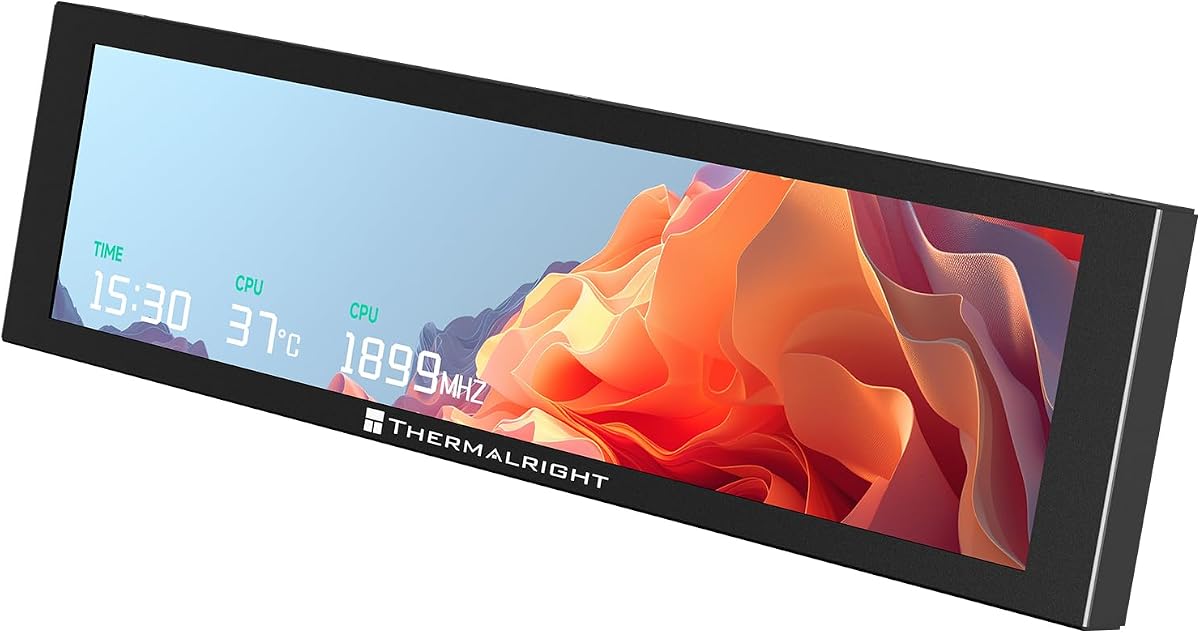
The Thermalright Trofeo Vision LCD AIO Display 9.16” PC Monitor is a well-balanced sensor panel for builders who want live temperature, usage, and fan information without occupying a graphics-card display output. Its 4.2 rating reflects a generally capable product with broad appeal, and the defining feature is the unusually wide 1920×480 resolution inside a compact 9.16-inch format.
We may earn a commission when you buy through this link, at no additional cost to you.
The display can present CPU and GPU temperatures, fan speed, memory usage, and other performance data in real time. TRCC software adds preset themes and DIY customization, allowing the screen to serve as both a monitoring dashboard and a decorative build element. USB-C connectivity keeps the physical installation straightforward, while the 251×68×17mm body is slim enough for placement inside or outside a typical desktop case.
The main trade-off is dependence on the companion software for the advertised monitoring and display-control functions. The listed information also emphasizes compatibility with most Windows systems rather than broad support for every operating system. Buyers who want a self-contained, standard desktop monitor may therefore find it less versatile, but for a dedicated PC sensor display, that limitation is understandable.
This is a strong recommendation for a builder seeking a balance of monitoring depth, customization, straightforward wiring, and manageable dimensions. It is especially attractive when the display will sit behind tempered glass or beside a radiator where an ultra-wide panel makes better use of the available space. Confirm case clearance, cable routing, and software compatibility before ordering.
The 1920×480 canvas provides enough horizontal room for several statistics at once, making it more useful than a narrow decorative strip. CPU and GPU temperatures can be checked alongside fan speed, memory use, and other system information without forcing the user to scroll through tiny fields.
A single USB-C connection reduces cable complexity, and the product can be mounted inside or outside a case. Its low-profile dimensions suit builds where every millimeter around the motherboard tray or cooling hardware matters.
We may earn a commission when you buy through this link, at no additional cost to you.
The darkFlash V92 9.2" PC Case Screen is a feature-rich sensor panel for users who want more than a static temperature readout. It carries a 4.1 rating and uses a 1920×462 IPS panel to present CPU and GPU temperatures, utilization, RAM, fan speeds, clocks, and other information through a compact, ultra-wide format.
We may earn a commission when you buy through this link, at no additional cost to you.
Station Space adds themes, plugins, weather, news, stock widgets, JPG images, GIFs, and MP4 playback. That makes the V92 useful as a hybrid monitoring and information display rather than a strictly utilitarian sensor screen. The aluminum body measures 242.4×63.1×12mm, and the IPS panel is designed for clear viewing through tempered glass with broad viewing angles.
Connectivity is flexible: a builder can use an external USB port or an available motherboard USB 2.0 9-pin header, and both USB cables are included. This avoids tying the panel to HDMI or DisplayPort and leaves graphics-card outputs available. The trade-offs are that Station Space must remain running and the system is limited to Windows 10 and 11, with no macOS or Linux compatibility.
Choose the V92 if you want a broad mix of system data, media, and customizable widgets in a thin case-mounted panel. It is less suitable for a cross-platform workspace or a buyer who requires a conventional extended monitor, but its software depth and installation options make it a compelling option for a Windows gaming build.
Station Space expands the display beyond conventional sensor panels with weather, news, stocks, images, GIFs, and video. Buyers who want their case to function as an information hub can create rotating content instead of leaving a static temperature graph on screen.
USB-C and motherboard-header options support neat internal installations without consuming HDMI or DisplayPort connections. Horizontal and vertical mounting further helps builders align the wide panel with a particular case design.
We may earn a commission when you buy through this link, at no additional cost to you.
The Lian Li SM088X 8.8" Universal LCD Screen with ARGB Frame, Black (US88 v1) combines monitoring with one of the strongest aesthetic treatments in this list. Its 4.4 rating and diffused ARGB frame make it a premium choice for coordinated gaming or workstation builds that value both information and visual integration.
We may earn a commission when you buy through this link, at no additional cost to you.
L-Connect 3 provides preset themes, modular information, and the ability to upload personal videos and photographs. The screen can operate independently as a USB-powered secondary display for hardware statistics, media, or custom visuals, so users are not limited to rigid sensor widgets. Its bracket supports height and tilt adjustment and can attach to fan frames, case panels, or flat surfaces with adhesive pads.
Two installation details deserve attention. First, the panel uses a 9-pin port or Type-A USB connection, helping preserve graphics-card display outputs for other equipment. Second, the instructions specify the correct H screws for the screen stand and universal screen; using the longer screws is explicitly discouraged because they can create an unsafe mounting situation.
This display is best for builders who want a polished, adjustable focal point inside a case and are comfortable managing L-Connect 3. The black frame suits dark, coordinated builds particularly well, although the white version offers the same broad feature set for a different visual style. It is a premium choice rather than a minimal sensor panel.
The diffused lighting strip can be synchronized through L-Connect 3, allowing the display frame to participate in the build's lighting design. That makes the screen function as both an information source and a visible design element.
Height and tilt adjustments make it easier to find a readable angle behind glass or beneath a fan frame. This is more adaptable than a fixed-position strip, particularly in cases with unusual internal geometry.
We may earn a commission when you buy through this link, at no additional cost to you.
The Thermalright Trofeo Vision LCD AIO Display 11.3” PC Monitor is the largest screen in this group, offering a broad view of system statistics in a wide 1920×480 format. Its 3.8 rating is the lowest among the listed products, but the underlying feature set remains attractive for builders who prioritize screen area and a slim profile.
We may earn a commission when you buy through this link, at no additional cost to you.
The display tracks CPU and GPU temperatures, fan speed, memory use, and other performance information. TRCC provides multiple preset themes and DIY customization, and the USB-C connection supports a relatively uncomplicated setup. At 272×70×14mm, the enclosure is only 14mm thick, although its longer body demands more horizontal clearance than the 9.16-inch alternatives.
The product's lower rating may reflect the usual variability of ratings across compact LCD accessories, but it is also a reminder to consider software stability and compatibility alongside the advertised capabilities. The supplied information emphasizes Windows systems and does not describe macOS or Linux support, so buyers with mixed operating systems should not assume broad compatibility.
This model makes the most sense when the case has enough room for a long bar display and the owner wants a larger view of temperatures and usage information. It is a good candidate for a dedicated monitoring build, provided the panel's length, USB-C routing, and TRCC requirements have been checked against the case layout.
The 11.3-inch diagonal creates a more expansive dashboard while preserving the same elongated 1920×480 layout. It can give small numerical fields additional breathing room and make complex custom layouts easier to read at a glance.
A stated depth of 14mm helps the display fit near radiators, motherboard trays, and glass panels. The tradeoff is its 272mm length, which should be measured before selecting an internal location.
We may earn a commission when you buy through this link, at no additional cost to you.
The Lian Li SM088X 8.8" Universal LCD Screen with ARGB Frame, White (US88 v1) offers the same polished feature set as the black version in a finish suited to light or white-themed systems. Its 4.4 rating reflects a strong overall package, while the 500-nit brightness and 60Hz 1920×480 IPS specification are particularly relevant to internal case viewing.
We may earn a commission when you buy through this link, at no additional cost to you.
The panel can display hardware statistics, media, or custom visuals and is managed through L-Connect 3. Users can select preset themes, use modular information components, and upload their own photos and videos. A diffused ARGB strip adds another layer of customization, allowing the display to fit visually into a coordinated case rather than appear like a functional add-on.
Installation is flexible through a mounting bracket with height and tilt adjustment, and the unit can also use adhesive pads on flat surfaces. The bracket accommodates fan frames and case panels, but the supplied instructions specifically warn against using the longer screw marked “g” for the screen stand. USB connection through a 9-pin port or Type-A avoids consuming GPU display outputs.
Buyers should choose this model over the black edition primarily for aesthetic fit, although the white frame may also coordinate with brighter interiors. It is a strong premium choice for users who want adjustable positioning, customizable lighting, and a more conventional-looking IPS panel in a compact universal screen.
The stated 500-nit brightness is useful when a panel is viewed through tempered glass or under the influence of nearby case lighting. The 60Hz refresh rate also suits smoothly changing monitoring graphs and animated content.
The white enclosure and diffused frame can complement white components, light interiors, and neutral office-workstation designs. Its monitoring and media functions match the black model, so the finish is the primary decision.
We may earn a commission when you buy through this link, at no additional cost to you.
The TR Trofeo Vision 9.16in LCD PC Sensor Panel is a versatile bar display for system statistics and decorative content. Its 4.0 rating places it among the stronger all-around options, while the 1920×480 resolution gives a dedicated canvas for clock speeds, fan speeds, temperatures, and other live fields.
We may earn a commission when you buy through this link, at no additional cost to you.
Bundled software lets users design layouts showing CPU and GPU usage, temperatures, memory consumption, and network activity. Static images, animated GIFs, and video clips can also appear, allowing the sensor panel to alternate between practical monitoring and themed artwork. A USB Type-C connection carries both power and video signal, supporting a tidy single-cable arrangement.
Its 251×68×17mm enclosure is slim, and included mounting accessories support positioning beside the motherboard tray, near radiators, or behind a glass panel. As with most software-driven sensor displays, the monitoring experience depends on the companion application, which should be installed and configured before judging the finished layout.
This panel is a good middle ground for builders who want more visual flexibility than a bare numerical readout without paying for a display with extended-desktop functions. It suits temperature monitoring, network activity, and rotating build graphics, particularly in cases with a long open area for a bar-shaped screen.
The ability to combine sensor layouts with GIFs, images, and video makes the panel useful for both practical and decorative purposes. A builder can keep temperatures visible while using transitions to match the rest of the case theme.
The supplied information specifically mentions placement near radiators and alongside the motherboard tray. Those are practical zones in many compact cases where a conventional monitor would not fit.
We may earn a commission when you buy through this link, at no additional cost to you.
The 9.2" IPS Mini Monitor 1920×462, USB Sensor Panel, Stretched Bar Display stands out with a perfect 5.0 listed rating and a carefully considered package. It is designed specifically for in-case hardware monitoring rather than general desktop use, and its crisp 1920×462 IPS panel gives temperature and utilization data a sharp presentation.
We may earn a commission when you buy through this link, at no additional cost to you.
Included USR software can show CPU, GPU, and RAM usage, temperature, time, and network speed. Themes can use static wallpapers, dynamic video backgrounds, adjustable sensor layouts, and an online theme library, while hotkey support makes theme rotation easier. The integrated 4-pin-to-9-pin and USB Type-C adapter cable handles both power and data through one connection.
The included multi-angle stand supports landscape and portrait orientation, and the screen can also be screwed into a case or placed on a desk. An aluminum alloy frame and anti-fingerprint back cover support a tidy build. The key limitation is explicit: this is a sensor panel, not a standard extended screen, and it supports Windows 7 64-bit or later rather than macOS, Linux, or Chrome OS.
This is the best option for a builder who values a polished sensor-display experience, easy orientation changes, and strong customer feedback. It is particularly suitable for a Windows desktop where the panel will be visible through the side of the case. Buyers should be comfortable installing the included software and should not purchase it expecting to drag ordinary application windows onto it.
The supplied multi-angle stand supports both landscape and portrait layouts, which is useful for cases with vertical or horizontal mounting areas. Screws and adhesive pads are also included for more permanent internal installation.
A broad online theme library, dynamic backgrounds, and hotkey switching simplify the process of changing the display's appearance. Users can move between monitoring layouts and decorative content without manually redesigning every screen.
We may earn a commission when you buy through this link, at no additional cost to you.
The MT-VIKI 9.2 Inch USB PC Secondary Screen is unusual because it combines dedicated PC sensor monitoring with extended desktop support. Its 4.0 rating reflects a capable two-purpose option, and the 1920×462 ultra-wide IPS format is well suited to displaying bars, panels, and application windows across a long horizontal canvas.
We may earn a commission when you buy through this link, at no additional cost to you.
Users can monitor CPU and GPU temperature and load, RAM, HDD, and network speed through customizable layouts. The latest software also allows application windows or widgets to be dragged onto the display, with automatic scaling for the ultra-wide resolution. Dynamic MP4, MOV, and GIF backgrounds are also supported, although the product is not plug-and-play and requires its dedicated software to run.
A Game Mode pauses dynamic backgrounds during play to reduce CPU and RAM usage and help maintain stable in-game performance. Connectivity is handled through one USB connection, with a 1.5m USB-C desktop cable and a 50cm internal 9-pin motherboard cable included. The screen supports horizontal or vertical rotation, but compatibility is limited to 64-bit Windows systems.
This display is a strong choice for a builder who wants a sensor panel and occasional secondary workspace in the same device. It is less suitable for someone who values a completely plug-and-play installation, since software setup is mandatory, or for a non-Windows computer. Its dual-purpose design is particularly useful for streaming dashboards, chat windows, and lightweight utilities.
The updated software adds a meaningful secondary use beyond conventional sensor widgets. Application windows and custom widgets can occupy different regions of the wide display, making it possible to keep temperature data visible beside a stream chat or utility panel.
Game Mode stops dynamic video backgrounds while a game is running, reducing unnecessary background work. The feature is designed to keep visual presentation active without compromising the system's priority task.
We may earn a commission when you buy through this link, at no additional cost to you.
The Thermalright Trofeo Vision 9.16 LCD Magnetic Display Screen stands out for its screw-free installation method. With a 3.8 rating, it is not the highest-scoring choice, but its magnetic metal frame and 9.16-inch full-color IPS panel give it a distinct installation advantage for builders who want to reposition the display.
We may earn a commission when you buy through this link, at no additional cost to you.
TRCC software supports live system-parameter monitoring, static and dynamic image switching, video playback, and DIY personalized themes. The 1920×480 resolution offers a wide canvas, while the IPS panel is described as providing stable viewing angles and accurate color reproduction. The enclosure measures 251×68×17mm and connects through USB Type-C for power and data.
The magnetic design can attach the screen to a metal chassis or desktop wall without screws, allowing the user to move it as the layout changes. That convenience comes with a limitation: the selected mounting surface must be suitable for a magnetic attachment, and the software must be downloaded, installed, and configured before the monitoring and on/off functions work as described.
This model is a good match for a builder who frequently changes case layouts, swaps components, or wants a removable display. It is less compelling for users who need a permanent, securely mounted panel or a product that includes a complete in-case mounting ecosystem. TRCC users will also appreciate the broad range of supported monitoring and media layouts.
A magnetic frame allows the screen to be moved between compatible metal surfaces without screws. This is particularly useful during system upgrades or when experimenting with a different case layout.
The full-color IPS panel can show monitoring graphs, static artwork, dynamic images, and video. The broad format provides enough space to make each of those content types more legible than on a tiny square display.
We may earn a commission when you buy through this link, at no additional cost to you.
The Thermalright Trofeo Vision LCD AIO Display 9.16” PC Monitor is a value-focused option that includes the core features buyers want from a PC thermal monitoring display. Its 4.3 rating is among the strongest in the list, and the 9.16-inch 1920×480 panel combines useful dimensions with a wide dashboard format.
We may earn a commission when you buy through this link, at no additional cost to you.
Real-time monitoring covers CPU and GPU temperatures, fan speed, memory usage, and additional system information. TRCC supplies preset themes and DIY customization, so the display can be tailored to a particular case theme rather than remaining limited to a standard sensor layout. The USB-C connection is presented as a simple plug-and-play route for compatible Windows systems.
The 251×68×17mm enclosure is easy to integrate into or place outside a desktop PC, and the slim construction reduces the chance of interference with other internal components. The compromise is that most display behavior depends on TRCC, including monitoring, themes, and on/off control, so a buyer who dislikes companion software should consider alternatives with more independent operation.
This is a best-budget recommendation for a builder seeking a broad monitoring feature set, compact construction, and customization without moving to a premium ARGB-framed design. It is a particularly good fit for a first internal sensor display or a clean, functional build where live temperatures matter more than elaborate lighting effects.
The wide panel gives temperature, fan speed, memory use, and related fields enough room to remain legible. It is a practical way to keep key information visible without occupying a main desktop display.
TRCC themes and DIY layouts provide room for personalization while the enclosure remains only 17mm deep. The result is a relatively unobtrusive addition to a case or external desk setup.
We may earn a commission when you buy through this link, at no additional cost to you.
A useful thermal display must match the build's space, software environment, and monitoring habits. Screen shape, sensor compatibility, mounting, and day-to-day visibility matter as much as the headline resolution.
Most PC thermal monitoring displays use an elongated 1920×462 or 1920×480 canvas rather than a conventional 16:9 shape. This wide format fits naturally above a motherboard, along a radiator, or behind a case panel, and provides enough horizontal space to show several sensor values simultaneously. Resolution should be considered alongside physical size because a small panel with dense pixels may still make very small figures difficult to read at a glance.
The products here range from an 8.8-inch panel to an 11.3-inch display, but the width and depth of the enclosure can matter more than the diagonal measurement. Measure the intended mounting area, including space for cables, fans, radiators, and tempered glass. The darkFlash V92, for example, has a stated 9.54×2.48×0.47-inch clearance requirement, while the Thermalright models range from 14mm to 17mm deep.
A sensor panel is only as useful as its software. TRCC, Station Space, L-Connect 3, USR software, and the MT-VIKI application each provide different combinations of temperature graphs, gauges, custom widgets, media, and theme editing. Check whether the software offers the exact sensors you want, whether backgrounds can be animated, and whether it can launch automatically with Windows. Also verify that required applications must remain running while the display is active.
Most models rely on USB because it can provide both data and power, keeping HDMI and DisplayPort available for the main display and other accessories. Some accept a motherboard USB 2.0 9-pin header for neat internal wiring, while others use an external USB-C port or include a 9-pin-to-Type-C adapter. Inspect the included cables and the length of the internal lead before buying, especially if the display will sit far from the motherboard header.
A fixed magnetic plate is convenient for metal chassis but may not suit every case. Adjustable brackets are better when the viewing angle changes with the case position, while adhesive pads can help on flat surfaces. The Lian Li SM088X supports height and tilt adjustment, the darkFlash V92 mounts horizontally or vertically, and the 9.2-inch IPS Mini Monitor includes a multi-angle stand plus screws and adhesive pads.
Operating-system support is a decisive filter rather than a minor specification. Most products in this category target Windows systems, and several explicitly exclude macOS and Linux. The darkFlash V92 requires Windows 10 or 11 and states that Station Space must remain running, while the MT-VIKI supports 64-bit Windows only. The 9.2-inch IPS Mini Monitor requires Windows 7 64-bit or later and cannot serve as a conventional extended screen.
Most dedicated sensor panels display monitoring widgets rather than behaving like general-purpose secondary monitors. The MT-VIKI 9.2 Inch is the principal exception in this list, with updated software that supports extended desktop mode and application-window placement. Because the 1920×462 aspect ratio is unusual, buyers should test how their intended applications scale rather than assuming a full desktop-monitor experience.
A display can either disappear into the build or become a visual centerpiece. Minimal black sensor panels are easy to place beside dark components, while white frames coordinate with light systems. ARGB lighting, such as the diffused strip on the Lian Li SM088X, can synchronize the display with other illuminated parts. Decide whether the panel should prioritize a clean, subtle appearance or a coordinated, animated centerpiece.
Begin by confirming operating-system support, locating the correct monitoring application, and checking every sensor the software will read. Install the required software before arranging the final cable path, then connect the panel using the supplied internal header cable, USB-C lead, or adapter. For a permanent internal installation, dry-fit the display, maintain clearance from fans and radiators, and avoid forcing the panel or connector into place.
Choose a layout that keeps the most important readings visible from a normal viewing position. Start with CPU and GPU temperatures, processor and graphics utilization, memory use, and fan speed, then add network activity, clocks, storage data, or custom media only if they remain legible. If the application supports themes, animations, or screen rotation, apply those settings gradually so moving backgrounds do not obscure critical values.
For maintenance, power down the computer before attaching or removing an internal 9-pin connection, and handle the panel by its frame rather than pressing on the display surface. Clean the glass with a soft, lint-free cloth and avoid aggressive liquids. Review cable strain, software updates, and displayed sensor values periodically, especially after changing hardware, updating Windows, or altering the case layout.
Most are specialized sensor panels that show temperatures, utilization, fan speeds, and predefined widgets rather than arbitrary desktop applications. The MT-VIKI 9.2 Inch is the main option here with extended desktop mode, but its very wide 1920×462 layout is unlike a standard monitor. Check the software requirements before selecting a model for application windows.
Most models in this guide use USB for power and data, allowing graphics-card display outputs to remain available. Station Space, TRCC, L-Connect 3, USR software, and the MT-VIKI application process the sensor data and render the screen content. A simple HDMI connection may therefore be possible in some configurations, but the supplied product information primarily identifies USB as the intended method.
The stated compatibility is predominantly Windows-focused. The darkFlash V92 specifies Windows 10 and 11, the MT-VIKI supports 64-bit Windows only, and the 9.2-inch IPS Mini Monitor requires Windows 7 64-bit or later. Do not assume macOS or Linux support merely because the physical USB connection is standardized; the monitoring application must also support the operating system.
A display itself usually has limited impact, but animated software can consume some processor and memory resources. The MT-VIKI includes a Game Mode that pauses dynamic video backgrounds to reduce background usage. Static layouts, modest animation, and current software can also minimize overhead, particularly on systems already near their performance limits.
Not necessarily. These panels use a USB data connection to communicate with a Windows application that renders monitoring information. Although the connector may carry video-class signals, the display is primarily driven by the companion software rather than by a conventional graphics output. Use the supplied cable and software to ensure the sensor data appears correctly.
Yes, several models are specifically intended for installation near a motherboard tray, radiator, case fan area, or behind a glass side panel. Visibility depends on brightness, viewing angle, glass reflections, and the panel's position. The IPS models and adjustable mounts offer advantages when the viewing angle changes, while a screen installed behind glass should be tested for glare before the build is finalized.
The common 1920×462 and 1920×480 formats in this category are well suited to elongated bar-shaped panels. They provide enough horizontal detail for several values, graphs, or widgets without wasting space on a conventional rectangular desktop interface. The better choice also depends on physical size, since fine text still needs to be readable from where you normally sit or stand.
It depends on the selected product and desired placement. Models with a 9-pin option can connect directly to a motherboard USB 2.0 header for a neat internal installation, while others use USB-C or an adapter arrangement. Confirm the available header, connector orientation, cable length, and case space before installation.
The 9.2-inch IPS Mini Monitor is the strongest all-around sensor-panel experience in this group, combining a 5.0 rating, a sharp 1920×462 IPS display, a single-cable connection, flexible mounting, and extensive theme support. The Lian Li SM088X takes the premium position with its adjustable mount and diffused ARGB frame, while the Thermalright Trofeo Vision AIO offers an efficient budget-oriented combination of monitoring, USB-C convenience, and TRCC customization.
Prioritize software compatibility, operating-system support, case clearance, and the specific data you want to see before focusing on decorative effects. A larger panel is not automatically more readable, and an elaborate theme is less useful if it crowds out temperature values. Extended desktop functionality may be valuable for stream dashboards and utilities, but dedicated sensor displays are usually simpler and more focused for system monitoring.
The darkFlash V92, MT-VIKI, alternate Thermalright sizes, and white Lian Li model provide worthwhile variations in widget selection, magnetic placement, extended-screen behavior, and visual finish. Review the current listing and compatibility notes before buying, because included cables, software revisions, package contents, and product availability can change. Checking current prices is also recommended before making a final selection.