
ASUS ProArt PA248QV
4.6Editor score
Calman Verified color accuracy
100% sRGB and Rec.709
Fully adjustable ergonomic stand
An ASUS ProArt monitor is designed for creators who need dependable color, clear detail, and a workspace that supports demanding visual workflows. The strongest choices balance accurate factory calibration with practical features such as high-resolution panels, USB-C power delivery, flexible stands, broad color-gamut coverage, and professional connectivity.
This guide compares ten ProArt models across resolution, panel technology, color accuracy, color spaces, HDR capability, refresh rate, ports, calibration features, ergonomics, and included accessories. It includes compact 24-inch and 27-inch options, 32-inch 4K and 6K displays, mini-LED models, and an OLED reference monitor for creators with differing needs.
Each review identifies the strongest use case, important strengths, and realistic trade-offs for the listed model. Ratings and specifications reflect the supplied product information, while current availability and prices can change. The final shortlist helps narrow the field without assuming that the most advanced monitor is automatically right for every creative professional.
4.6Editor score
4.2Editor score
As an Amazon Associate we earn from qualifying purchases.
The table below places all ten monitors on the same practical playing field, highlighting the factors that most influence resolution, color work, media connectivity, and day-to-day productivity.


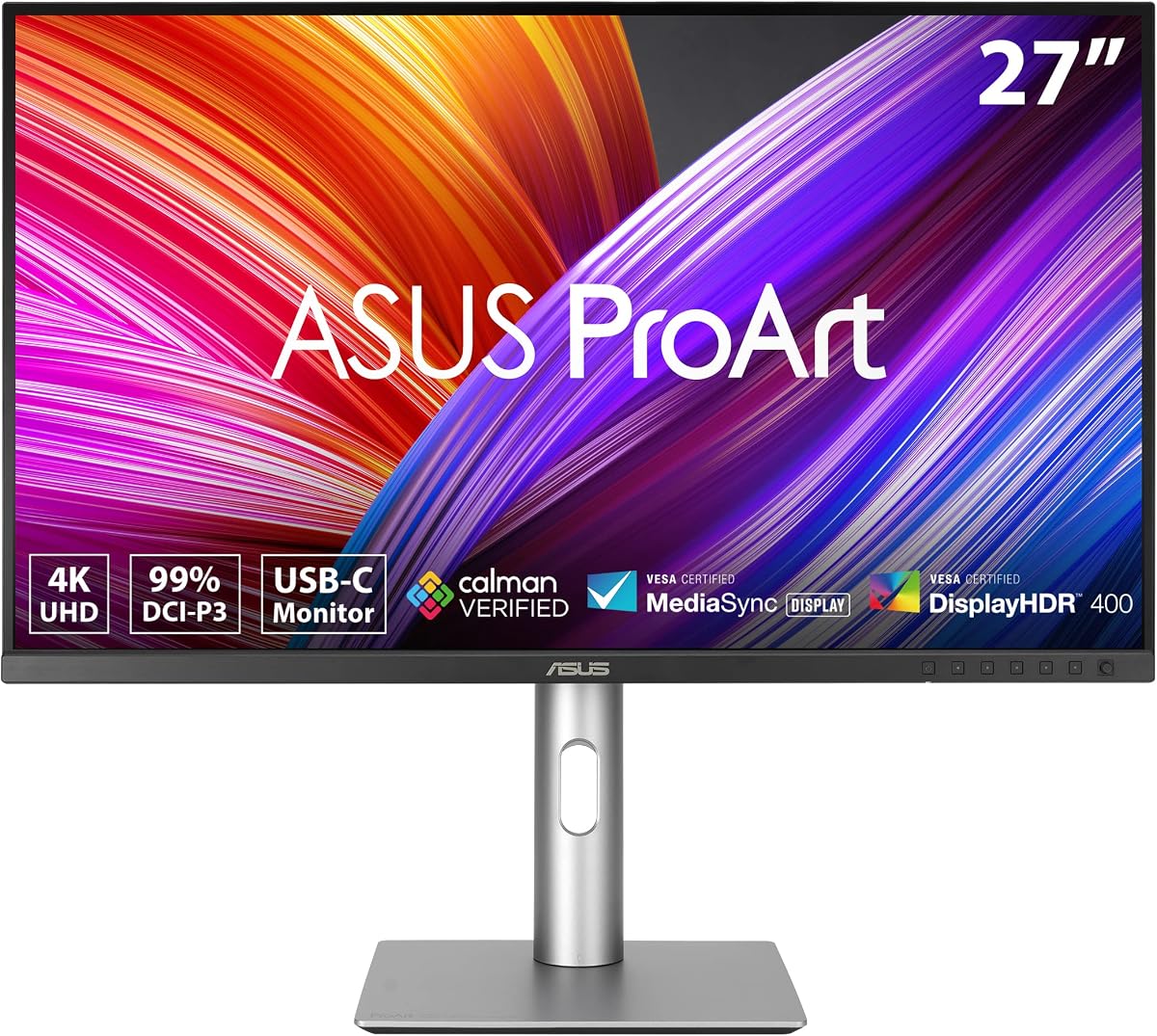
The ASUS ProArt PA279CRV is a 27-inch 4K UHD IPS display built for creators who need a fine balance of resolution, color coverage, connectivity, and ergonomic flexibility. Its 4.2 rating reflects a generally positive reception, while standout specifications include 3840 x 2160 resolution, 99% DCI-P3 coverage, 99% Adobe RGB coverage, and factory calibration to Delta E below 2.
We may earn a commission when you buy through this link, at no additional cost to you.
Color performance is the core attraction. The wide gamut makes the display suitable for photo editing, graphic design, and video work, while Calman Verified status and factory calibration support consistent results without requiring immediate manual adjustment. Its 178-degree wide-viewing-angle IPS panel also makes it more practical for shared workspaces than a display optimized only for direct head-on viewing.
Connectivity is unusually complete for a 27-inch professional monitor. DisplayPort over USB-C provides 96-watt Power Delivery, while separate DisplayPort and HDMI inputs broaden compatibility. A built-in USB hub reduces desk clutter, and DisplayPort daisy-chaining lets users extend a multi-monitor setup through a single connection. The stand offers tilt, swivel, pivot, and height adjustment for long working sessions.
This is the strongest all-around choice for a Mac or PC user who wants a high-resolution 4K canvas without moving to a 32-inch or 6K panel. The trade-off is that a 27-inch screen can feel less expansive than a larger 32-inch model, and its specification does not target high-refresh gaming. For general professional creative work, however, the balance is compelling, making it our Editor's Choice.
The supplied information also notes a complimentary three-month Adobe Creative Cloud subscription with a stated offer validity through August 31, 2028, plus a five-year warranty package when the online registration requirement is completed. Buyers should verify the current offer terms directly because bundled software eligibility and warranty registration details can change.
The 3840 x 2160 panel provides enough pixel density for detailed interfaces, photography, timelines, and multi-application work. It also gives a 16:9 canvas that many editing and design teams already understand, reducing the need to adapt to unusual monitor proportions.
USB-C Power Delivery, video transfer, and the integrated hub make the PA279CRV particularly convenient for a laptop-based desk. DisplayPort daisy-chain support expands the clean single-output setup into a more flexible multi-screen workspace.
We may earn a commission when you buy through this link, at no additional cost to you.
The ASUS ProArt PA248QV pairs a compact 24-inch footprint with a higher listed rating of 4.6, making it a practical ProArt option for editors, office professionals, and students who prioritize color accuracy without needing an expansive canvas. Its WUXGA resolution of 1920 x 1200 uses a 16:10 format that offers more vertical room than a standard 16:9 screen.
We may earn a commission when you buy through this link, at no additional cost to you.
The display covers 100% of the sRGB and Rec.709 color spaces and is factory calibrated to Delta E below 2. Calman Verified certification adds confidence for color-sensitive work, while the IPS panel provides stable viewing characteristics. For general design, content preparation, office productivity, and web-oriented color work, these are highly relevant standards.
The stand is one of the model's strongest everyday features. It supports tilt, swivel, pivot, and height adjustment, allowing the display to fit different desks and switch into a portrait orientation. Connectivity is traditional but broad, with DisplayPort, HDMI, and D-Sub inputs. An anti-glare finish further helps during prolonged work in rooms where reflections would otherwise interfere.
The principal limitation is resolution. At 1920 x 1200, it offers less workspace and less fine detail than the 1440p and 4K alternatives in this guide. It also lacks USB-C charging, making it less convenient for many modern laptop workflows. Those constraints are reasonable for users who want a smaller, more approachable ProArt display and value its rating, ergonomic design, and accurate sRGB output.
The listed package also includes a complimentary three-month Adobe Creative Cloud subscription subject to the stated offer terms and a five-year warranty structure that combines three years of coverage with a two-year extension through online registration. Checking those conditions before purchase is sensible, especially when comparing the long-term ownership benefits.
The 16:10 panel supplies useful vertical space for application menus, document windows, and editing timelines. Its 100% sRGB and Rec.709 coverage makes it a sensible core display for standard-deliverable production in offices and educational environments.
Despite the 24-inch size, the stand offers the same broad adjustment categories found on larger models. Height, tilt, swivel, and pivot controls make it easier to align the screen precisely and alternate between landscape and vertical work.
We may earn a commission when you buy through this link, at no additional cost to you.
The ASUS ProArt PA32QCV is built around a 31.5-inch 6K LuxPixel AGLR IPS display with a native resolution of 6016 x 3384. That exceptional pixel density is the defining feature, offering creators a large, highly detailed workspace for retouching, design, video, and other precision visual tasks. Its listed rating is 3.9.
We may earn a commission when you buy through this link, at no additional cost to you.
Color tools are aimed directly at professional workflows. The monitor covers 98% DCI-P3 and 100% sRGB and is factory calibrated to Delta E below 2. A dedicated M Model-P3 preset is designed to match the color performance of a MacBook display, while Intelligent Light Sync uses ambient and backlight sensors to support more reliable color performance from startup.
Its professional connectivity is equally advanced. Two Thunderbolt 4 ports provide up to 96 watts of Power Delivery and support daisy-chaining, while HDMI 2.1, DisplayPort 1.4, and a built-in USB hub cover conventional workstation needs. The built-in Auto KVM makes it possible to move between two laptops or PCs with a single keyboard and mouse, which is especially useful for comparative editing and testing.
The 6K panel and 32-inch scale also create trade-offs. A large high-resolution display demands a suitable desk and a computer capable of driving the interface, while a 3.9 rating suggests that some buyers may feel the performance does not justify the specialist positioning. Those concerns do not diminish its value for users who genuinely need the additional detail and Mac-oriented workflow features.
This monitor is best suited to high-end creative professionals who regularly work with fine detail, need multiple high-resolution applications open, or want Thunderbolt-based expansion. For routine office tasks, it is far more specialized than necessary. Its five-year warranty structure and listed Adobe Creative Cloud offer should be reviewed with their stated registration and validity conditions.
The 6016 x 3384 canvas gives applications a large number of pixels while retaining a 16:10 workspace. That combination is attractive for retouching, detailed layout work, large timelines, and creative teams that want more room without immediately moving to a multi-monitor setup.
Dual Thunderbolt 4 connections, 96-watt charging, daisy-chaining, and Auto KVM create a focused laptop workflow. The design is particularly relevant to Mac users who want to connect a portable computer to a larger color-managed desktop display with minimal peripheral switching.
We may earn a commission when you buy through this link, at no additional cost to you.
The ASUS ProArt PA278CV offers a practical middle ground between compact productivity monitors and high-resolution professional panels. It combines a 27-inch 1440p QHD IPS screen with 100% Rec.709 coverage, Calman Verified calibration, and factory accuracy of Delta E below 2. Its 4.4 rating makes it one of the stronger all-around entries in the list.
We may earn a commission when you buy through this link, at no additional cost to you.
The 2560 x 1440 resolution offers more room than a full HD display without requiring the same graphics workload as 4K. It is a particularly useful format for office productivity, photo management, web design, standard video editing, and users who keep many panels open. The stated color focus is Rec.709 and sRGB, aligning it with common web and general video-deliverable standards.
USB-C is a major convenience. A single connection can carry display data, support 65 watts of Power Delivery, and reduce the number of cables required for a compatible laptop. DisplayPort daisy-chaining also allows multiple displays to be linked, making this model useful for expanded workspaces. The included USB-C, HDMI, and DisplayPort cables simplify initial setup.
Its main limitations are intentional trade-offs. The 1440p panel provides less fine detail than a 4K model, while the specification does not advertise broad DCI-P3 or Adobe RGB coverage. The stand supports height, swivel, tilt, and a 90-degree pivot for vertical work, but it does not transform into the most advanced specialized configuration. These are not defects; they reflect a more mainstream ProArt design.
The PA278CV is ideal for creators who want accurate standard-color performance, a clean USB-C desk, and more workspace than a 24-inch display. It may be the most understandable choice for hybrid workers and everyday creative teams. The listed five-year warranty arrangement and Adobe Creative Cloud promotion remain subject to online registration and the stated offer-validity period.
QHD gives applications a meaningful increase in usable space over Full HD while remaining easier to drive than 4K or 6K. It is a strong fit for split-screen editing, large reference windows, and busy creative interfaces.
With 65-watt Power Delivery and video over USB-C, compatible laptops can reduce cable clutter. The added USB hub and display daisy-chain support make the monitor easier to incorporate into a permanent professional workstation.
We may earn a commission when you buy through this link, at no additional cost to you.
The 27-inch ASUS ProArt WQHD model combines a 5.0 rating with a balanced set of professional features. Its 2560 x 1440 IPS panel, 178-degree wide viewing angles, 100% sRGB and Rec.709 coverage, and Calman Verified Delta E below 2 accuracy make it a credible choice for photo editing, video production, and general design work.
We may earn a commission when you buy through this link, at no additional cost to you.
The display prioritizes dependable core performance rather than headline specifications. Factory calibration and its stated color accuracy make it easier to trust for standard sRGB and Rec.709 deliverables. The anti-glare surface and Eye Care technologies, including flicker-free operation and low blue light features, are relevant for creators who spend long sessions in front of the screen.
Connectivity is broad for a traditional desktop monitor. DisplayPort, HDMI, DVI, Mini DisplayPort, and a USB hub provide options for older workstations, modern systems, and accessories. The stand supports tilt, swivel, pivot, and height adjustment, which is important for fitting a 27-inch screen comfortably into a multi-monitor arrangement.
The absence of a listed USB-C power-delivery option means it may require more cable management with modern laptops. It also focuses on sRGB and Rec.709 rather than advertising wide DCI-P3 or Adobe RGB coverage. Those constraints make it less suitable for workflows demanding a very broad gamut, but they do not diminish its usefulness for mainstream creative production.
This monitor is well suited to photographers, video editors, and designers who want a calibrated 1440p workspace without moving to a larger high-end panel. Its perfect listed rating should not be treated as a guarantee of universal fit, but combined with the professional feature set, it makes this a strong practical recommendation. Buyers should confirm the exact port layout and included accessories for their workstation.
Factory calibration, Calman Verified status, and a stated Delta E below 2 provide a solid foundation for standard-deliverable work. The focus on sRGB and Rec.709 aligns it with photography, web content, and conventional video workflows.
The anti-glare surface works alongside flicker-free and low-blue-light technologies. An adjustable stand adds further flexibility, allowing users to position the 27-inch panel comfortably throughout a long workday.
We may earn a commission when you buy through this link, at no additional cost to you.
The ASUS PA329CRV-P is a large 32-inch 4K ProArt display aimed at professionals who need ample screen area and a broad selection of connections. Its 4.4 rating is supported by a 3840 x 2160 IPS panel, 98% DCI-P3 coverage, 100% sRGB coverage, and factory calibration to Delta E below 2 with Calman Verified status.
We may earn a commission when you buy through this link, at no additional cost to you.
Its picture specification includes HDR400 and a 3000:1 contrast ratio, giving the display a more modern entertainment and presentation feature set. The 178-degree viewing angle makes it practical for collaborative work, while broad color coverage supports demanding photo, design, and video tasks. A color pre-calibration report is included in the package.
The port selection is one of the strongest aspects. USB-C offers 96-watt Power Delivery and DisplayPort Alt Mode, dual DisplayPort 1.4 inputs support daisy-chaining, dual HDMI 2.1 inputs broaden display-device support, and a four-port USB hub handles peripherals. An earphone jack and a quick-release stand round out a setup designed for a permanent desk.
The trade-offs center on size and HDR sophistication. A 31.5-inch 4K screen needs a large desk, and HDR400 should not be confused with the much stronger HDR performance of mini-LED or OLED models. For users focused on calibrated color and generous 4K workspace rather than peak HDR brightness, the feature set remains balanced and professional.
This monitor is a good fit for Mac-based creative teams, particularly those handling mixed display and media equipment. Its TAA compliance may also make it relevant for eligible procurement environments. The stated five-year warranty arrangement requires online registration for the extension, and buyers should confirm the current Adobe Creative Cloud offer terms.
A 32-inch 4K panel offers a generous editing area without moving beyond a familiar 16:9 format. The high pixel count is valuable for detailed imagery, complex timelines, and displaying multiple professional applications side by side.
USB-C, two DisplayPort connections, two HDMI 2.1 ports, and a four-port hub cover most creative desk requirements. DisplayPort daisy-chaining and 96-watt charging also help simplify laptop and multi-display arrangements.
We may earn a commission when you buy through this link, at no additional cost to you.
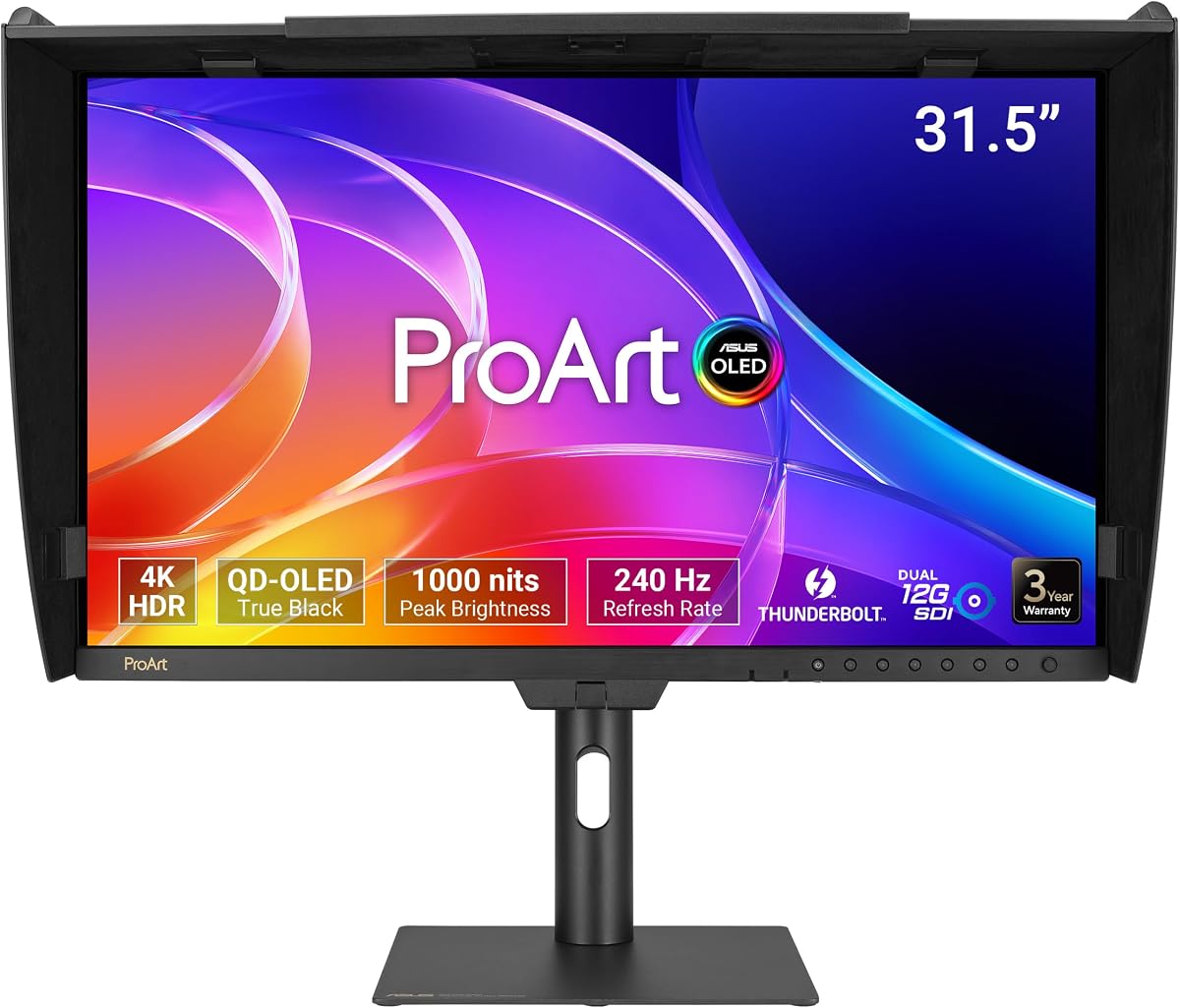
The ASUS ProArt PA32USD is the most specialized premium model in this guide, combining a 31.5-inch 4K QD-OLED panel, 240Hz refresh rate, 0.1ms GTG response time, and professional 12G-SDI connectivity. It is designed for creators who need reference-level speed, high contrast, deep color, and the ability to work with broadcast-style video signals.
We may earn a commission when you buy through this link, at no additional cost to you.
The display reaches 1000 nits peak brightness and carries VESA DisplayHDR True Black 400 certification. It offers true 10-bit color with stated coverage of 100% sRGB, 99% DCI-P3, and BT.2020. Dolby Vision, HLG, and HDR10 support expand its range for modern HDR workflows, while the stated E below 1 performance and hardware calibration technology emphasize color precision.
Dual 12G-SDI supports uncompressed 4K at 60Hz real-time playback and is compatible with 6G and 3G Level A and B signals. This feature differentiates the display from conventional desktop monitors. It also includes dual Thunderbolt 4 ports with up to 96-watt Power Delivery, HDMI 2.1, DisplayPort 2.1, and a built-in USB hub.
The trade-offs are specialization and the absence of a supplied numerical rating. Reference-oriented equipment, multiple stand options, a monitor hood, extensive bundled cables, and professional accessories add complexity. OLED panels also require users to consider burn-in practices and suitability for long periods of static content, although the supplied information does not specify a lifespan rating.
The PA32USD is best suited to high-end video, broadcast, motion, and HDR professionals who specifically need SDI or very high refresh performance. For general creative work, its specialist connections may go unused. The package includes a color pre-calibration report and the stated five-year warranty structure, making it a compelling choice when its unique capabilities align closely with the intended production workflow.
The combination of a 240Hz refresh rate and 0.1ms GTG response makes the monitor highly responsive. QD-OLED technology, 1000-nit peak brightness, and True Black 400 support also target scenes that benefit from deep blacks and high dynamic range.
Dual 12G-SDI is the defining professional feature, supporting uncompressed 4K at 60Hz and compatibility with lower-rate SDI standards. The connection is particularly useful for media workflows that need direct professional video input rather than only computer signals.
We may earn a commission when you buy through this link, at no additional cost to you.
The ASUS ProArt PA32UCR-K combines a 32-inch 4K display with mini-LED backlighting, HDR support, and a listed rating of 3.7. It is positioned for professional color work and high-contrast viewing, with quantum-dot technology, 99.5% Adobe RGB, 98% DCI-P3, and 100% sRGB coverage supporting a broad creative palette.
We may earn a commission when you buy through this link, at no additional cost to you.
Its peak brightness reaches 1,000 cd/m2, providing a meaningful foundation for HDR content. Support for HDR-10 and HLG gives users more than one HDR format, while the stated Delta E below 1 performance is among the most ambitious accuracy claims in this group. ASUS ProArt Hardware Calibration technology supports color optimization, uniformity, and profile write-back.
The package includes an X-rite i1 Calibrator, which is unusual and useful for creators who want to perform their own display measurement and calibration. USB-C and HDMI connectivity supports modern laptops and Mac computers, and the five-year warranty arrangement provides meaningful coverage when the stated online registration is completed.
Its 3.7 rating is the lowest numerical score among the rated products, and the supplied feature list does not detail refresh rate, hub configuration, stand adjustments, or exact local-dimming behavior. As a result, buyers should verify those details against their needs. The mini-LED technology also represents a more specialized implementation than a conventional IPS panel.
This monitor is well suited to colorists, photographers, editors, and developers who want a large 4K canvas with high luminance and hardware calibration support. The bundled calibrator is a meaningful addition, but professionals should still follow a disciplined calibration process and maintain realistic expectations for every workflow and software environment.
A stated 1,000 cd/m2 peak brightness gives the monitor a stronger HDR foundation than conventional entry-level HDR displays. Quantum-dot color technology and broad gamut coverage complement that luminance advantage for demanding visual work.
The bundled X-rite i1 Calibrator enables users to measure and refine the display. Combined with hardware calibration and profile write-back support, it provides a more complete color-management toolkit.
We may earn a commission when you buy through this link, at no additional cost to you.
The ASUS ProArt PA278CGV is a 27-inch QHD IPS monitor designed to bridge professional creative work and smoother interactive performance. Its 144Hz refresh rate, FreeSync Premium support, and 4.2 rating distinguish it from conventional office-oriented ProArt screens, while Calman Verified Delta E below 2 accuracy keeps it grounded in the series' professional purpose.
We may earn a commission when you buy through this link, at no additional cost to you.
Color coverage includes 95% DCI-P3 and 100% sRGB and Rec.709. Factory calibration and Calman Verified status make it appropriate for photo editing, graphic work, and standard video tasks, although the DCI-P3 coverage is not as comprehensive as the 98% to 99% offerings of some 4K and 6K models. The 178-degree IPS viewing angle supports consistent presentation across a desk.
USB-C supports 90-watt Power Delivery, alongside DisplayPort, HDMI, and a USB hub. The higher charging allowance can be useful with demanding laptops, and a single-cable setup helps maintain a cleaner desk. DisplayHDR 400 adds a modest high-dynamic-range feature, although it should not be equated with the stronger HDR performance available from mini-LED and OLED models.
The key trade-off is that some capabilities sit between ProArt categories. Its 2560 x 1440 resolution provides useful working space but not the fine detail of 4K, while its HDR implementation is relatively basic. Conversely, the 144Hz rate and adaptive synchronization make it better suited to motion, interactive previews, and casual gaming than many other professional displays in the list.
The PA278CGV is a strong recommendation for a creator who also values fluid motion. It is particularly relevant to motion designers, video editors working with moving previews, developers, and users who want one screen for professional applications and interactive software. The listed three-month Adobe Creative Cloud offer has a stated validity through August 31, 2026, so buyers should confirm eligibility promptly.
A 144Hz refresh rate improves cursor movement, panel navigation, and motion previews. FreeSync Premium adds support for compatible variable-refresh-rate systems, making the monitor more versatile than a fixed-rate office display.
Ninety-five percent DCI-P3 coverage expands the palette beyond sRGB while retaining full sRGB and Rec.709 coverage. The result is a practical option for creators who occasionally work in wide-gamut content without requiring the largest possible color space.
We may earn a commission when you buy through this link, at no additional cost to you.
The ASUS ProArt PA32UCG-K is a 32-inch 4K mini-LED IPS monitor aimed at users who prioritize exceptional HDR brightness, extensive local dimming, and advanced color performance. It has a listed rating of 3.0, the lowest numerical score shown, but its underlying specifications target demanding HDR and high-end professional workflows.
We may earn a commission when you buy through this link, at no additional cost to you.
Its 1,152-zone Mini-LED backlight reaches 1,600 nits peak brightness and 1,000 nits full-screen sustained brightness. Those figures are central to its HDR appeal. Dolby Vision, HDR-10, and HLG support offer multiple formats, while variable refresh from 48 to 120Hz and FreeSync 2 HDR add fluid performance for interactive content and game-development work.
True 10-bit color and quantum-dot technology provide support for DCI-P3, Rec.2020, Adobe RGB, and sRGB. The stated Delta E below 1 performance, ASUS ProArt Hardware Calibration Technology, and included calibrator reinforce its professional positioning. Thunderbolt 3 and HDMI 2.1 provide modern connectivity for laptops, Mac systems, and external production equipment.
The 3.0 rating is a meaningful caution despite the advanced feature set. A complex reference-style display may not satisfy users who primarily want straightforward productivity or color work, and the listed information does not detail every ergonomic or hub specification. High brightness and local dimming also make placement, calibration, and content selection important parts of realizing the display's potential.
This monitor makes the most sense for HDR editors, colorists, game developers, and motion professionals who can exploit its brightness, 10-bit color, and local-dimming capability. It is less compelling for standard office tasks where those features would remain unused. The included three-month Adobe Creative Cloud offer is stated as valid through August 31, 2026, and the hardware calibration workflow should be approached methodically.
The 1,152-zone Mini-LED configuration and 1,600-nit peak output target the contrast and highlight control needed for demanding HDR. Sustained 1,000-nit full-screen brightness provides a stronger foundation than entry-level HDR implementations.
True 10-bit color, broad standard coverage, and the bundled calibrator support serious color workflows. The 48–120Hz variable-refresh range adds value for motion review and game development without reducing the monitor's 4K creative focus.
We may earn a commission when you buy through this link, at no additional cost to you.
Selecting an ASUS ProArt monitor requires balancing physical size, native resolution, color standards, HDR performance, connectivity, and the way you actually work. The most advanced panel is not necessarily the most useful choice if its features do not match your applications or computer.
Resolution and diagonal size work together because the same pixel count feels different on different panels. The 24-inch PA248QV offers 1920 x 1200 pixels in a 16:10 format, the 27-inch models use 2560 x 1440 or 3840 x 2160, and the 32-inch PA32QCV expands to 6016 x 3384. Higher resolution supports more detail and application space, but it can also make small interface elements harder to read and demands a more capable graphics output.
Choose a 24-inch model for a compact desk and standard productivity, 27-inch QHD for a comfortable balance of space and clarity, 27-inch 4K for fine detail, and 32-inch 4K for a large editing canvas. Consider a 6K display only when your applications and computer can take advantage of the additional pixels.
Color-gamut coverage tells you how much of a defined color space the display can reproduce, but accuracy determines how closely those colors match the intended values. Several ProArt monitors are factory calibrated to Delta E below 2, while the PA32UCR-K and PA32UCG-K claim Delta E below 1 and the PA32USD lists E below 1. These figures are most meaningful when paired with stable hardware, a suitable test method, and regular recalibration.
For standard web, office, and photo work, 100% sRGB coverage is the central requirement. Rec.709 supports standard video workflows, while DCI-P3 becomes more relevant for wide-gamut content and high-end media. Adobe RGB coverage is useful for print workflows. Do not confuse wide coverage with accuracy; verify both and consider the color space required by your deliverables.
Most of the conventional ProArt choices use IPS panels, which deliver stable color and wide viewing angles without specialized local dimming. The mini-LED PA32UCR-K and PA32UCG-K add high brightness and zone-based contrast control, making them better suited to demanding HDR. The PA32USD uses QD-OLED and combines extremely high contrast with a 240Hz refresh rate, 10-bit color, and professional SDI connections.
Use IPS when consistency, wide viewing angles, and straightforward color work are the priority. Choose mini-LED when peak brightness and detailed local dimming matter. Choose OLED when deep blacks, fast response, and specialist video connectivity justify the more specialized workflow.
HDR support is not a single uniform feature. The PA279CRV and PA329CRV-P include HDR in their specification, the PA278CGV lists DisplayHDR 400, and the PA32UCR-K supports HDR-10 and HLG. At the higher end, the PA32USD supports Dolby Vision, HLG, and HDR10, while the PA32UCG-K supports Dolby Vision, HDR-10, and HLG with much higher stated brightness and local-dimming capability.
Look beyond the HDR badge and examine peak brightness, sustained brightness, local-dimming zones, supported formats, and calibration behavior. A monitor with less intense HDR support may be sufficient for occasional highlights, while professional HDR work benefits from the stronger specifications of the mini-LED and OLED models.
USB-C with Power Delivery can combine display output, data transfer, and laptop charging over one cable, but wattage and supported display modes vary. The PA279CRV and PA329CRV-P provide 96 watts, the PA278CGV supplies 65 watts, the PA32QCV and PA32USD support up to 96 watts, and the PA278CGV supports 90 watts. The PA248QV and 27-inch WQHD model use conventional wired connections instead.
Confirm that your computer supports the desired video mode over USB-C. For a permanent workstation, compare DisplayPort, HDMI, daisy-chaining, USB-hub ports, and SDI. The PA32USD stands apart with dual 12G-SDI, while the PA32QCV offers dual Thunderbolt 4 and Auto KVM switching.
A professional display may be used for many hours, so stand adjustment can matter as much as panel technology. Most models offer tilt, swivel, and pivot, and many also provide height adjustment. The PA248QV includes the same broad ergonomic flexibility despite its smaller screen, while the PA278CV supports a 90-degree pivot for portrait-oriented work. The PA32USD includes two stand options and a portable handle.
Check desk depth, clearance, wall placement, and your preferred orientation before purchasing. Height adjustment, swivel, and pivot help prevent neck and shoulder strain. For portrait workflows, verify that the chosen model rotates fully and that its native resolution suits the rotated layout.
Factory calibration, Calman Verified status, and hardware calibration features offer a strong starting point, but professional display management may still be needed. Delta E below 2 is appropriate for many creative workflows, while Delta E below 1 and bundled calibrators address more exacting users. ASUS ProArt Hardware Calibration on several models supports optimization, uniformity, and profile write-back.
Choose a factory-calibrated model if you want dependable performance without immediate adjustment. Add a calibrator when you need control over a specific panel, work in a standardized studio, or want to create and maintain project-specific profiles. Follow the manufacturer's recommended settings and lighting conditions for the most meaningful results.
Refresh rate determines how often the display updates and is especially noticeable when moving the pointer, navigating timelines, or viewing motion. The 27-inch PA278CGV stands apart with 144Hz and FreeSync Premium. The PA32USD provides 240Hz with a 0.1ms GTG response time, and the PA32UCG-K supports variable refresh from 48 to 120Hz. Most of the standard IPS models are primarily focused on static creative accuracy.
Use 144Hz or higher when smooth interaction, motion review, or interactive work is important. For conventional office, photo, and design tasks, accurate color and resolution are more consequential. Consider a faster model when the same display must also handle animation, game development, or gaming.
Begin by choosing the correct display mode for your computer and the resolution supported by the panel. Connect the device with the port combination that best matches your workflow, using USB-C with Power Delivery only when the source device supports video and the required charging profile. Arrange the monitor directly in front of you, then adjust the stand, viewing distance, and brightness before beginning detailed color work.
Allow the display to warm up before evaluating color or brightness, and keep the room lighting consistent with the conditions in which you will edit. For professional output, use the supplied calibration report, select the appropriate color space, and make any project-specific adjustments with a trusted measurement device. Recalibrate when the environment, graphics settings, or operating conditions change materially.
Care for the panel with a soft microfiber cloth and avoid pushing hard against the screen. Keep liquids away from the display, route cables to prevent strain, and use the monitor hood where glare is a problem. For OLED, avoid leaving static high-luminance interfaces onscreen unnecessarily; for mini-LED and IPS models, maintain sensible brightness and ventilation around the stand and rear housing.
The best choice depends on your deliverable and workspace. The PA279CRV is a strong all-around option with 4K resolution, 99% DCI-P3, 99% Adobe RGB, and Delta E below 2, while the PA32UCG-K offers 10-bit color and extremely high HDR brightness. A photographer working mainly in sRGB may also find the compact PA248QV sufficient.
A 27-inch 4K panel provides finer detail in a more compact footprint, but text and interface elements can appear small unless scaling is configured well. A 32-inch 1440p display offers more physical workspace and larger elements, which can be comfortable for editing and productivity. Your eyesight, desk size, operating-system scaling, and application preferences should guide the decision.
It is highly convenient when your primary computer is a compatible laptop, because one cable can provide display connectivity, data, and charging. Several ProArt models supply between 65 and 96 watts, but the exact performance depends on the host. Desktop users can prioritize DisplayPort, HDMI, hub, daisy-chain, or SDI connections instead.
The PA32USD uses a QD-OLED panel with deep blacks, 240Hz refresh, 0.1ms response, and professional SDI connections. The PA32UCR-K and PA32UCG-K use mini-LED backlighting for high brightness and local dimming, with the PA32UCG-K reaching 1,600 nits at peak. OLED favors contrast and speed, while mini-LED is especially compelling for high-luminance HDR.
No. Delta E is a numerical measure of color difference, and a stated average figure does not describe every color, brightness level, or area of the screen. Factory calibration and verification provide a strong foundation, but lighting, software settings, panel aging, calibration quality, and the viewing environment still affect real-world results.
It can be valuable when accurate Rec.709 or DCI-P3 rendering, consistent color, and dependable connectivity materially improve your work. The PA278CV is a practical standard-video option, while the PA32QCV provides 6K detail, the PA32UCR-K offers mini-LED HDR, and the PA32USD adds uncompressed 4K SDI playback. A suitable calibrated display remains the priority.
Most can, provided you use compatible inputs and operating-system settings. The PA32QCV and PA32USD include Auto KVM features for moving between two connected computers with one keyboard and mouse, while other models can be switched manually through DisplayPort, HDMI, or USB-C. Verify adapter and cable requirements before connecting older systems.
QHD offers a practical balance of workspace and system demands, 4K supports greater detail and a large 4K canvas, and 6K provides even more pixel density for demanding precision work. The higher resolutions are most useful for retouching, large layouts, detailed timelines, and multi-application workflows, provided your computer can drive them and your screen size makes the interface comfortable.
The ASUS ProArt PA279CRV is the strongest general recommendation because it combines a sharp 4K panel, broad color coverage, accurate factory calibration, 96-watt USB-C, daisy-chaining, and a highly adjustable stand. The PA248QV offers a more compact path into accurate ProArt workflows, while the PA32USD represents the premium choice for users who specifically need OLED speed, deep contrast, extensive HDR formats, and professional SDI connectivity.
Prioritize the features your work truly uses: standard sRGB accuracy for everyday content, DCI-P3 or Adobe RGB for wider creative work, 4K or 6K for fine detail, mini-LED for high-luminance HDR, and SDI for direct professional media input. USB-C, KVM switching, calibration hardware, and an adjustable stand can simplify a professional desk, but they do not compensate for a panel resolution or color space that is inappropriate for the task.
Before purchasing, confirm the current specifications, port compatibility, warranty registration terms, bundled-software validity, and latest price directly with the seller. ASUS ProArt displays are long-term creative tools, so considering calibration, ergonomics, connectivity, and room for future workflow needs is just as important as the headline resolution.