
Seagate Portable 1TB
4.6Editor score
One terabyte portable capacity
Windows and Mac compatible
Plug-and-play USB 3.0 setup
Looking for an external hard drive for MacBook? Compare 10 top options for capacity, speed, portability, security, plug-and-play setup, and everyday backups.
An external hard drive for MacBook can add valuable storage, protect important files, and provide a practical way to move projects between computers. The right drive depends on capacity, connection type, physical portability, security features, and whether you prefer a traditional hard disk or a faster solid-state design.
The products in this guide were compared using the supplied specifications and customer ratings, with particular attention to Mac compatibility, storage capacity, interface standards, durability, backup features, and setup requirements. The list covers portable hard drives, Mac-formatted models, rugged SSDs, and a slim aluminum enclosure.
Each review explains who the drive is best suited for, along with its strongest benefits and practical compromises. The three leading selections are highlighted separately for buyers who want a budget, general-purpose, or premium option. Prices and availability can change, so confirm current details before purchasing.
4.6Editor score

4.7Editor score

4.6Editor score
This side-by-side comparison highlights each drive's capacity, interface, portability, and Mac-focused features, helping you identify the most suitable option for storage, backups, security, or high-speed transfer workflows.



The Seagate Portable 2TB is a well-rounded external hard drive for MacBook users who want substantial capacity without moving to a specialized desktop enclosure. It has a 4.6 customer rating and a simple design centered on portable file storage, automatic recognition, and drag-and-drop backups. Its 2TB capacity is large enough for substantial document, photo, music, and video collections.
We may earn a commission when you buy through this link, at no additional cost to you.
The drive connects through USB 3.0 and includes an 18-inch cable. Its supplied information confirms that it works with both Windows and Mac computers, while plug-and-play recognition removes much of the setup friction commonly associated with new storage devices. This makes it a practical option for expanding a MacBook that has limited internal storage, creating a separate working library, or moving files between computers.
The main compromise is that it provides no advanced encryption or dedicated backup software in the supplied specifications. Traditional portable hard drives also generally offer more capacity for bulk storage than similarly compact SSDs. Some Mac configurations may also require reformatting, so checking the filesystem before transferring important files is a sensible precaution.
This Seagate is a strong recommendation for most buyers because it balances capacity, ease of use, and portability without introducing unnecessary complexity. Choose it when reliable drag-and-drop storage and broad computer compatibility matter more than ruggedness or exceptionally fast transfers.
Adding this drive creates room for documents, media libraries, project folders, and local copies of important data. Its automatic recognition and broad compatibility make it especially approachable for users who want extra storage without a complicated configuration process.
The included 18-inch USB 3.0 cable supports a direct connection to a MacBook, while the portable format makes the drive easy to place in a bag or carry between work locations. The 2TB capacity offers a practical middle ground between entry-level storage and higher-capacity archive drives.
We may earn a commission when you buy through this link, at no additional cost to you.
The Seagate Portable 4TB is aimed at MacBook owners who need more room than a conventional portable HDD typically provides. Its 4.6 rating, 4TB capacity, and one-year Rescue service make it a compelling choice for extensive media libraries, business archives, or a traveling backup drive. It retains the straightforward setup associated with the smaller Seagate portable model.
We may earn a commission when you buy through this link, at no additional cost to you.
The supplied specifications identify USB 3.0 connectivity, automatic recognition, and compatibility with Windows and Mac computers. A user can connect the drive, organize files, and use drag-and-drop copying without installing setup software. That simplicity is valuable for maintaining a regular backup routine or separating active project files from an archived collection.
As a mechanical hard disk, it is not designed to deliver the transfer speed of a portable NVMe SSD. It also lacks a listed password-protection feature, which means buyers handling sensitive information should consider an encrypted alternative. Capacity is the central advantage, and it is substantial enough to reduce how often users must delete or relocate archived files.
This drive is best for buyers who want high-capacity local storage in a portable format and value simplicity over maximum speed. It is particularly appropriate for media collections, completed project archives, and MacBook users who want a large secondary volume without carrying a desktop-class enclosure.
A 4TB capacity is useful for years of photographs, footage, project masters, music, and documents. The additional room can also make a scheduled backup less disruptive because there is more space available for retained versions.
Automatic recognition and drag-and-drop operation reduce the learning curve for a first external drive. The included one-year Rescue service adds another layer of support, although it should be treated as a limited recovery service rather than a guarantee against every type of data loss.
We may earn a commission when you buy through this link, at no additional cost to you.
The WD 2TB Elements combines a compact enclosure, broad compatibility, and a 4.7 rating, making it one of the most attractive general-purpose choices in the guide. Its two-terabyte capacity is suitable for everyday MacBook expansion, personal archives, and routine backups, while the USB 3.2 Gen 1 interface supports transfers at up to 5Gbps when the host and files permit.
We may earn a commission when you buy through this link, at no additional cost to you.
WD describes the Elements line as small and lightweight, with plug-and-play expandability for users who want to carry files between locations. Compatibility is listed for both PC and Mac systems, so it offers more flexibility than a model described solely for Windows or PC use. The 2TB capacity is also a more useful starting point for large media collections than a very small drive.
The supplied specifications do not mention password protection or hardware encryption. That makes it less attractive for storing highly sensitive business or personal information without additional safeguards. The larger 6TB Elements model is the better option when the primary goal is maximum capacity rather than a more compact two-terabyte footprint.
This is an excellent choice for MacBook users who want an uncomplicated drive with a strong customer rating and useful capacity. It fits students, families, travelers, and creative professionals who need dependable extra storage and broad platform compatibility.
The small, lightweight enclosure makes the drive convenient for commuting, travel, or moving between a home and office setup. It can expand a MacBook's limited storage without adding the bulk of a full desktop drive.
USB 3.2 Gen 1 provides a practical transfer interface for both large media libraries and routine file copies. Plug-and-play readiness helps keep the initial setup uncomplicated, while the stated PC and Mac compatibility broadens its usefulness.
We may earn a commission when you buy through this link, at no additional cost to you.
The WD 5TB My Passport Ultra for Mac stands out for its Mac-focused configuration, generous capacity, and layered security tools. Its 4.3 rating is the lowest among the reviewed products, but the supplied feature set is particularly relevant to business users, sensitive files, and buyers who want a drive prepared specifically for a Mac environment.
We may earn a commission when you buy through this link, at no additional cost to you.
This model supports USB-C and USB 3.1 and is formatted for Mac. It includes password protection backed by 256-bit AES hardware encryption, as well as backup software with defense against ransomware. These features make it more than a simple file repository: it is designed for users who consider access control and backup resilience as part of their storage setup.
The refined metal cover gives the product a more polished appearance than many basic portable hard drives. The trade-offs are a lower customer rating than the other products in the list and a feature set that may be more than casual users need. Secure setup also requires attention to passwords and software configuration.
Choose this drive if its Mac formatting, encryption, and ransomware-aware backup features match your workflow. It is a compelling option for professional and security-conscious buyers who want substantial portable capacity and are comfortable managing the included protective tools.
Password protection and 256-bit AES hardware encryption help prevent unauthorized access to stored data. These features are especially relevant when the drive contains business records, client material, or personal archives.
The included backup software and ransomware defense add value beyond raw capacity. Mac formatting and modern USB connectivity further simplify its appeal as a dedicated portable backup volume for compatible MacBook systems.
We may earn a commission when you buy through this link, at no additional cost to you.
The WD 6TB Elements is the highest-capacity product in this guide and carries the same strong 4.7 customer rating as its 2TB sibling. It is designed for users who need to keep a large collection of media, documents, and backups close at hand without moving to a desktop-class external enclosure.
We may earn a commission when you buy through this link, at no additional cost to you.
Its 2.5-inch portable format combines substantial space with a relatively manageable enclosure. The drive supports USB 3.2 Gen 1 with a stated 5Gbps interface and is listed as compatible with both PC and Mac computers. Plug-and-play expandability makes it useful for creating a dedicated archive that can be attached when needed.
The primary trade-off is that this is a mechanical hard drive, so it cannot match the responsiveness of a portable NVMe SSD. The supplied information also does not list password protection or hardware encryption. Buyers storing sensitive material may prefer the My Passport Ultra, while buyers prioritizing speed may choose the SanDisk Extreme.
This model is an excellent choice for MacBook users who want the most storage capacity in a portable hard drive format. It is ideal for photographers, video editors, archivists, and families accumulating large media libraries who value capacity and value over SSD-level performance.
Six terabytes gives users room for large photo libraries, video footage, music collections, and multiple generations of project files. The portable enclosure allows that archive to remain separate from the MacBook while still being close at hand.
The combination of a 4.7 rating, plug-and-play operation, and broad compatibility makes this a straightforward way to expand storage. Its USB 3.2 Gen 1 interface is suitable for routine copying and organized backup schedules.
We may earn a commission when you buy through this link, at no additional cost to you.
The SanDisk Extreme 2TB is the premium choice for MacBook users who prioritize transfer speed, physical resilience, and a compact solid-state design. It has a 4.6 rating and supplies unusually clear performance figures, including up to 1050MB/s reads and 1000MB/s writes under the stated internal testing conditions.
We may earn a commission when you buy through this link, at no additional cost to you.
The USB-C and USB 3.2 Gen 2 interface supports modern high-speed connections. It also offers IP65 water and dust resistance, up to three-meter drop protection, and a carabiner loop for attaching the drive to a bag. These details make it well suited to mobile editing workflows, field work, and frequent travel.
Security is another strength. The included password protection uses 256-bit AES hardware encryption, while the SanDisk Memory Zone app assists with file management and automatic space recovery. Performance can vary depending on the host device and other factors, so the maximum figures should be treated as ideal conditions rather than guaranteed results on every MacBook.
This drive is the best option for users who routinely move large files and want responsiveness beyond a mechanical hard drive. It is less compelling as a pure long-term archive because its 2TB capacity is lower than the largest HDD selections, but for active projects and portable performance it offers a notably capable package.
High sequential transfer speeds reduce waiting when moving footage, project files, or large photo batches. The solid-state design also avoids the mechanical components found in conventional portable hard drives, which can be beneficial in mobile workflows.
IP65 resistance, stated drop protection, and the included carabiner loop support use outside a desk environment. The compact enclosure and USB-C connection make the drive convenient to carry between compatible MacBook systems.
We may earn a commission when you buy through this link, at no additional cost to you.
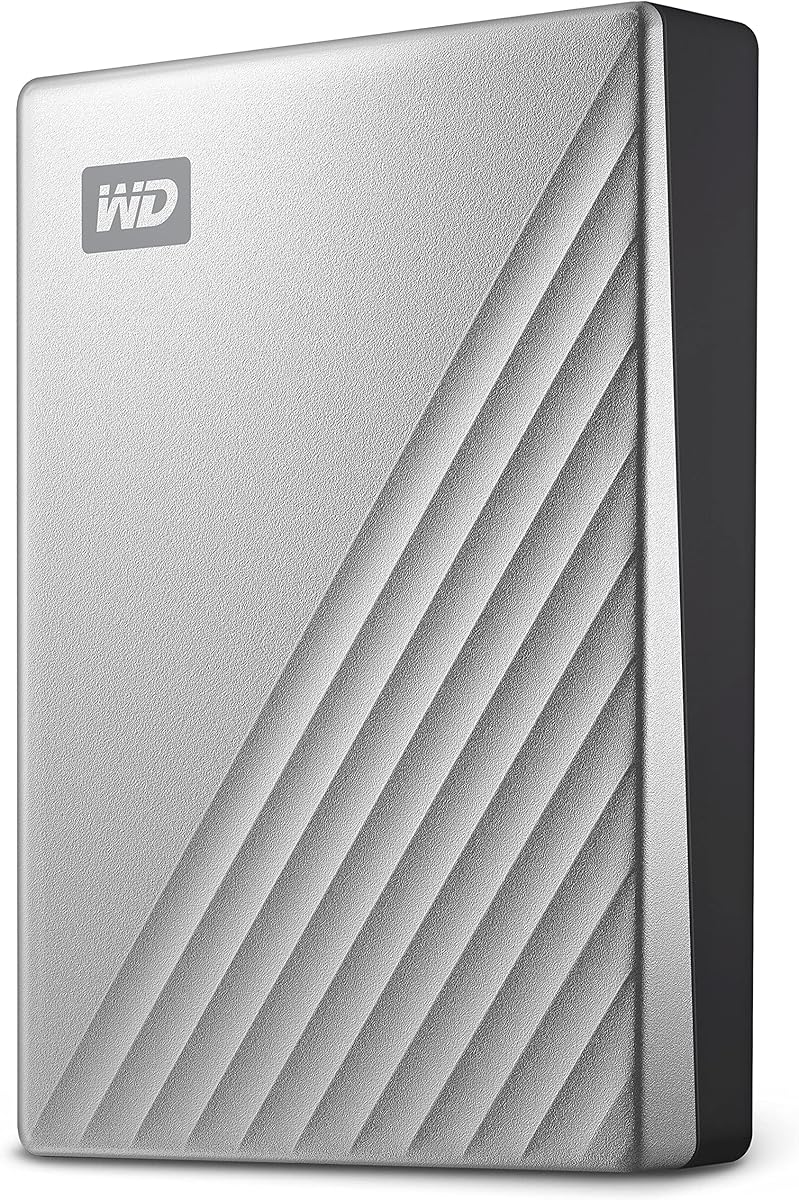
The Seagate Portable 1TB is a straightforward starter drive for MacBook owners who need a manageable amount of additional storage. Its 4.6 rating, portable form, and explicit Windows and Mac compatibility make it approachable for everyday documents, coursework, photographs, and focused backup routines.
We may earn a commission when you buy through this link, at no additional cost to you.
The drive uses USB 3.0, connects without requiring setup software, and is recognized automatically when attached to a computer. An 18-inch USB 3.0 cable is included. Its compatibility extends beyond computers to PlayStation and Xbox, which may be useful for users who want a single portable drive across several device types.
One important caveat is that reformatting may be required for Mac use. Users should confirm the current filesystem and macOS compatibility before copying important files. The 1TB capacity also offers less breathing room than the 2TB, 4TB, 5TB, and 6TB alternatives, particularly for high-resolution media.
This is a good choice for a student, traveler, or casual MacBook user seeking inexpensive, uncomplicated extra storage. It also serves as a dedicated backup disk for a manageable selection of documents and frequently used files, provided the Mac formatting step is handled properly.
One terabyte is enough for a working collection of documents, a photo archive, or selected applications and project files. The compact portable format also makes it easy to keep the drive on hand without occupying much space.
Compatibility with Mac, PC, PlayStation, and Xbox gives the drive broader utility than a Mac-specific model. Confirming game or console storage requirements is still advisable because platform rules and file systems can vary.
We may earn a commission when you buy through this link, at no additional cost to you.
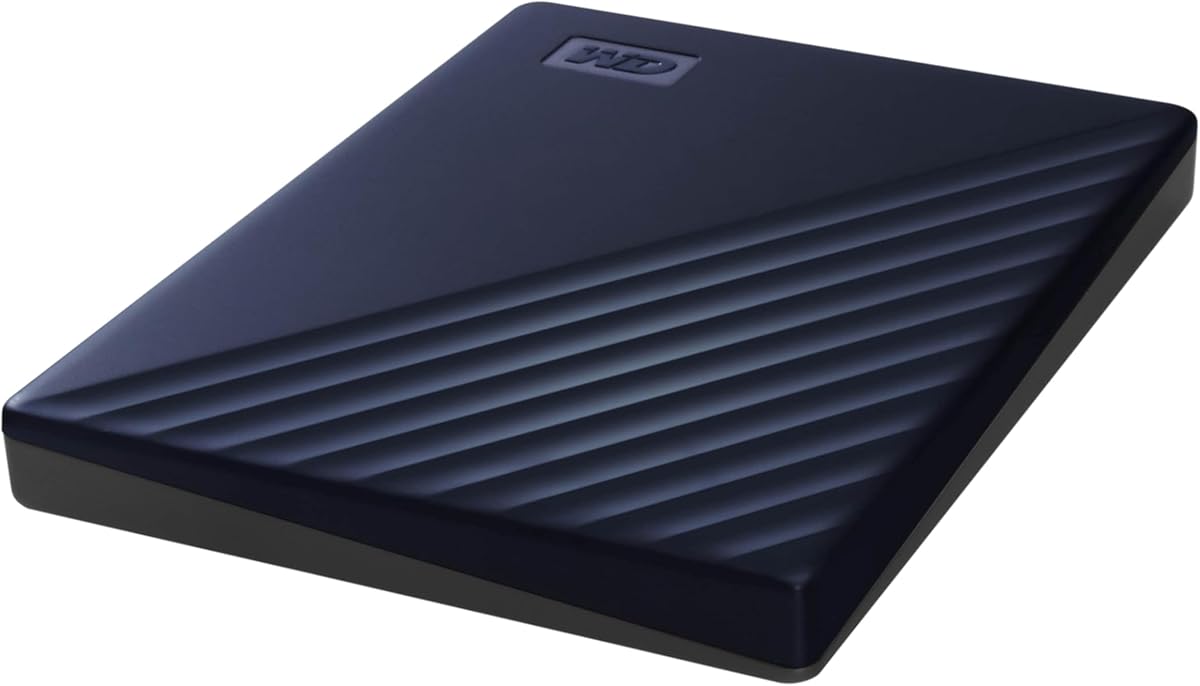
The navy WD 2TB My Passport is designed specifically for Mac users and combines 2TB of portable capacity with backup and password-protection features. Its 4.4 rating places it below several other products, but the Mac-oriented setup makes it relevant for buyers who prefer a drive tailored to their computer rather than a generic portable model.
We may earn a commission when you buy through this link, at no additional cost to you.
The slim, durable design is intended to make the drive easy to carry, and its USB 3.1 and USB 3.0 compatibility provides connection options for compatible systems. Included device management software supports backup workflows and is advertised as offering defense against ransomware, while password protection adds an access-control layer for stored files.
This drive occupies a middle ground between the basic Elements and the security-focused My Passport Ultra. It does not explicitly claim 256-bit AES hardware encryption in the supplied specifications, nor is the specific ransomware-defense language as prominent as it is on the Ultra model. The two-terabyte capacity is moderate rather than expansive.
Choose it when a Mac-ready format, useful backup software, and a slim design are your priorities. It suits students and professionals who want a dedicated portable drive with more integrated management features than a basic plug-and-play hard drive.
Mac readiness removes some of the guesswork associated with purchasing a general-purpose drive. The included management software provides a more structured approach to backups than manual copying alone.
The slim enclosure is suitable for carrying between work and home, while password protection helps keep files private. Its compatibility with USB 3.1 and USB 3.0 provides useful flexibility when connecting it to compatible MacBook ports.
We may earn a commission when you buy through this link, at no additional cost to you.
The black WD 2TB My Passport offers a balanced combination of portability, security, backup software, and a 4.6 customer rating. Unlike the Mac-specific version in eighth place, its supplied title does not explicitly state that it is formatted for Mac, so buyers should check the file system and formatting requirements before use.
We may earn a commission when you buy through this link, at no additional cost to you.
Its slim durable design is intended for taking important files between locations. Password protection and hardware encryption help protect the contents, while included device management software is advertised with defense against ransomware. USB 3.1 and USB 3.0 compatibility offers a modern interface while retaining support for the older standard.
The three-year limited warranty is a clear positive and adds reassurance beyond the basic warranty period often associated with some portable drives. As with any mechanical hard drive, it remains dependent on careful handling, and its 2TB capacity is less suitable for very large media archives than the 4TB, 5TB, or 6TB models.
This My Passport is a strong all-around option for a MacBook user who wants protection and backup utilities in a portable drive. It is most attractive when you want more active data management than the WD Elements line and do not need a specifically Mac-formatted enclosure.
The combination of password protection and hardware encryption helps protect the drive's stored contents. This makes it a more considered choice for business files and sensitive personal archives than an unencrypted portable drive.
A three-year limited warranty provides a defined support period, while backup software adds convenience for routine copying. Buyers should still maintain more than one copy of irreplaceable files because no warranty replaces a sound backup strategy.
We may earn a commission when you buy through this link, at no additional cost to you.
The Maxone 1TB Ultra Slim is built around portability and a distinctive 0.4-inch metal enclosure. Its 4.4 rating is respectable, and the all-aluminum design offers a slim profile that may appeal to MacBook users who want secondary storage that fits easily into a laptop bag or compartment.
We may earn a commission when you buy through this link, at no additional cost to you.
The USB 3.0 interface supports transfer speeds up to 5Gbit/s under compatible conditions, and the drive is ready to use without external power or software installation. A 19-inch USB 3.0 cable, user manual, three-year manufacturer warranty, and free technical support are included. The design is described as sturdy, anti-scratch, cool, and quiet.
The key reservation is compatibility. The supplied specifications identify Microsoft Windows 7, 8, and 10 and refer to use with PCs and laptops, but do not explicitly confirm Mac support. A MacBook owner should verify the drive's file system, current macOS behavior, and any formatting needs before committing to it for primary storage.
It is worth considering for MacBook users who prioritize a remarkably thin aluminum enclosure and who are comfortable checking compatibility themselves. For those seeking confirmed Mac support, a listed Seagate or WD model would be the less ambiguous choice.
At only 0.4 inches thick, the enclosure is designed to minimize bulk. The metal construction provides a refined alternative to the larger plastic portable hard drives common in this category.
Bus-powered operation makes the drive convenient to connect directly to a compatible computer. Plug-and-play readiness avoids external power and setup software, although Mac compatibility should be verified independently.
We may earn a commission when you buy through this link, at no additional cost to you.
A useful MacBook drive should provide enough capacity, connect without friction, and fit the way you store and access files. Capacity, interface, compatibility, security, portability, and drive type deserve careful consideration before purchase.
Capacity should reflect both your current files and the amount of room you expect to need later. A 1TB drive can suit documents, coursework, and a moderate photo collection, while 2TB provides a more comfortable balance for active libraries and local backups. If you routinely handle high-resolution video, large creative projects, or multiple backups, 4TB, 5TB, or 6TB models offer better headroom. Mechanical portable hard drives generally maximize capacity without moving into SSD pricing, whereas compact SSDs tend to offer less raw space but much faster performance.
Mac compatibility should be confirmed before buying, especially for drives whose supplied specifications emphasize Windows or PC use. Mac-formatted models can reduce initial friction, but other portable drives may require reformatting before they can be used normally. Reformatting can erase the existing contents, so inspect the drive and confirm the desired filesystem before transferring important files. The simplest workflow is to connect a compatible drive, review how macOS presents it in Finder, and decide whether to keep or change its format.
The USB interface determines how quickly a MacBook can exchange files with the drive. USB 3.0 and USB 3.2 Gen 1 provide a practical 5Gbps connection for routine backups, while the SanDisk Extreme's USB 3.2 Gen 2 interface is better suited to demanding SSD workflows. Actual performance also depends on the MacBook, file sizes, source drive, and whether the storage device is the bottleneck. A faster interface cannot make every mechanical HDD behave like a solid-state drive.
A portable hard disk is an efficient choice for large archives, family storage, and budget-conscious backups, but it contains moving parts and generally responds more slowly. A portable SSD offers quicker transfers, compact construction, and better resistance to movement and impact, making it preferable for active projects and frequent travel. Buyers should decide whether capacity or speed matters more. A mechanical drive may be ideal for storing completed media, while an SSD may be better for editing files directly from the attached volume.
Password protection and hardware encryption are important when a portable drive contains sensitive business information, client files, or private personal data. The WD My Passport Ultra and SanDisk Extreme explicitly include 256-bit AES hardware encryption, while other models list password protection in different terms. Secure features still require correct setup and responsible password management. If an encrypted drive is lost, recovery may not be possible without the correct credentials, and regular backups of those credentials are important.
Portability includes more than weight; it also covers thickness, cable management, enclosure material, and resistance to travel conditions. The Maxone drive emphasizes a 0.4-inch aluminum enclosure, while the SanDisk Extreme adds IP65 water and dust resistance, stated drop protection, and a carabiner loop. Traditional portable hard drives remain compact but contain moving parts and deserve more careful handling. Choose a design based on whether the drive stays on a desk, travels in a bag, or is used in outdoor and mobile conditions.
Backup support can make a drive much more useful for protecting important files. Some models include device management or backup software, while the Seagate selections offer a one-year Rescue service and the Maxone drive includes a three-year manufacturer warranty with technical support. Software features vary, and no single tool can protect against every failure scenario. A good practice is to use a drive for a scheduled copy while retaining another copy of irreplaceable files in a separate location.
Before copying files, connect the drive to a compatible MacBook and open Finder to confirm that it appears. Review the current file system and available capacity, and format a new drive for your intended use if necessary. Formatting can erase all contents, so verify that the drive is empty before proceeding. For a fresh drive, create a clear folder structure and decide whether it will hold active project files, archived media, or backups.
Copy important folders rather than moving them until a copy has been verified. Reopen several files from the new location, compare folder sizes, and confirm that expected documents and media are present. For recurring backups, a scheduled folder synchronization tool can make the process consistent, but periodically check that it is actually copying updated files. Always eject the drive from Finder before unplugging it.
Mechanical drives benefit from careful handling: avoid drops, do not move them while they are actively reading or writing, and keep them away from moisture and excessive heat. SSDs tolerate movement better but still need protection. Use the supplied or appropriate cable, inspect connectors for debris, and periodically verify important archives. If a drive begins making unusual sounds, reports errors, or disappears unexpectedly, stop using it and protect any files that can still be accessed.
A Windows-formatted drive may be readable on macOS, depending on its file system and the current macOS version. macOS can normally read NTFS volumes, but writing permissions may be limited, and exFAT is commonly used for cross-platform storage. If the drive cannot be used as intended, it can be reformatted, but formatting erases its contents. Confirm the file system and back up any important data before changing it.
An SSD is preferable when fast transfers, active editing, frequent travel, or working directly from the attached drive matters most. A portable hard drive is often more practical for large archives, extensive media libraries, and budget-conscious backup storage. The right choice depends on whether capacity or speed is your priority. You can also use an HDD for archives and a smaller SSD for active projects.
USB 3.0 remains a practical interface for routine backups and large document collections. Its stated 5Gbps interface rate does not mean every drive will sustain that speed, especially when the drive itself is a mechanical hard disk. SSD transfers will generally reflect the interface more closely. For most personal backup tasks, the difference between USB 3.0 and newer standards matters less than maintaining a consistent backup routine.
The right amount depends on the size of your documents, photos, videos, applications, and existing backups. One terabyte can work for lighter use, while 2TB is a flexible choice for many active libraries. Users working with extensive high-resolution media may prefer 4TB, 5TB, or 6TB. Leave additional room for growth rather than filling the drive completely, and avoid treating one external copy as a substitute for every backup.
They can be suitable when they include effective password protection and hardware encryption. The WD My Passport Ultra and SanDisk Extreme explicitly list 256-bit AES hardware encryption. Even with encryption, responsible handling remains important: keep the password secure, avoid leaving an unlocked drive connected, and maintain another backup. Encryption protects stored data but does not prevent every physical accident or software mistake.
Not always. Some models are explicitly formatted for Mac, while others arrive in a format that works for both Windows and Mac users. Connect the drive first and check what Finder displays before changing anything. If reformatting is necessary, use macOS Disk Utility and select an appropriate file system. Remember that erasing and reformatting a drive permanently removes all files currently stored on it.
Yes, if the drive uses a file system that both operating systems can read and write. ExFAT is commonly used for this purpose, while NTFS may offer easier Mac reading but restricted writing on macOS. The Seagate, WD Elements, and other models listed as compatible with PC and Mac systems can serve cross-platform storage. Always eject the drive correctly from every computer before changing devices.
Choose a portable HDD when you need the most affordable capacity and your drive will remain in a controlled location. Choose a rugged portable SSD when speed, impact resistance, water resistance, and mobile use matter more than maximum capacity. The SanDisk Extreme is the clear speed-focused option in this guide, with stated NVMe performance, IP65 resistance, and drop protection. For large archives, an HDD such as the 6TB WD Elements provides substantially more space.
The WD 2TB Elements stands out as the most balanced general choice in the guide, combining a compact enclosure, a 4.7 rating, broad PC and Mac compatibility, and a practical 2TB capacity. The Seagate Portable 1TB is the more compact budget-oriented option for lighter storage needs, while the SanDisk Extreme 2TB is the premium selection for users who prioritize speed, ruggedness, and encryption.
Your priority should determine the best fit. Choose maximum capacity for large media archives, an SSD for active projects and frequent travel, or a Mac-formatted model when setup simplicity matters. For sensitive files, prioritize password protection and hardware encryption. Whichever model you choose, verify Mac and file-system compatibility before formatting or transferring important files.
Prices, promotions, bundle contents, and availability can change over time, so check current product details before purchasing. Compare the drive's capacity and interface with your actual workflow, and avoid choosing solely on headline speed or storage size. The most useful external drive is one you can connect easily, back up consistently, and keep protected as your files grow.
