
VSD N4 Pro
4.4Editor score
Ten customizable LCD keys
Four RGB rotary knobs
Interactive touch bar controls
Our expert guide compares the best Stream Deck for Managing Gaming Overlays, covering macro keys, dials, touch strips, compatibility, and creator workflows.
Managing gaming overlays becomes much faster when a dedicated stream deck places scenes, audio controls, alerts, and other commands within easy reach. The best models combine tactile buttons, visual labels, programmable actions, and dependable software, reducing the need to hunt for keyboard shortcuts while a game or broadcast is in progress.
We compared the ten featured controllers by examining their key counts, display options, dials, touch controls, macro capabilities, software support, platform compatibility, and customization features. The list covers premium control surfaces, compact macro pads, audio-focused controllers, and budget options for creators building an OBS or gaming setup.
Each pick reveals a different approach to overlay management, from straightforward scene switching to multi-step workflows, animated icons, and integrated sound effects. Ratings and specifications reflect the supplied product information, while prices can change, so readers should confirm current availability and cost before purchasing.
4.4Editor score

4.8Editor score
4.3Editor score
The table below compares the featured stream controllers by control layout, display capabilities, macro features, and supported systems, helping readers identify the most practical option for gaming overlays, OBS scenes, and production workflows.


The Elgato Stream Deck + XL combines a large collection of macro keys with six dials and a touch strip, making it the most versatile option in this guide for managing gaming overlays. Its 4.8 rating reflects a highly capable control platform designed for creators who want scene changes, app commands, media controls, and precise adjustments in one place.
We may earn a commission when you buy through this link, at no additional cost to you.
Thirty-six macro keys provide ample room for separating overlay controls by function. Users can assign direct commands or Multi Actions that automate complete sequences, while the dials support fine adjustments such as changing levels and settings. The expanded touch strip adds another way to view important information and move through action pages, reducing dependence on layered keyboard shortcuts.
Its main trade-off is physical scale. A device with 36 keys, dials, and a display naturally occupies more desk space than a compact macro pad, and organizing a large number of profiles can take more deliberate configuration. Even so, those demands are reasonable for a serious streaming station, especially for users who switch among gaming, production, and editing workflows.
This is the strongest recommendation for a gamer or streamer seeking the most complete overlay-management surface. It suits creators who value broad integrations, visual feedback, precise controls, and the ability to build a dedicated setup for every project or team member.
The large key grid makes it practical to place frequently used overlay toggles, scene changes, and broadcast actions within direct reach. Grouping related commands on separate profiles also keeps a busy gaming screen from becoming cluttered with shortcuts.
Six dials and a touch strip extend the deck beyond simple scene switching. Creators can make gradual changes, consult real-time information, and reach additional action pages without leaving the primary control workflow.
We may earn a commission when you buy through this link, at no additional cost to you.
The VSD M18 offers 18 programmable controls, including 15 LCD keys and three physical buttons, in a package aimed at gamers, streamers, and creative professionals. Its 4.4 rating reflects a strong balance of customization and versatility, with particular usefulness for creators who want more keys than a minimalist keypad can provide.
We may earn a commission when you buy through this link, at no additional cost to you.
Each LCD key can display JPG, PNG, or GIF imagery, including animations, which makes it easier to identify overlay toggles, scene controls, applications, and media functions at a glance. The Operation Follow function adds important flexibility by running macro steps in a chosen order or simultaneously, allowing a single button to launch applications, open websites, enter text, and manage scenes.
The outer RGB ring adds visual appeal and can cycle automatically or display custom colors after a firmware update. The limitation that stands out is platform scope: native Linux plug-and-play operation is unavailable, although SDK documents are provided for custom development. Buyers should also allow time to learn the programming interface and organize commands effectively.
The VSD M18 is a compelling option for a content creator who wants visual macro keys, animation support, and sequential workflows in a relatively compact stream controller. It is especially useful for gaming overlays, OBS scene changes, application launches, and media operations.
Animated labels can reflect current activities, mark different workflows, or make frequently used controls easier to locate. This is particularly useful when a creator does not want to memorize every button position.
Ordered and simultaneous macro execution turns individual commands into complete routines. A single control can open a tool, adjust media, or prepare an overlay sequence without manual follow-up.
We may earn a commission when you buy through this link, at no additional cost to you.
The VSD N4 Pro is built for creators who need more than basic scene switching. It combines ten customizable LCD keys, four RGB knobs, and an interactive touch bar, earning a 4.4 rating for a feature-rich approach to gaming overlays, audio control, editing, and live production.
We may earn a commission when you buy through this link, at no additional cost to you.
The touch bar and rotary knobs give the controller a more studio-like feel than a simple keypad. Users can configure single commands or chained operations, place custom PNG, JPG, or GIF icons on the keys, and save unlimited independent scene presets. Its soundboard functions send audio control commands to the computer for playback operations, while the larger plugin ecosystem includes more than 500 official add-ons.
A useful clarification is that the soundboard feature does not include built-in speakers for audio output. It controls compatible computer audio rather than serving as an independent speaker. The included passive USB dock, foldable 60-degree stand, media-capable RGB lighting, and switchable haptic keys improve the overall production experience, although creators must configure the advanced features to gain full value.
This is the best premium choice for a streamer or editor who wants overlay control, sound-effect triggering, tactile knobs, and a touch interface in one device. It is particularly attractive for users who value studio-inspired control over a basic grid of macro keys.
The controller can trigger sound effects, background audio, and playback commands through its macro system. That makes it convenient for creators who frequently adjust the audio atmosphere of a stream.
The interactive touch bar, illuminated knobs, and haptic key options create a premium working feel. An adjustable stand keeps the controls at a more comfortable viewing angle during long sessions.
We may earn a commission when you buy through this link, at no additional cost to you.
The Six-Key Stream Controller focuses on a compact set of six customizable LCD keys and three dials. Its 4.5 rating makes it an appealing option for creators who need essential overlay and scene controls without carrying the footprint of a much larger programmable surface.
We may earn a commission when you buy through this link, at no additional cost to you.
Commands are assigned through a drag-and-drop interface, and JPG, PNG, or GIF images can make the keys easier to recognize. The Action Flow function handles multiple macro actions in a specified order, while the three dials can be used for tasks such as volume adjustment and media navigation. Compatibility includes OBS and widely used software for streaming, communication, productivity, and creative editing.
The main limitation is capacity. Six keys are enough for a carefully chosen set of high-frequency controls, but a creator with many scenes, alerts, applications, and audio functions may eventually want additional buttons. The three dials compensate for some of that limitation, yet they cannot replace a larger grid of distinct commands.
This controller is best for a gamer or streamer with a focused workflow. It is particularly suitable for people who prefer a clean desk, use a small number of essential overlay actions, and want tactile dials alongside customizable LCD keys.
A six-key layout can keep a desk uncluttered while putting the most valuable actions at hand. Assigning only the commands used during a broadcast also reduces visual clutter and setup complexity.
Rotary controls provide a natural way to change volume or navigate media. They are particularly helpful during a live broadcast when locating a keyboard shortcut would interrupt the flow.
We may earn a commission when you buy through this link, at no additional cost to you.
The TreasLin N1 combines 18 configurable controls with a multifunction rotary knob and three operating modes, making it a flexible option for gaming overlays and broader desktop automation. Its 4.3 rating reflects a versatile design that can act as a shortcut keyboard, calculator, or numeric keypad.
We may earn a commission when you buy through this link, at no additional cost to you.
Users can assign commands through VSD Craft, personalize key icons by dragging and dropping images, taking screenshots, or selecting existing visuals. The product also supports dynamic animated icons. Separate scenario concepts for daily work, creative applications, live streaming, and media playback help organize functions without treating every command as an isolated shortcut.
The N1's range creates a modest learning curve because it can do much more than simple scene switching. Its marketplace includes free and premium plugins, icon profiles, and scene resources, while Spotify integration requires an active Premium account. Those are manageable conditions for a creator who intends to build a tailored control system.
Choose the N1 if you want one deck to support gaming, office tasks, editing, and streaming. The number keypad mode may also appeal to creators who want a compact supplemental keyboard for a compact workstation.
Shortcut, calculator, and numeric keypad modes make the N1 useful outside a broadcast. This expands its value for creators who also handle documents, web pages, and production applications.
Dynamic icons can communicate a command or workflow more clearly than a static label. Creators can also design scene layouts that suit individual games, applications, or broadcast segments.
We may earn a commission when you buy through this link, at no additional cost to you.
The VSD M18 Stream Controller provides 15 LCD keys and three physical buttons, combining a substantial macro surface with an adjustable outer RGB light ring. Its 4.5 rating reflects a versatile controller that handles overlay toggles, game commands, media actions, and routine desktop functions.
We may earn a commission when you buy through this link, at no additional cost to you.
Individual or sequential actions can be assigned to each key, and JPG, PNG, or GIF images help users recognize their most important functions. The Operation Follow feature supports simultaneous or ordered execution, while compatibility includes OBS, Streamlabs, YouTube, Twitter, Discord, Excel, Word, and Photoshop. Built-in plugins add clocks, reminders, stopwatches, weather, and calendars.
The RGB ring is a visual rather than productivity feature, but it can make a dark gaming setup more coherent and help the device stand out as part of the broadcast environment. Its customizable tones require a firmware upgrade, and the stated operating scope focuses on modern Windows and macOS systems rather than native Linux use.
The VSD M18 is a strong option for creators who want extensive visual customization and macro capacity without moving to a large premium deck. It is especially suitable for gaming streams that need scene controls, media functions, and visual effects in one compact controller.
Fifteen LCD controls allow a creator to separate overlay, scene, communication, and media functions. Custom icons make each command easier to identify without relying entirely on memory.
The surrounding ring can cycle automatically or display chosen colors. While not essential to control, it helps the controller fit visually into a dark streaming setup.
We may earn a commission when you buy through this link, at no additional cost to you.
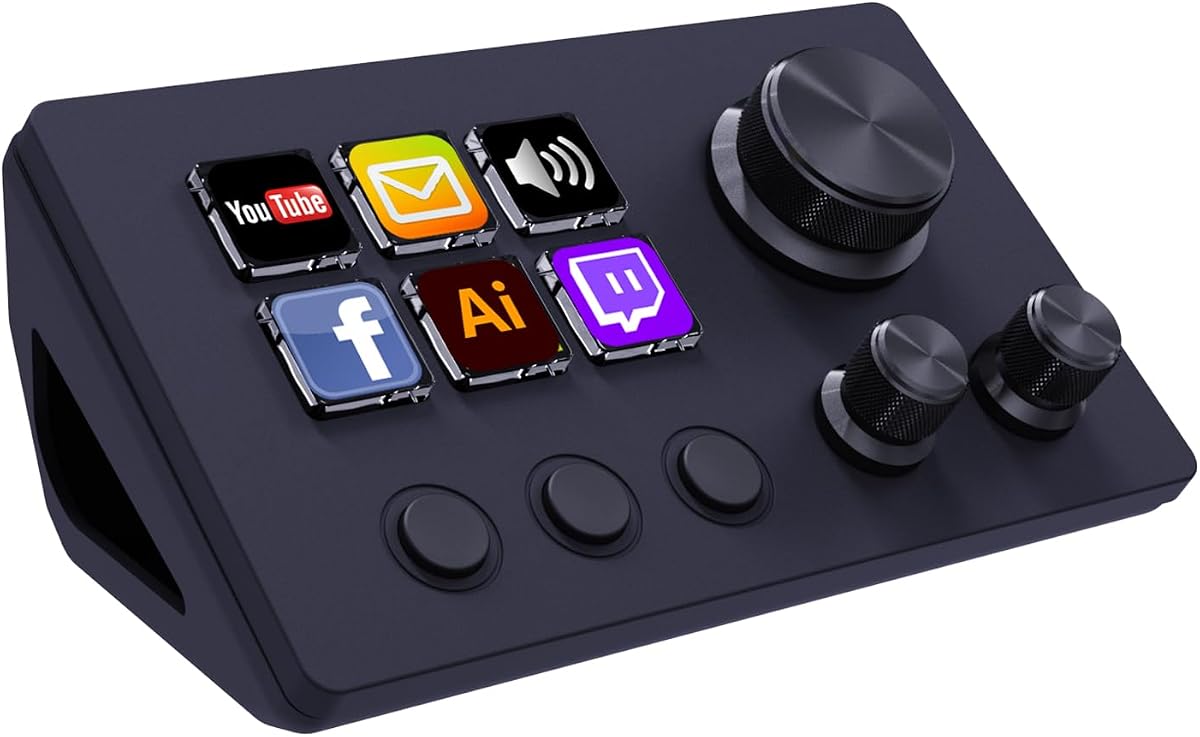
The TreasLin N3 offers 12 customizable controls, including six visual LCD buttons, three tap buttons, and three rotary buttons. Its 4.3 rating makes it a practical budget-oriented choice for gamers and streamers who want direct access to scenes, alerts, media, and application commands.
We may earn a commission when you buy through this link, at no additional cost to you.
A single press can launch macros, enter text, open files or websites, control media, switch OBS scenes, publish social posts, adjust audio, mute a microphone, or control lights. Dynamic animated icons add visual cues that are not available on every competing deck, while the VSDinside marketplace supplies more than 200 plugins, icon profiles, and scenes.
Compared with an 18-key deck, the N3 offers less room for simultaneously visible LCD commands, although the tap and rotary controls compensate for some of that difference. Spotify integration requires an active Premium account. Users should also verify that the included software and marketplace workflow suit their preferred applications before committing to a detailed layout.
This is the best budget recommendation for a new creator who wants customizable gaming overlay controls and animated icons. It is a balanced choice for a compact setup, particularly when the priority is convenient scene and media access rather than a very large number of dedicated visual buttons.
Six LCD buttons, three tap controls, and three rotary controls offer different ways to operate a stream. Users can reserve visual keys for scenes and use the remaining controls for frequently adjusted functions.
The listed actions cover common needs such as scene switching, microphone muting, audio adjustment, social posts, and light control. These shortcuts can reduce interruption during gameplay or presentation.
We may earn a commission when you buy through this link, at no additional cost to you.
The Six-Key Stream Controller uses six customizable LCD keys and three dials to deliver a straightforward, compact macro pad. Its 4.5 rating reflects a capable setup for gamers who want essential overlay controls, game combinations, media operations, and application launches in a small footprint.
We may earn a commission when you buy through this link, at no additional cost to you.
Users can drag operations onto the keys, attach JPG, PNG, or GIF visuals, and use Action Flow to run several actions in a chosen order. The dials support adjustments such as volume and playback movement, while the controller works with Windows and macOS alongside OBS, YouTube, Discord, Adobe Premiere Pro, Photoshop, and other common applications.
Because there is no large touch display and the LCD grid is limited to six keys, the product is best for a deliberately pared-back command set. The absence of a touch display may be a drawback for creators who want a central information area, but it also keeps the interface straightforward and reduces the number of layers a user must navigate.
This model suits streamers who value quick setup and a small desk footprint. It is a good fit for users who can manage their most important overlay actions with six clearly labeled keys and three physical dials.
The drag-and-drop setup reduces the learning barrier for first-time stream deck users. A small set of essential commands can be mapped and tested without designing a complex multi-page system.
Plugins for reminders, clocks, stopwatches, weather, and calendars extend the controller beyond broadcast use. These functions can support a broader desk setup while the core keys remain dedicated to overlays and shortcuts.
We may earn a commission when you buy through this link, at no additional cost to you.
The SOOMFON Studio Deck combines ten customizable LCD macro keys, four control knobs, and a sliding touchscreen display. Its 4.8 rating places it among the strongest-rated products in the guide and reflects a well-rounded option for gaming overlays, scene navigation, editing, and live production.
We may earn a commission when you buy through this link, at no additional cost to you.
The touch interface can be swiped through multiple control pages, offering a smartphone-like way to move between scenes, commands, and profiles. The four knobs support functions such as volume, brightness, and zoom, while each key can use static or animated icons. One-touch commands can paste text, open websites, launch applications, and play audio.
A large plugin marketplace allows the controller to expand into areas such as streaming, photo editing, and game development. The stated system requirements are macOS Catalina 10.15 or higher and Windows 10 64-bit or higher, and Spotify integration requires Premium. These requirements should be checked against a creator's existing production computer.
The SOOMFON is a strong recommendation for anyone who prefers visual navigation and rotary precision. It is particularly suitable for creators managing many pages of controls or needing a central display to move efficiently through overlay and media commands.
A sliding display gives creators room to organize more controls across several pages. This makes it possible to keep a broad command set available without displaying every shortcut simultaneously.
Four independently programmable knobs support accurate adjustments during a stream. They are useful for functions that benefit from gradual changes rather than a single fixed command.
We may earn a commission when you buy through this link, at no additional cost to you.
The Megtran M3 uses 15 customizable LCD keys and three precision knobs to create a visually flexible controller for gaming, live streaming, office work, and video editing. Its 4.5 rating reflects a responsive alternative for creators who want more than a standard mechanical keypad.
We may earn a commission when you buy through this link, at no additional cost to you.
The transparent magnetic keys are designed for low trigger latency and smooth repeated input. Users can drag files, browsers, apps, images, and videos onto the LCD controls, while backgrounds can be selected from a library or uploaded directly. Compatibility includes OBS, Photoshop, Adobe Premiere Pro, Zoom, and DaVinci Resolve, with ready-made plugins available through STATION SPACE.
One important setup consideration is magnetic calibration. External magnetic interference during transport or daily use can shift the key baseline and cause unresponsive controls, so the device should be calibrated according to the software instructions before use. The controller also lacks the touch strip found on some premium alternatives, so page navigation must happen through another interface.
The Megtran M3 is a compelling pick for a gamer who prioritizes visual feedback and responsive macro keys. It works well for creators who want dynamic backgrounds and want the ability to connect overlay commands with broader editing and office applications.
Smooth magnetic keys are designed to provide quick, consistent responses. That makes the controller appealing for users who repeatedly switch scenes, launch tools, or trigger common game sequences.
Custom images, videos, and GIFs can transform the deck into a recognizable part of a broadcast environment. The visual layer helps distinguish functions while adding personality to the desk.
We may earn a commission when you buy through this link, at no additional cost to you.
The most useful controller is the one that fits your overlay workflow, available desk space, operating system, and preferred balance between physical controls and visual information.
Choose a key count based on the number of commands you expect to use during a stream. A larger grid can separate scenes, alerts, applications, media controls, and overlays into visible groups, while a compact six- or ten-key layout is often easier to scan and may leave more desk space. Pay attention to the proportion of LCD keys, because a larger numeric key count does not always mean more visual command capacity.
In short, prioritize enough visible controls for your real workflow rather than the highest possible total.
LCD keys are especially helpful for overlay management because creators can recognize scenes and toggles without memorizing every position. Static icons are useful for stable functions, while animated images can provide changing status or workflow cues. Touch displays add another navigation layer, but they also introduce more setup and may take up more desk space than a simple keypad.
Prioritize clear, readable labels and confirm which image formats the device supports.
Rotary dials are valuable for live adjustments such as volume, zoom, brightness, or playback. Touch strips and sliding screens are useful when a creator wants to consult information or move through several action pages. The best combination depends on whether you need quick one-function adjustments, centralized status information, or room for a larger command library.
Choose dials for precision and touch controls for navigation, based on your most frequent live tasks.
Single actions are convenient for a straightforward scene switch, but multi-step macros are what make a stream deck more efficient. Look for ordered and simultaneous execution so one button can launch an application, prepare an overlay, adjust media, or complete a sequence. Drag-and-drop configuration and profiles can make extensive customization easier to maintain.
For complex broadcasts, support for ordered multi-actions is more important than raw key count.
Confirm that the controller works with your operating system and the applications in your production chain. OBS is central for many gaming streams, but editors may also depend on tools such as Adobe Premiere Pro, Photoshop, DaVinci Resolve, Discord, Streamlabs, or audio applications. Note any stated restrictions, such as elevated Windows requirements, limited native Linux support, or subscription conditions for specific integrations.
Check the full software list and system requirements before purchasing, not just OBS compatibility.
Plugins extend a controller beyond manually assigned keyboard commands. A broad marketplace can provide ready-made scenes, icon packs, app controls, reminders, clocks, audio tools, and other utilities. A large ecosystem can be useful, but it is not automatically better if the included plugins do not match a creator's actual applications or if the required software feels difficult to configure.
Prioritize integrations you will use regularly rather than relying on the largest plugin count.
Overlay management often sits beside audio control, particularly for gaming broadcasts. Some controllers include sound-effect triggers, background-audio commands, microphone muting, or a computer soundboard function. These are valuable when one action must coordinate both visual and audio changes. Verify whether an audio feature sends commands to the computer or includes actual built-in speakers so expectations remain accurate.
For gaming overlays, confirm that the controller covers both scene changes and the audio controls you need.
Consider the controller's footprint, angle, cable connection, and durability alongside its features. A folding stand can improve comfort during long sessions, while magnetic-key systems may require calibration if external interference shifts their baseline. Build quality, included instructions, warranty coverage, and available support resources also affect long-term ownership even when they are harder to compare than key counts.
Confirm that the device fits your desk and follow its calibration or setup instructions before use.
Begin by connecting the controller with the supplied USB-C cable and installing its configuration software. Create separate profiles or layouts for gaming, live streaming, editing, and other activities, then assign the most frequently used overlay and scene commands before adding secondary functions. Labeling related commands consistently will make the deck easier to use during a live event.
Test each button in the applications you use, including OBS scene changes, microphone muting, audio playback, alerts, and game commands. Create a separate multi-action profile for routines that need a specific order, and avoid placing an irreversible command beside frequently used scene toggles. A brief rehearsal before a broadcast can reveal delayed actions, conflicting shortcuts, or confusing icon choices.
Keep the device connected securely, clean the surface with a soft dry cloth, and avoid liquids near the controls. Magnetic-key products should be recalibrated when the software indicates that the baseline has shifted, while screens and LCD icons should be protected from prolonged pressure. Periodically review profiles and remove commands that are no longer useful to keep the layout manageable.
A Stream Deck provides programmable buttons and controls for actions such as switching OBS scenes, toggling overlays, launching applications, controlling media, muting a microphone, or adjusting audio. It reduces reliance on memorized keyboard shortcuts, which can make live production faster and more consistent. The most useful setup is one that prioritizes commands you trigger regularly.
No. A compact controller can handle a focused collection of scenes, alerts, and media commands. A larger deck makes more functions visible at once and is preferable for complex broadcasts, while a smaller model is easier to learn and leaves more desk space. Choose based on your command count and workflow rather than assuming more keys are always better.
Most featured controllers can assign OBS actions and ordinary keyboard commands, allowing the same device to manage broadcast scenes and game shortcuts. Compatibility details vary by model and operating system, so check the listed application support. Testing every action in your chosen software is important because games and streaming applications may respond differently to rapid inputs.
Animated icons can make active states and workflows easier to recognize, but they are not essential for every creator. Static labels may be simpler to read and configure, while animation can help distinguish temporary broadcast states or changing overlays. Choose the format that matches your visual preferences and the amount of information you need to identify quickly.
Yes, dials are useful for continuous adjustments such as volume, brightness, zoom, or playback. They provide a more precise alternative to repeatedly pressing a keyboard shortcut or selecting a menu. A deck with both dials and LCD keys is often ideal because the keys manage discrete actions while the knobs handle gradual changes.
The supplied information lists Windows and macOS support for the featured VSD and TreasLin models, although particular operating-system versions differ. The N3, for example, is listed for OBS Studio on Windows 10 64-bit or later and macOS Catalina 10.15 or later. Check the exact version requirements and software compatibility for the model you choose.
A macro key performs a command directly, while a touch display can show information and provide additional pages of controls. Macro keys are usually faster for high-frequency actions because they have a fixed physical position. Touch displays are more useful for status information, navigation, and organizing larger command sets.
Group related actions by function rather than by application. For example, place scene changes together, keep alerts and overlay toggles on a separate page, and reserve knobs for volume or brightness adjustments. Use distinct colors or icons for important commands, test the layout during a practice broadcast, and remove shortcuts that are rarely used.
The Elgato Stream Deck + XL is the most comprehensive option, with 36 macro keys, six dials, a touch strip, extensive integrations, and custom profiles. The VSD N4 Pro stands out for premium studio features such as its interactive touch bar, rotary knobs, audio commands, and large plugin ecosystem, while the TreasLin N3 delivers a capable budget combination of physical controls and animated icons.
Prioritize the controls you actually need during a live broadcast. A small deck with clear labels and precise dials may outperform a larger model with crowded or confusing layouts, while creators with many scenes should look for multiple profiles, strong macro sequencing, and enough LCD keys to keep critical commands visible.
Before making a final decision, confirm system requirements, application compatibility, control layout, and whether the software supports the commands you intend to use. Current prices and availability can change, so checking the latest product page and recent customer feedback is advisable before ordering.