
WAVLINK Universal Video Adapter
4.4Editor score
Supports up to six monitors
USB-A and USB-C connectivity
Microphone and headphone support
Works across major operating systems
Explore the best Displaylink Adapter options for macOS, Windows, and ChromeOS, comparing dual monitors, 4K output, ports, drivers, and portability for work.
A Displaylink Adapter adds external displays through USB rather than relying entirely on a computer’s native video output. That distinction matters for MacBook models with limited external-display support, older Windows laptops, and shared workspaces where HDMI connections are already occupied. The right adapter should match your ports, operating system, monitor arrangement, and daily workflow.
We compared the ten featured adapters by considering their supported operating systems, maximum display configurations, output interfaces, resolution and refresh-rate claims, charging or data-port options, portability, and driver requirements. The guide covers dual-HDMI, dual-DisplayPort, universal, and dock-style solutions, with particular attention to compatibility limitations and content restrictions.
Each pick reveals what its design is best suited to accomplish, from adding two 4K screens to combining displays with Ethernet or USB peripherals. User ratings and supplied specifications informed the rankings, while practical details such as macOS permissions, HDCP limitations, cable requirements, and power delivery remained central. Prices and availability can change, so verify current listings before purchasing.
4.4Editor score

4.8Editor score

4.3Editor score
The comparison below highlights the major differences among these ten adapters, including display capacity, video outputs, host connectivity, supported systems, and extra features. It is designed to make the most important compatibility decisions clear before you examine individual recommendations.



The ACASIS USB C to Dual HDMI DisplayLink Adapter combines two 4K 60Hz display outputs with charging and USB-A peripheral connections in a portable aluminum package. Its 4.3 rating reflects a broadly capable productivity solution, particularly for Mac users who need more external screens than their computer may natively provide. The included feature set makes it feel more like a compact workstation hub than a simple video adapter.
We may earn a commission when you buy through this link, at no additional cost to you.
Its strongest advantage is the combination of functions. One host connection can support two extended displays, while the 100-watt USB-C power-delivery port keeps a compatible notebook powered during a long workday. Three USB-A ports provide room for a keyboard, mouse, and flash drive, although the stated 480 Mbps transfer speed is better suited to ordinary peripherals than large file transfers.
There are important boundaries. DisplayLink driver installation is required, and the instructions specifically advise unplugging the adapter only when the computer is off. Protected streaming content and gaming are not supported, so users who expect Netflix, Hulu, or other HDCP services to appear through the external screens may need a conventional display connection instead.
This is a strong recommendation for office workers, developers, and travelers who want two high-resolution displays plus convenient charging and peripheral attachment. It is particularly appealing for MacBook Air and Pro owners and for Windows users who need a consolidated desk setup. The combination of useful ports makes it a more complete choice than a bare dual-output adapter.
Rather than forcing a separate charger and peripheral hub onto an already crowded desk, this adapter combines those functions with the video connection. The result is a cleaner workstation that can support two 4K screens and essential accessories through one primary cable.
Extended display support is the core reason to choose a DisplayLink adapter instead of a simple mirror-only splitter. It is better suited to comparing documents, keeping communication tools visible, or moving between coding windows than to gaming and protected entertainment.
We may earn a commission when you buy through this link, at no additional cost to you.
The WAVLINK USB 3.0 or USB C to Dual HDMI adapter provides simultaneous 4K 60Hz output from one Thunderbolt, USB4, USB-C, or USB-A 3.0 connection. Its 4.4 rating and clearly defined system support make it a practical option for users who move between Mac, Windows, and ChromeOS environments. The supplied hybrid cable simplifies connection to a broader range of host ports.
We may earn a commission when you buy through this link, at no additional cost to you.
Compatibility is the defining strength. The adapter is listed for Windows 10 and 11, macOS 11 or later, and ChromeOS 100 or later when the host has a supported Thunderbolt, USB4, USB-C, or USB 3.0 connection. It can mirror or expand the desktop, giving users flexibility between shared presentation screens and a larger individual workspace.
The adapter is explicitly positioned for web and productivity software rather than gaming, graphics-intensive tasks, or design work. HDCP-protected services such as Netflix and Hulu are also outside its supported use. A DisplayLink driver must be installed, and Linux, Unix, and iOS are not listed as supported systems.
Choose this WAVLINK model when cross-platform portability and straightforward dual-HDMI connectivity matter most. It is a good fit for hybrid employees, students, and office teams that need consistent extended displays from different computers. The warranty and stated lifetime technical support add reassurance, though buyers should still confirm that their exact host and software applications are supported.
The hybrid USB-A and USB-C cable reduces the need to carry a different lead for each computer. It is especially useful in shared spaces where the display setup stays in place while users bring their own laptops.
Simultaneous 4K 60Hz output across two HDMI monitors provides enough clarity and responsiveness for spreadsheets, browser research, communication platforms, and coding tools. The intended productivity focus makes it a better fit for office displays than high-intensity gaming panels.
We may earn a commission when you buy through this link, at no additional cost to you.
The WAVLINK Universal Video Adapter takes a different approach from dual-output adapters: each unit provides one HDMI connection, and the supplied information says up to six monitors can be connected on PCs when one adapter is used per display. Its 4.4 rating makes it an attractive budget-oriented choice for users who value scalable monitor count more than the highest resolution from one adapter.
We may earn a commission when you buy through this link, at no additional cost to you.
The device supports mirroring and extending, with resolutions up to 2048×1152 at 60Hz or 2560×1440 at 50Hz. It connects through USB-C, USB-A, Thunderbolt 3, 4, or 5, and USB4, giving it broader host flexibility than an HDMI-only adapter. A DisplayLink-certified USB 3.0 GPU and LED status indicator support a relatively direct setup process.
Audio functionality is another useful distinction. The built-in 2.1-channel microphone input and headphone output can serve conferencing or private-listening needs, although the video output is not designed to deliver high-end audio through the HDMI display. The maximum pixel resolution is also below 4K, so high-resolution creative work may be less suitable.
This adapter is recommended for budget-conscious builders of large multi-monitor systems, especially Windows PC users comfortable adding several units. It also supports major Mac and ChromeOS environments, Ubuntu, and Android with USB OTG. Buyers should choose it for flexibility and monitor-count potential rather than expecting one compact unit to provide a premium dual-4K experience.
The one-adapter-per-monitor design allows display count to grow with the needs of the workstation. That makes the product useful for control rooms, financial-monitoring setups, and large desks, provided the host computer has enough compatible USB bandwidth and the user understands that each display needs separate hardware.
The external microphone and headphone connections add practical value in a home office or conference setup. They can support communication and personal audio without requiring every adapter to be replaced with a full docking station.
We may earn a commission when you buy through this link, at no additional cost to you.
The Plugable USB C to HDMI Adapter is built around a clear proposition: add two 4K 60Hz external displays to a compatible MacBook from one USB-C, Thunderbolt, or USB4 connection. Its 4.3 rating and Mac-focused design make it a premium productivity choice for users of M1 through M5 MacBook models, including Neo, who need more screens than the native external-display limit permits.
We may earn a commission when you buy through this link, at no additional cost to you.
It can support the laptop display and both external HDMI screens simultaneously, creating a three-screen workspace. Both extended and mirrored modes are available, and the product targets traditional and hybrid offices, coding, and general productivity. The support information also lists Windows 10 or later and ChromeOS 100 or later, though macOS receives the most detailed setup guidance.
Mac users must install DisplayLink Manager and grant the required display permission. On Windows and ChromeOS, the adapter is described as plug-and-play on compatible systems. Protected video from services including Netflix, Disney+, Hulu, and Prime Video is not compatible, so this is a productivity display solution rather than an entertainment passthrough.
This is an excellent recommendation for MacBook owners who want two sharp external screens and value established support. The lack of charging and USB-A ports keeps it more specialized than a full dock, but it solves a difficult display-expansion problem with a focused design. Confirm that your intended applications are productivity-focused before purchasing.
DisplayLink technology bypasses the native single-external-display restriction on the covered MacBook models. Two independent 4K panels can then serve as a substantial productivity workspace, with the notebook screen remaining available as a third display.
Windows and ChromeOS users benefit from automatic support on qualifying machines, while Mac users receive explicit instructions for installing DisplayLink Manager and granting display permissions. This makes the required software step visible rather than allowing it to become a troubleshooting surprise.
We may earn a commission when you buy through this link, at no additional cost to you.
The Plugable USB-C & USB-A Dual 4K HDMI Adapter is a flexible office solution built around the DisplayLink DL-6950 chipset. Its 4.5 rating is the second-highest among the featured options, and its ability to connect through either USB-C or the included USB-A adapter makes it especially useful in environments with mixed computer fleets.
We may earn a commission when you buy through this link, at no additional cost to you.
Two HDMI displays can run at up to 3840 by 2160 at 60Hz in either extended or mirrored modes. The product is aimed at business, home-office, coding, spreadsheet, and general multitasking applications. Because it operates through USB rather than a native graphics output, no external GPU or additional Thunderbolt port is required.
Compatibility is intentionally directed toward Windows and ChromeOS. A DisplayLink driver is required for Windows, while ChromeOS 100 or later offers automatic support on compatible systems. macOS is not recommended, and HDCP-protected streaming services do not work through the DisplayLink-connected displays. These restrictions make it less attractive for Mac-centered or entertainment-focused desks.
This is a strong recommendation for organizations that need to deploy a consistent dual-display configuration across newer and older Windows computers. The attached USB-A host adapter remains with the device, reducing the need to track a separate accessory. It is less suitable for users who require Mac support, charging, or protected streaming through the external monitors.
The integrated USB-A adapter allows the same dual-display unit to move between USB-C laptops and compatible USB 3.0 systems. That flexibility reduces deployment friction in offices where hardware generations and port layouts vary.
Two 4K 60Hz monitors provide a large, sharp workspace for comparing spreadsheets, editing documents, browsing, and coding. The DisplayLink chipset provides the necessary virtual display processing without demanding a separate graphics card.
We may earn a commission when you buy through this link, at no additional cost to you.
The StarTech USB-A DisplayLink Dual 4K Mini Dock combines two DisplayPort outputs with a Gigabit Ethernet port in a compact, bus-powered enclosure. Its 4.4 rating makes it a practical pick for small offices, home workspaces, and Surface users who need more than a simple video adapter. The DL-6950 chipset supports dual 4K 60Hz output and broad display compatibility.
We may earn a commission when you buy through this link, at no additional cost to you.
Its 30-centimeter attached cable adds flexibility when a USB-A port is positioned awkwardly, particularly on Surface Pro devices where port strain can become an issue. A short, portable body suits shared desks and travel, while the Ethernet connection creates a more complete workstation than an adapter offering displays alone.
The design is centered on DisplayPort rather than HDMI, so the user must own compatible monitors or suitable DisplayPort-to-HDMI cables. It connects through USB-A, which remains valuable for legacy laptops, ultrabooks, Chromebooks, and Surface Pros. Automatic driver setup and support for Windows and ChromeOS simplify deployment.
This StarTech dock is a sensible recommendation for a compact office setup that needs dual high-resolution displays, a wired network, and a simple USB-A connection. It is less appropriate if every monitor has HDMI but no DisplayPort, or if the primary computer relies on USB-C only. Its strongest advantage is combining display and networking in a small package.
The Gigabit Ethernet port turns the unit into a more useful compact dock. Users can establish a wired network connection at the same time the two external displays are active, which can be valuable in offices where reliable network performance matters.
The mini-dock format and attached 30-centimeter lead make placement easier in tightly packed workspaces. Bus-powered operation also removes the need for a separate power supply when paired with a compatible host.
We may earn a commission when you buy through this link, at no additional cost to you.
The ACASIS Dual DP DisplayLink Adapter delivers two 4K 60Hz DisplayPort outputs, 100-watt power delivery, and three USB-A ports in a compact aluminum-alloy body. Its 4.8 rating is the highest among these ten products, and its combination of display, charging, and peripheral features makes it the most complete workstation-oriented recommendation in the roundup.
We may earn a commission when you buy through this link, at no additional cost to you.
The adapter was developed with MacBook Air and Pro systems using M1, M2, M3, and M4 chips, along with compatible Windows laptops. DisplayLink technology enables true extended desktop modes, helping users move beyond the single-screen limitations of some notebooks. A primary DisplayPort port near the power-delivery connection supports MST functions, while the two display ports form the main dual-monitor arrangement.
The important caveat is that these are DisplayPort outputs, not HDMI. A monitor with only HDMI will require a DisplayPort-to-HDMI cable. The DisplayLink driver must also be downloaded and installed before first use. These requirements make the adapter less convenient than a dual-HDMI model, but they do not diminish its suitability for a properly equipped desk.
This is the top recommendation for a user who wants one portable hub to manage two high-resolution displays, notebook charging, and common USB accessories. It is especially compelling for MacBook owners with DisplayPort-capable monitors. Buyers who need HDMI-only connections, gaming, or a completely driver-free setup should choose a different model, while everyone else gets a notably balanced feature set.
Two displays, charging, and three USB-A connections cover most of a desk’s recurring needs. The arrangement reduces the number of separate adapters required and keeps the portable setup ready for a move between home, office, and travel locations.
The aluminum-alloy enclosure is described as lightweight, scratch resistant, and effective at heat dissipation. Those qualities support stable use while making the hub more practical to pack than a larger, plastic full-size dock.
We may earn a commission when you buy through this link, at no additional cost to you.
The WAVLINK USB 3.0 & USB C to Dual HDMI Adapter offers two simultaneous 4K 60Hz outputs while supporting both modern USB-C and legacy USB-A hosts. Its 4.6 rating makes it one of the strongest-rated choices here, and the claimed encrypted DisplayLink chipset gives it an extra emphasis on professional and enterprise environments.
We may earn a commission when you buy through this link, at no additional cost to you.
The adapter is compatible with Thunderbolt 3 and 4, USB4, and USB 2.0 connections, while the supplied system information covers Windows 10 and 11, macOS 11 or later, and ChromeOS 100 or later. Users can mirror or extend the desktop across two monitors, making it suitable for developers, analysts, and professionals working with multiple communication and productivity applications at once.
The product is not intended for gaming, and HDCP-protected content such as Netflix is excluded. Linux, Unix, iPad, and iOS are also unsupported. Most importantly, it is not a true plug-and-play product: the latest DisplayLink driver must be downloaded from DisplayLink’s website before operation.
This WAVLINK model is a compelling option for a professional productivity desk, particularly when security and cross-platform use matter. It offers a stronger user rating than most of the conventional dual-HDMI alternatives and combines modern host flexibility with two sharp displays. Confirm operating-system support and install the required driver before relying on it for a critical workflow.
The encrypted DL-chip technology is presented as a safeguard for sensitive corporate information. That focus makes the adapter more relevant to managed business environments than to buyers who only need basic screen mirroring.
Support for USB-C, Thunderbolt, USB4, and USB-A broadens the range of computers that can drive the adapter. It also helps organizations standardize dual-monitor hardware without replacing every older laptop at the same time.
We may earn a commission when you buy through this link, at no additional cost to you.
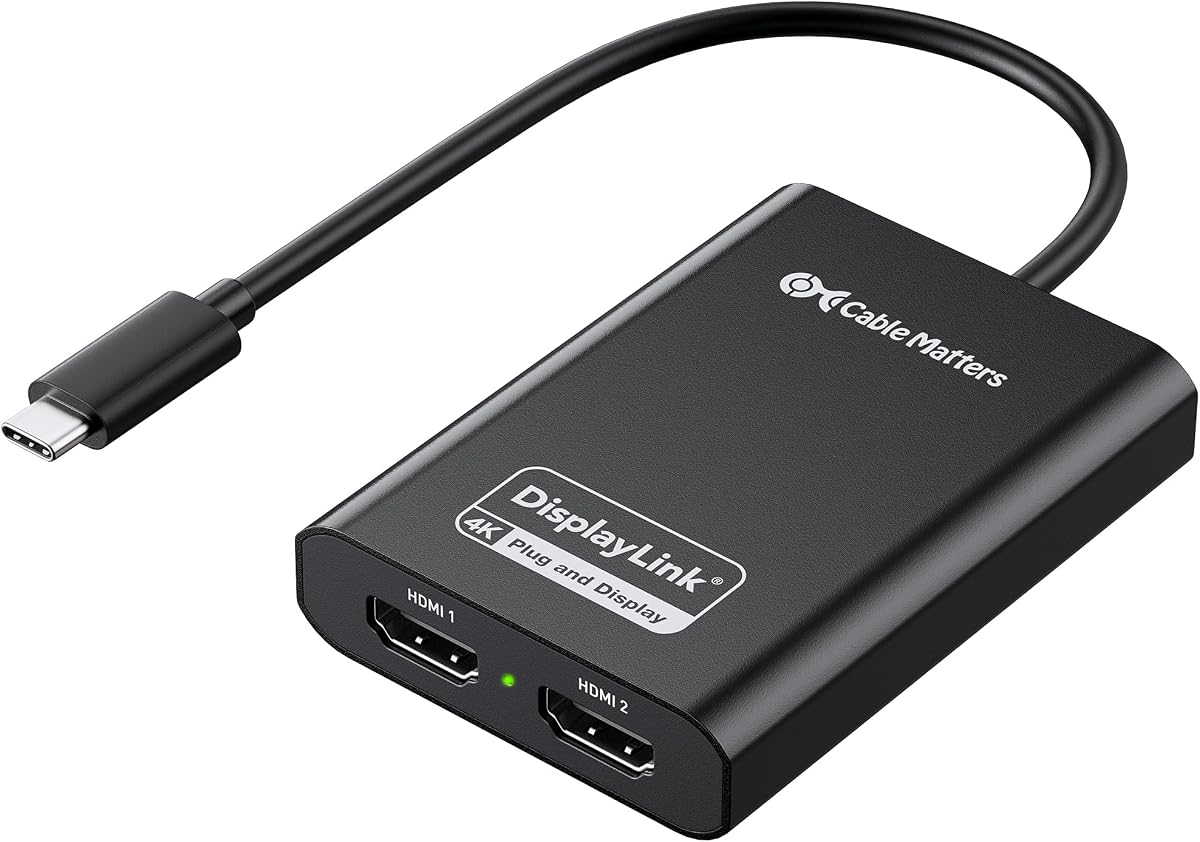
The DisplayLink Certified Cable Matters USB C to Dual HDMI Adapter provides two extended 4K 60Hz HDMI displays from a USB-C, USB4, or Thunderbolt connection. Its 4.0 rating is the lowest among the featured products, but the specification sheet presents a capable premium-style option for users who need true extended-screen support on macOS as well as Windows and ChromeOS.
We may earn a commission when you buy through this link, at no additional cost to you.
The adapter uses HDMI 2.0 and USB 3.2 Gen 1 with 5 Gbps bandwidth. Its stated system requirements note that performance can vary with processor, memory, USB bandwidth, and running applications. For the strongest dual-4K experience on Windows, the guidance recommends a modern Intel Core i5 or i7 based laptop or a comparable newer system.
Mac users must install DisplayLink Manager and allow Screen Recording permission. HDCP is not supported, and HDMI cables are not included. These are meaningful practical considerations because the adapter will still need suitable display leads, and the host system must be capable of handling two virtual 4K displays without compromising other tasks.
This is a reasonable recommendation for a modern productivity setup with USB-C or Thunderbolt, particularly on a MacBook that normally supports only one external screen. The aluminum housing and certified DisplayLink technology are positives, but the lower rating and stricter performance guidance mean buyers should review their computer specifications and application needs carefully.
The adapter can place separate applications across two 4K monitors rather than merely duplicating one screen. That distinction transforms the workflow for users accustomed to a single large MacBook display.
USB 3.2 Gen 1 bandwidth and HDMI 2.0 provide the stated foundation for dual 4K 60Hz output. The host processor and available bandwidth still influence real-world responsiveness, especially while demanding applications are already running.
We may earn a commission when you buy through this link, at no additional cost to you.
The Sonnet DisplayLink Dual 4K HDMI Adapter connects two high-resolution displays through a Thunderbolt or USB port and includes a USB-A female-to-USB-C male adapter for host flexibility. Its 4.4 rating and unusual high-refresh-rate support make it an interesting choice for users who want more than the standard dual-4K productivity configuration.
We may earn a commission when you buy through this link, at no additional cost to you.
The stated capability includes two 4K displays at 60Hz or two displays at 1440p or 1880p at 144Hz. It also supports 1080p and lower resolutions at 60Hz, along with audio. These specifications may appeal to users who value motion smoothness for certain workflows, although the product is primarily positioned as a way to expand the usable screen area.
Compatibility is broad across Mac and Windows computers, and the supplied details specifically mention M1 and M2 MacBook Air, M1 MacBook Pro, M1 Pro, M1 Max, and M1 Ultra systems. The adapter is streamlined compared with full docking stations: it does not add charging, Ethernet, or multiple USB-A peripheral ports, so it serves a narrower role.
Choose the Sonnet adapter when your main requirement is a simple dual-display connection and high-refresh alternatives matter. It is well suited to Mac users expanding beyond native display limits and to Windows users who do not need a full docking station. Those wanting a more complete desk hub should instead consider one of the ACASIS models with charging and peripheral ports.
The stated 144Hz support at 1440p or 1880p gives the adapter a different performance profile from models limited to 4K 60Hz. This can be useful for users whose visual workflow benefits from smoother motion at a lower resolution.
The included host adapter lets the same unit connect through USB-C or USB-A arrangements. Without a built-in charging or data hub, it remains focused on adding screen area and supporting audio.
We may earn a commission when you buy through this link, at no additional cost to you.
Choosing a Displaylink Adapter requires matching the adapter’s virtual-display capabilities to your computer, operating system, monitor ports, and intended applications. The following factors cover the details that most strongly affect usability, compatibility, and long-term satisfaction.
Match the adapter to your exact system, not merely the general device category. Confirm the listed macOS, Windows, or ChromeOS version and verify that the computer has the required interface before purchasing.
Choose the adapter that directly matches your monitor sockets and intended display count. Prioritize native HDMI or DisplayPort compatibility over unnecessary conversion.
Use 4K 60Hz as the practical target for a standard productivity desk. Consider alternatives only when lower resolution or higher refresh serves a clearer need.
Verify driver availability and your permission to install it before buying. Prefer clear setup guidance when you expect to move the adapter between computers.
Choose a hub when power and peripherals are recurring needs. Choose a focused display adapter when simplicity and a smaller feature set matter more.
For more screens on a compatible MacBook, a DisplayLink solution can provide the most practical expansion. Verify the exact Mac model and required software before installation.
Use DisplayLink for productivity, not protected entertainment. Keep a native video connection available if movie viewing or gaming is important.
Balance the number of ports against the bulk of the adapter. A compact unit with only the functions you use is often easier to carry and set up.
Begin by confirming that the host computer, operating system, monitor inputs, and required cables are compatible. Install the current DisplayLink driver when the manufacturer requires it. On macOS, open DisplayLink Manager and approve the requested display or Screen Recording permissions. Connect the host cable, attach the appropriate display leads, and power on the monitors before arranging windows on the extended desktop.
Use the adapter’s included or attached host connection according to your computer’s available ports. If both USB-C and USB-A systems are in use, keep the appropriate adapter attached and avoid forcing a connector into a port it does not fit. Connect peripherals and charging cables as needed, then choose extended mode for an independent workspace or mirrored mode when the same content must appear on both displays. Allow the operating system to detect the new screens and adjust scaling for readability.
Treat the adapter as an active electronic device rather than an unrestricted cable hub. Follow the manufacturer’s instructions about unplugging it, particularly when the computer is operating. Keep ventilation openings clear, avoid prolonged pressure on connectors, and store the unit in a protective pouch to prevent scratches. If a display is missing, check the cable, monitor input, driver, permissions, and host bandwidth before changing settings or reconnecting the entire system.
Most DisplayLink adapters require a driver to create virtual displays, particularly on macOS and Windows. Some compatible ChromeOS systems support them automatically, but you should check the product listing and your operating-system version. Mac users generally need to install DisplayLink Manager and grant the required display or Screen Recording permissions before the external screens appear correctly.
Yes, several adapters in this guide are specifically designed to add two external 4K displays to compatible M1 through M5 MacBook models. DisplayLink expands the number of screens beyond the computer’s native external-display limitation. The Mac must support the required interface, and DisplayLink Manager plus the appropriate permissions must be installed and enabled.
The primary difference is the physical display output. HDMI models connect directly to HDMI monitor inputs, while DisplayPort versions require DisplayPort-capable screens or suitable conversion cables. Both can use DisplayLink technology to extend a desktop over USB, but you should choose the interface your existing monitors support to avoid extra adapters and added connection complexity.
Generally, no. Most products in this guide explicitly state that HDCP-protected streaming services are unsupported, and Netflix is among the commonly named examples. A DisplayLink adapter is better suited to office applications, browsers, coding tools, spreadsheets, and communication platforms. Use the computer’s native display output with a conventional adapter or dock for protected entertainment.
They are generally not recommended for gaming. Several product descriptions exclude gaming because of latency, virtual-display processing, refresh-rate limitations, or HDCP restrictions. They are designed primarily for productivity and multitasking. Competitive gaming is better handled through a native graphics output that supports the desired resolution, refresh rate, and synchronization features.
The WAVLINK universal adapter is the exception among these products because it uses a single-HDMI-output design and the supplied information states that one adapter per monitor can support up to six displays on PCs. Most dual-output adapters connect two screens but are not presented as scalable to additional monitors through the same unit. Check bandwidth and host limitations before building a large multi-screen array.
It depends on the model. The ACASIS dual-HDMI and dual-DisplayPort products include 100-watt USB-C power delivery for compatible laptops. Other adapters, such as the Sonnet and Plugable dual-HDMI options, focus on display expansion and do not provide charging. Check the port list and your notebook’s power requirements before assembling the workstation.
First confirm that the monitor is powered on, the correct input is selected, and the display cable is fully seated. Then verify that the operating system and DisplayLink driver are supported, install any required updates, and confirm that display permissions have been approved. Finally, check the host’s USB port, bandwidth availability, and whether the selected application supports virtual or extended displays.
The strongest all-around choice is the ACASIS dual-DisplayPort adapter because it combines two 4K 60Hz outputs, 100-watt charging, three USB-A ports, and a portable aluminum body. The WAVLINK universal video adapter stands out for flexible multi-monitor scaling, while the Plugable USB-C dual-HDMI adapter offers a focused and well-supported Mac productivity experience. Each serves a distinct need rather than competing in exactly the same way.
Prioritize operating-system compatibility, native monitor connectors, and the need for extended versus mirrored displays. Pay close attention to driver requirements, HDCP restrictions, host bandwidth, and whether you need charging, Ethernet, or USB-A ports. A simple dual-HDMI adapter may be ideal for a standard office, while a full portable hub can reduce desk clutter and make mobile work easier.
Ratings, product details, and current listings can change, so review the latest manufacturer guidance and customer feedback before ordering. Confirm that your computer is supported, that you have the necessary cables, and that the intended applications do not depend on protected content or gaming features. With those checks complete, the right Displaylink Adapter can transform a constrained laptop display into a capable multi-screen workspace.