
MINISFORUM DEG1 OCuLink Dock
4.5Editor score
Compact 14-centimeter chassis
OCuLink 4i PCIe connection
ATX and SFX PSU support
Force power-on control
Egpu Docks for laptops and mini PCs compared by bandwidth, GPU compatibility, power options, cooling, portability, and docking convenience for 2026 buyers.
Egpu Docks give laptops, mini PCs, and compatible handhelds access to a desktop graphics card without permanently building a full-size system. A worthwhile enclosure must balance link bandwidth, card compatibility, power delivery, cooling, portability, and dependable connection features rather than merely providing a place to install a GPU.
This guide compares ten current eGPU docking options through their stated interfaces, bandwidth, supported graphics cards, power arrangements, storage features, cooling designs, and host-device compatibility. It covers OCuLink, USB4, Thunderbolt, and dual-mode designs, with particular attention to the practical differences between portable enclosures and desktop-style docks.
The list shows why the fastest interface is not automatically the best choice for every user. A compact OCuLink dock may suit a mobile workstation, while a feature-rich USB4 V2 model can simplify a single-cable desktop setup. Ratings and specifications reflect the supplied listings, while prices and availability can change at any time.
4.5Editor score

4.4Editor score
4.8Editor score
This side-by-side comparison highlights interface speed, graphics-card support, host connectivity, and major physical or power features. It makes clear which docks prioritize portability, simple one-cable use, maximum bandwidth, or full desktop-style flexibility.




The MINISFORUM DEG2 USB4 V2 combines two high-speed host links with desktop-oriented expansion, giving it a balanced appeal for creative professionals, AI users, and gamers. Its 4.4 rating reflects a capable package rather than a simple graphics-card carrier. Standout features include an 80Gbps USB4 V2 connection, 64Gbps OCuLink, an M.2 NVMe slot, and support for both ATX and SFX power supplies.
We may earn a commission when you buy through this link, at no additional cost to you.
A dedicated hardware switch allows users to change between all-in-one docking and pure GPU performance without replacing cables or repeatedly adjusting software. The integrated M.2 2280 bay can hold models, project assets, or other files close to the external graphics card, reducing the need to shuttle data between devices. This makes the enclosure more useful as a compact workstation hub than as a bare PCIe adapter.
Signal stability receives particular attention through a re-drive signal booster intended to reduce latency and connection interruptions during demanding workloads. The single-cable workflow can also handle data, displays, and laptop charging, while automatic power-on creates a more desktop-like routine. These features are meaningful, although the enclosure still requires a compatible graphics card and suitable power supply.
This is the strongest all-around recommendation for someone who wants more than occasional gaming performance. It particularly suits users alternating between portable work and a stationary external GPU. Those needing a smaller travel accessory may prefer the DEG1, while buyers seeking a more established multi-platform ecosystem with a higher listed rating may examine the UGREEN LinkStation.
USB4 V2 provides the convenient path for a broad single-cable desktop setup, while OCuLink offers a dedicated graphics link for users who want to maximize the available PCIe bandwidth. The physical mode switch is especially useful because it makes the difference between the two workflows visible and straightforward.
The built-in M.2 2280 slot gives the dock a practical advantage over basic PCIe enclosures. Keeping active models, project files, or scratch data locally can make switching between a portable host and an external desktop GPU feel less disconnected.
We may earn a commission when you buy through this link, at no additional cost to you.
This DEG2 listing expands the earlier dual-mode concept with a more explicitly described set of ports and workstation features. It carries a 5.0 rating, making it one of the strongest-rated products in the group. Its main attractions are 80Gbps USB4 V2, 64Gbps OCuLink, 2.5G Ethernet, two USB 3.2 ports, an M.2 2280 bay, and a full PCIe x16 area for an external graphics card.
We may earn a commission when you buy through this link, at no additional cost to you.
The physical toggle is a useful design choice because it lets the user select TB5 or OCuLink without changing cables. Its integrated storage can hold models, projects, and assets while a heavier graphics workload runs on the desktop card. Signal optimization is designed to reduce loss, dropouts, and connection faults across different cables, host devices, and GPUs.
Power handling is flexible, with support for both ATX and SFX supplies. The host can also receive reverse power and full dock expansion through one USB4 V2 connection, while synchronization supports automatic startup. The main limitations are the exclusion of the GPU and power supply and an explicit warning that the dock does not work with the MINISFORUM MS-02 workstation.
The product is a compelling choice for buyers who want a one-cable desk setup but also retain the option of a dedicated OCuLink path. Its port selection makes it more useful for networking and peripherals than a minimal PCIe adapter. Buyers should confirm host-port support, power requirements, and the listed MS-02 incompatibility before finalizing their setup.
The 2.5G LAN connection, multiple USB ports, and local M.2 storage turn this enclosure into a practical workstation hub. It is better suited to a permanent desk than to a lightweight travel setup, but that is exactly where its broad connectivity becomes an advantage.
Using a hardware toggle to change between TB5 and OCuLink reduces setup friction. A user can favor the universal docking path for daily productivity and reserve the dedicated graphics link for workloads that need maximum available bandwidth.
We may earn a commission when you buy through this link, at no additional cost to you.
The Razer Core X V2 is built for owners of compatible Thunderbolt 4, Thunderbolt 5, or USB4 systems who want a recognizable, ventilated external graphics platform. Its 4.0 rating is solid without being exceptional, but the enclosure's 80Gbps Thunderbolt 5 support, four-slot width, and 140W host charging make it a credible premium workstation option.
We may earn a commission when you buy through this link, at no additional cost to you.
The design supports PCIe desktop graphics cards up to four slots wide, including current NVIDIA GeForce and AMD Radeon models. Tool-free thumbscrews simplify installation and allow users to replace the graphics card or ATX power supply as their needs change. An included Thunderbolt 5 cable provides the initial connection, while the enclosure is intended to be unplugged when the external GPU is no longer required.
Thermal management relies on a vented steel chassis and a built-in 120mm fan that automatically ramps during heavier workloads. Users can also customize the fan curve, which is useful for balancing acoustics and cooling. The main caveats are that the graphics card and power supply are sold separately, and Mac systems using M1 or later chips do not support eGPUs.
This enclosure makes the most sense for Windows-based creative workstations and gaming laptops with the latest high-speed ports. It may be less appropriate for owners of older Thunderbolt systems or modern Apple silicon computers. Those who prioritize universal PCI-SIG GPU support and active cooling will appreciate its straightforward, modular design.
Tool-free installation reduces the effort required to change graphics cards or power supplies. That modularity matters for builders who expect to move between a current GPU and a future upgrade rather than treating the enclosure as a fixed one-generation solution.
The 120mm fan provides a clearer cooling strategy than a completely passive enclosure. Automatic ramp-up supports demanding creative and gaming tasks, while fan-curve customization lets users tune the balance between thermal headroom and acoustic output.
We may earn a commission when you buy through this link, at no additional cost to you.
The MINISFORUM DEG1 stands apart as the most travel-conscious enclosure in this guide. At about 14 centimeters long, 6.5 centimeters wide, and 2 centimeters high, it is small enough to fit into a backpack or handbag. Its 4.5 rating is strong, and the dedicated OCuLink 4i link provides 64Gbps transfer capability for compatible hosts.
We may earn a commission when you buy through this link, at no additional cost to you.
Despite its compact body, the dock uses a PCIe 4.0 x4 uplink and PCIe 4.0 x4 x16 downlink arrangement, supports ATX and SFX power supplies, and accommodates graphics cards of various sizes. Signal-amplifier chips support stable transmission, while the locking OCuLink connector helps protect the port from forced removal.
The ForcePowerOn LED control offers a convenient way to choose between forced startup and host-following behavior. However, the startup tracking function is limited to MINISFORUM mini PCs and requires original cables. OCuLink also does not support hot plugging, so the host should be shut down before the cable is disconnected.
The DEG1 is a compelling option for a mobile creator or compact workstation setup where portability matters more than a broad port array. It suits users already equipped with the required OCuLink host connection and MINISFORUM-compatible startup setup. Buyers seeking universal Thunderbolt docking or hot-swappable convenience should choose a more conventional desktop enclosure.
The small footprint makes it realistic to keep an external graphics solution in a bag rather than permanently installed on a desk. That portability is the DEG1's defining advantage and can justify the extra planning required for a dedicated OCuLink host connection.
The locking OCuLink interface discourages accidental or forced unplugging, which helps protect both the connector and enclosure. The trade-off is that the cable must be disconnected only while the computer is off because hot plugging is not supported.
We may earn a commission when you buy through this link, at no additional cost to you.
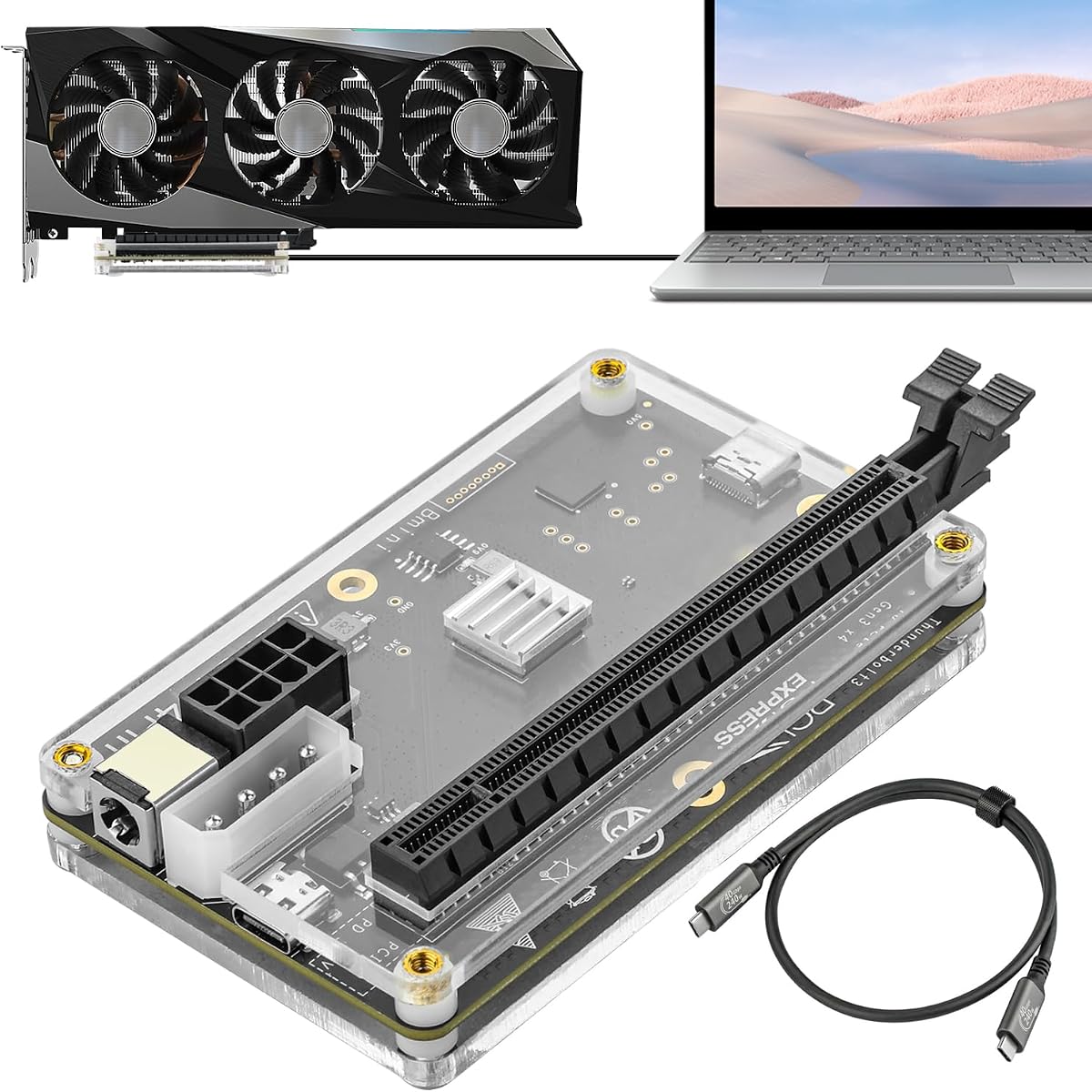
This OCuLink enclosure takes a direct approach to external graphics expansion, providing a 64Gbps PCIe 4.0 x4 uplink and a PCIe x16 area for a desktop card. Its 4.4 rating reflects a straightforward product with several thoughtful construction details, including a detachable enclosure design, gold-plated contacts, and status indicators.
We may earn a commission when you buy through this link, at no additional cost to you.
The included 50-centimeter SFF-8611 male-to-male cable is thin, flexible, and shielded. Its flat construction can reduce strain at the connector and helps limit electromagnetic interference. The dock's detachable design is intended to improve portability and storage, while the ten-micron gold-plated contacts are intended to support conductivity and resist corrosion-related resistance.
Graphics cards of many sizes are supported, and the product is positioned for standard ATX power supplies with top-and-bottom screw mounting for stability. Unlike more integrated docks, its feature set is focused on the GPU path rather than Ethernet, storage, or peripheral expansion. OCuLink does not support hot plugging, and the computer must be turned off before unplugging the cable.
The enclosure is most useful for owners of a compatible laptop or mini PC with OCuLink who want a direct PCIe connection without paying for a full docking station. It is less suitable for users who need broad USB connectivity, laptop charging, or effortless cable reconnection. Confirm that the host supports the required OCuLink mode before assembling the system.
By concentrating on the OCuLink and PCIe path, the dock avoids unnecessary complexity for users whose primary goal is graphics expansion. This focused approach can be an advantage in a clean workstation where networking and peripheral docks are handled separately.
The slim, fully shielded cable is easier to route than a bulky conventional cable and is designed to reduce interference. Gold-plated contacts and LED status feedback also help make installation and ongoing operation more understandable.
We may earn a commission when you buy through this link, at no additional cost to you.
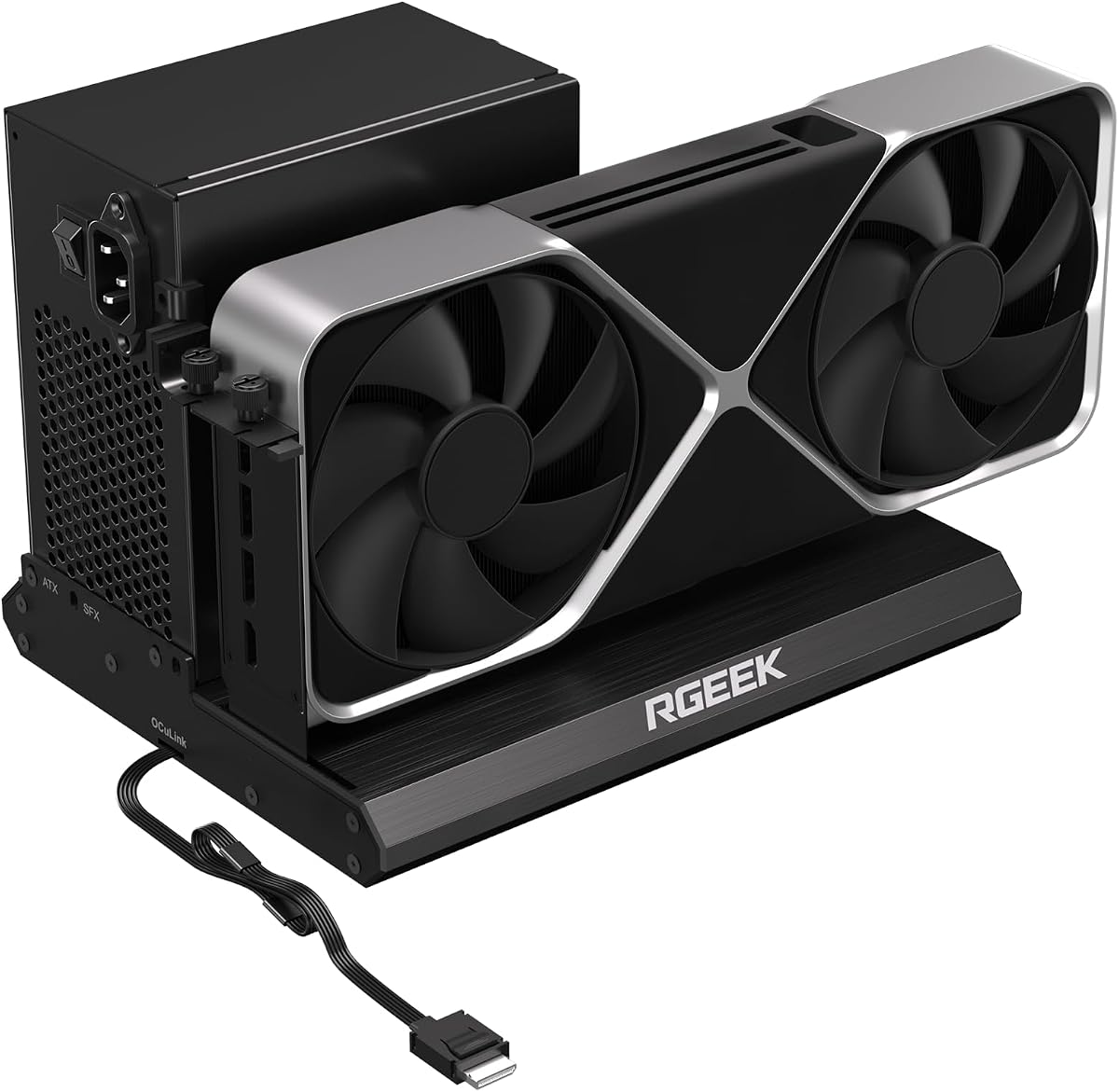
The RGEEK OCuLink dock leads the group in stated interface bandwidth, advertising PCIe 5.0 x4 performance up to 128Gbps while remaining compatible with PCIe 4.0 and 3.0. Its 4.0 rating is credible for a newer platform, but the headline transfer rate depends on host-side hardware rather than the enclosure alone.
We may earn a commission when you buy through this link, at no additional cost to you.
The product states that most existing OCuLink ports support PCIe 4.0 at up to 64Gbps. Reaching the full PCIe 5.0 rate requires an M.2 slot or a PCIe 5.0-to-OCuLink adapter, and that adapter is not included. This distinction is essential because a fast dock cannot deliver more than the host connection and adapter path allow.
The full-aluminum enclosure is designed for heat dissipation and durability, while a factory-soldered cable removes the need for an extra inline adapter and is said to minimize signal loss. Mainstream NVIDIA and AMD cards are supported without stated size restrictions. ATX, SFX, and SFX-L power supplies are supported, and the fixed I/O arrangement is designed to simplify wiring.
This dock is best for an enthusiast who has, or will add, the necessary PCIe 5.0 host path and wants the highest potential bandwidth in the group. It is less compelling when the computer only provides conventional PCIe 4.0 OCuLink. Hot plugging is unsupported, so the system should be powered down before changing the connection.
The advertised 128Gbps ceiling makes the enclosure attractive for future-oriented builds, but the host and adapter determine actual throughput. A PCIe 5.0-capable M.2 slot or suitable adapter is needed before the dock can approach its stated maximum.
The metal chassis assists with heat dissipation and provides a rigid structure around a full-size graphics card. A fixed, factory-soldered cable also reduces connection complexity, although it may be less convenient for users who prefer a fully detachable cable.
We may earn a commission when you buy through this link, at no additional cost to you.
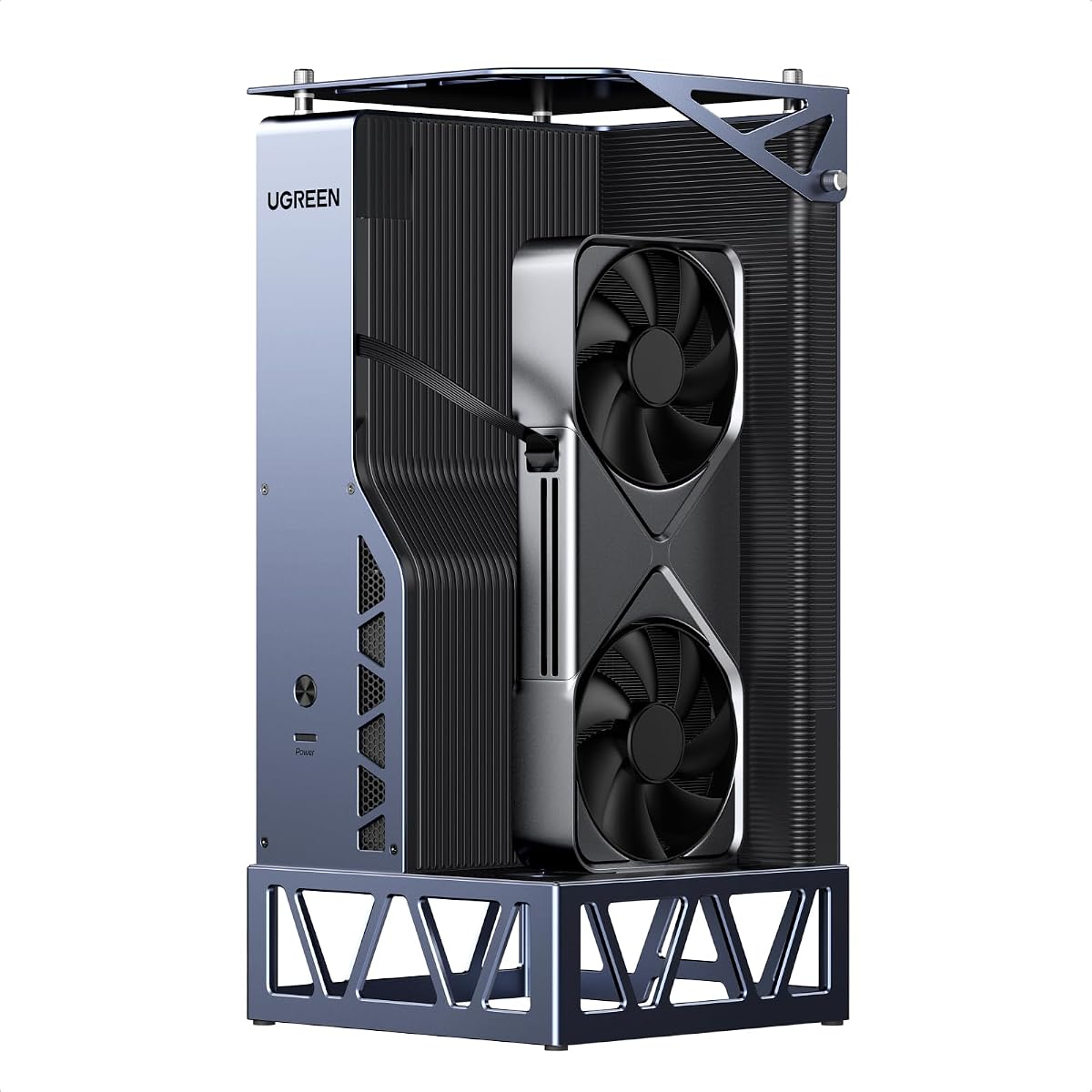
The UGREEN LinkStation is the most complete desktop-style eGPU dock in the group and carries the highest listed rating at 4.8. It combines 64Gbps OCuLink with 40Gbps USB4, supports a full-size desktop GPU, and adds 100W host charging. Those characteristics make it especially appealing to laptop, handheld, and mini-PC owners who want a permanent external workstation.
We may earn a commission when you buy through this link, at no additional cost to you.
The listing identifies broad compatibility with NVIDIA, AMD, and Intel graphics cards, including several tested desktop models. It also states support for Windows, Linux, and Intel-based macOS. The removable top cover allows cards up to 370 millimeters long and four slots thick, while direct support for 12V-2×6 and PCIe 8-pin connectors simplifies power arrangements with compatible modern cards.
The dual-link design lets users choose OCuLink for very low-latency, maximum-bandwidth operation or USB4 for broader compatibility and hot-swap convenience. A built-in signal booster supports stable transmission during demanding gaming, rendering, and AI tasks. The semi-open aluminum chassis, large low-RPM ATX 3.1 power-supply fan, and integrated cable compartment all emphasize a quiet and organized desktop installation.
The primary mechanical caveat is the bracket opening, which supports dual-slot graphics-card brackets rather than triple-slot brackets even though the heatsink may be up to four slots tall. Users should verify their exact card's bracket and power requirements. For buyers wanting a polished, flexible all-purpose hub, the LinkStation is the strongest premium choice in this comparison.
OCuLink and USB4 provide a useful division between maximum graphics bandwidth and easier reconnection. That flexibility supports laptops, gaming handhelds, and mini PCs without forcing every user into the same connection model.
The removable top and 370mm length allowance accommodate many large desktop cards, including models that would not fit basic portable enclosures. Buyers must still distinguish heatsink height from the required dual-slot external bracket.
We may earn a commission when you buy through this link, at no additional cost to you.
The PCIe 3.0 Thunderbolt enclosure favors flexibility over maximum bandwidth. Its JHL6340 controller provides around 22Gbps, and the product supports Thunderbolt 3, Thunderbolt 4, and USB4 devices. With a 3.8 rating, it is a more specialized option than the newer dual-mode docks, but its compatibility and power choices can appeal to a broader range of older systems.
We may earn a commission when you buy through this link, at no additional cost to you.
NVIDIA and AMD cards are supported when the host operating system has appropriate drivers, and the listing references a wide range of cards. Compatible systems include most Windows 10, Windows 11, and Linux laptops, desktops, or consoles with Thunderbolt and an Intel or AMD processor. Some USB4 consoles may need a BIOS update before the interface can be used.
Power can be supplied through CPU 4+4-pin, Molex, PD 3.0 at up to 60W, or DC5521 at up to 120W. This is unusually accommodating for a PCIe 3.0 enclosure and may help users reuse available power hardware. A 24-pin power jumper cable and a 23.6-inch Thunderbolt 4 cable are included with the dock.
This product is a practical choice for a user with a Thunderbolt or USB4 system that cannot use OCuLink and does not need the throughput of PCIe 4.0 or 5.0. It is less ideal for bandwidth-intensive AI or rendering systems, and the listing does not recommend Intel graphics cards. Users should verify driver and firmware support before assembly.
Thunderbolt 3, Thunderbolt 4, and USB4 support gives the dock more relevance than a design limited to one generation. This can be valuable for owners of mixed-device workstations that do not include OCuLink.
Four input options let the installer select among common CPU, Molex, PD, and DC sources. This flexibility can simplify reuse of existing equipment, though the correct cable and power path still need to match the graphics card's requirements.
We may earn a commission when you buy through this link, at no additional cost to you.
This DEG2 version shares the central design of a dual-mode dock with 80Gbps USB4 V2, 64Gbps OCuLink, an M.2 2280 bay, 2.5G Ethernet, and USB 3.2 connectivity. Its 3.2 rating is the lowest in this guide, so the specification sheet deserves careful attention. The enclosure nevertheless presents a strong set of features on paper.
We may earn a commission when you buy through this link, at no additional cost to you.
A physical toggle changes between TB5 and OCuLink without a cable swap or software adjustment. The M.2 slot can store models, assets, and project files, while the external graphics card handles demanding rendering, editing, or AI tasks. The design also supports ATX and SFX power supplies and full-size graphics cards.
Signal-optimized engineering is intended to reduce degradation, connection drops, and errors across different hosts and cables. Automatic power-on synchronizes the dock with the host, while reverse power and full expansion through one USB4 V2 cable support a plug-and-play desktop arrangement. The port list includes two TB5 ports, OCuLink, 2.5G LAN, two USB 3.2 ports, M.2 2280, PCIe x16, and ATX 24-pin plus 8-pin power.
The low rating may make this particular listing less compelling than closely related DEG2 products, especially when similar connectivity appears elsewhere. The dock is still relevant for users who prioritize USB4 V2, OCuLink, local storage, and Ethernet. The GPU and power supply are not included, and the enclosure does not work with the MINISFORUM MS-02 workstation.
Ethernet, local NVMe storage, multiple USB ports, and high-speed graphics links make this more than a graphics-card box. It is intended to remain on a desk and reproduce many features of a compact desktop workstation.
The supplied listings include several DEG2 variants with similar core specifications but different ratings. Buyers should compare the exact port list, warranty information, seller support, and current user feedback before choosing among those near-identical models.
We may earn a commission when you buy through this link, at no additional cost to you.
The 85W PD Thunderbolt dock provides a familiar route to external graphics expansion through an officially certified JHL7440 controller module. Its 3.9 rating reflects a capable but less specialized design. The principal appeal is a 40Gbps Thunderbolt 4 connection with 85W Power Delivery, making it convenient for compatible laptops that need graphics, charging, and hub functionality.
We may earn a commission when you buy through this link, at no additional cost to you.
The host system must have a Thunderbolt 3, Thunderbolt 4, or USB4 port. It is designed for NUCs, laptops, and gaming machines, with listed support for current NVIDIA RTX 50-series and AMD RX 7000-series graphics cards. The enclosure also includes a USB-A port and a daisy-chain port, allowing it to function as a hub as well as a graphics carrier.
Neither the ATX power supply nor the graphics card is included. The listing also emphasizes a specific safety warning: the CPU power cable must not be inserted into the dock's PCIe 8-pin port because that action can trigger automatic shutdown protection. Correct reconnection involves unplugging the incorrect cable and then reconnecting the ATX 24-pin cable.
This dock is a sensible option for a Thunderbolt laptop user who values one-cable charging and a straightforward 40Gbps link. It is not suitable for a system lacking the required high-speed port, and its 40Gbps path is below the latest OCuLink and USB4 V2 alternatives. Users should carefully follow the wiring guidance during installation.
The 85W PD function reduces the number of desk connections by combining host charging with the Thunderbolt data path. This makes the dock particularly convenient for a laptop-first setup that still requires a full-size desktop graphics card.
A USB-A port and daisy-chain capability add basic peripheral and device expansion. The enclosure is therefore not limited to graphics output, although buyers seeking high-speed Ethernet, local storage, or multiple display ports will need additional hardware.
We may earn a commission when you buy through this link, at no additional cost to you.
Choosing an eGPU dock starts with the host connection and intended workload, then expands to graphics-card clearance, power, cooling, portability, and peripheral support. Checking those factors before buying helps prevent a costly mismatch between the enclosure, the GPU, and the computer.
The host interface determines which docks you can use at all and how much data reaches the graphics card. OCuLink is a dedicated PCIe-oriented connection offered by some enclosures at 64Gbps or a stated 128Gbps PCIe 5.0 x4 ceiling. USB4 and Thunderbolt provide broader device compatibility, while newer USB4 V2 or Thunderbolt 5 products advertise 80Gbps host links. A nominal number alone does not guarantee end-to-end performance: the laptop port, controller, graphics card, workload, and operating system all influence the result.
External graphics cards vary dramatically in length, height, slot width, cooler design, and power requirements. Some enclosures have a removable cover and support cards as long as 370 millimeters, while compact models may impose stricter limits. Pay separate attention to heatsink height and the external bracket: a card with a tall cooler can still be limited to a dual-slot bracket opening even when the enclosure accommodates a four-slot heatsink. The UGREEN LinkStation explicitly distinguishes these two dimensions, making its published limits particularly useful during planning.
An eGPU enclosure may accept standard ATX, SFX, SFX-L, or several smaller DC and peripheral connectors, but the graphics card still needs adequate power. High-end cards can demand specialized connectors, while more modest cards may use a single eight-pin lead. The power supply is commonly not included, so budget for a unit with the right form factor, wattage, and connectors. Incorrect CPU power-cable placement can also trigger protection circuits, making the manufacturer's wiring diagram essential rather than optional.
External GPUs generate substantial heat, and a poorly ventilated enclosure can shorten performance or make a workstation noisy. Active cooling, as found in the Razer Core X V2's 120mm fan, provides controlled airflow and adjustable fan curves. Large aluminum or semi-open designs can improve heat dissipation and support quieter power-supply fans. Portable, fully enclosed models may be easier to carry but offer less thermal room. Users should consider both GPU cooler design and the power supply's cooling requirements rather than focusing only on the graphics card.
The smallest dock in this group measures about 14 centimeters long and is designed to fit in a bag, while many others are better viewed as permanent desk accessories. A portable enclosure may offer only the graphics connection, whereas a desktop-style dock can add Ethernet, USB ports, local NVMe storage, display support, and host charging. Decide whether the eGPU travels with you or remains connected to a fixed workstation, because that choice has a greater effect on usability than minor differences in enclosure size.
Some modern eGPU docks function as complete workstation hubs. The DEG2 variants include an M.2 2280 slot for models, projects, and assets, while also offering USB 3.2 and 2.5G LAN connectivity. The UGREEN LinkStation offers 100W charging and a tidier single-cable setup. Additional ports can reduce desk clutter, but they add complexity and may not be necessary if the computer already has excellent networking and peripheral support. Local storage can also shorten project workflows by keeping active data near the external GPU.
A dock may use standard PCIe and USB hardware while still requiring suitable drivers, firmware, or a particular host connection. Most of the products here emphasize Windows, with some explicitly listing Linux or Intel-based macOS support. The Razer Core X V2 excludes Mac systems with M1 or later chipsets. Other restrictions include the MINISFORUM MS-02 exclusion for certain DEG2 listings and special startup-tracking requirements on the DEG1. Check the complete host list rather than assuming that any USB-C port will work.
Connection handling can materially affect daily convenience. USB4 and Thunderbolt designs may support convenient reconnection, whereas the OCuLink models in this guide explicitly state that hot plugging is unsupported and require the computer to be powered off. ForcePowerOn on the DEG1 can simplify startup, although its tracking function is limited to MINISFORUM mini PCs using original cables. Automatic host synchronization is also listed for the DEG2. These differences are more important than they first appear for users who dock and undock frequently.
Before assembly, confirm that the host supports the dock's connection mode, that the graphics card fits the available length and slot space, and that the power supply has the correct form factor and connectors. Power off the computer and disconnect the dock before changing cables or installing components. For OCuLink models, the listings specifically state that the computer should be off before the cable is unplugged.
Install the graphics card and suitable power supply according to the enclosure's instructions, route cables without sharp bends, and confirm that the bracket and card are not obstructed by the chassis. Connect the host using the specified interface, install the graphics drivers required by the operating system, and follow any firmware or BIOS update recommended for USB4 or Thunderbolt devices. Power the enclosure on and verify that the system recognizes the external GPU before launching demanding applications.
For regular care, keep the ventilation openings clear, avoid resting the enclosure on soft surfaces, and inspect connectors for dust or damage. Do not hot-plug an OCuLink connection, and do not substitute a CPU power cable for a PCIe graphics connector unless the manufacturer explicitly permits it. When cleaning, power everything down and use dry, non-abrasive methods rather than spraying liquid into the enclosure.
OCuLink is a dedicated high-speed PCIe-oriented connection, while USB4 and Thunderbolt are general-purpose computer interfaces that can also carry graphics, data, display traffic, and charging. A dual-mode dock lets users choose according to the host port and workflow. OCuLink is often selected for dedicated GPU bandwidth, whereas USB4 can provide broader compatibility and a more convenient single-cable desktop connection.
No. The supplied product information states that graphics cards and power supplies are generally sold separately. Users must select a card that fits the enclosure and obtain a compatible power unit with suitable capacity and connectors. This is one of the most important budget and compatibility checks before assembling an external graphics system.
No. The host needs a compatible interface, such as OCuLink, USB4, Thunderbolt 3, or Thunderbolt 4, along with suitable operating-system and driver support. Some products also have processor, BIOS, brand, or model restrictions. For example, the Razer Core X V2 does not support Macs with M1 or later chipsets, while certain DEG2 models exclude the MINISFORUM MS-02 workstation.
The OCuLink models listed in this guide state that hot plugging is not supported. The computer should be turned off before the OCuLink cable is unplugged or changed. A locking connector on some models helps protect against accidental removal, but users should still follow the shutdown procedure rather than relying on physical protection alone.
The MINISFORUM DEG1 is the most compact option in the group, measuring approximately 14 by 6.5 by 2 centimeters. Its small enclosure is designed for portability, although it uses a dedicated OCuLink connection and does not provide the broader hub functionality of larger desktop-style docks. Its special startup-tracking feature is also limited to compatible MINISFORUM mini PCs.
No. A faster host link can help, but game performance also depends on the graphics card, cooling, power, driver support, and whether the workload is limited by GPU or CPU performance. OCuLink may offer a dedicated high-bandwidth path, while USB4 is often more convenient. The best choice is the one that supports the host properly, fits the chosen GPU, and maintains stable operation under sustained load.
The M.2 2280 slot provides local NVMe storage for files such as AI models, active projects, assets, or scratch data. Keeping these files close to the external graphics card can make a mobile-and-desktop workflow smoother. It does not replace the need for suitable graphics drivers or expand the primary PCIe graphics link.
The correct supply depends primarily on the graphics card and its power connectors, not just the enclosure. A modern high-end card may need substantial power and specialized connectors, while a smaller card may require less. The buyer should also ensure that the enclosure supports the selected ATX, SFX, SFX-L, PD, or other power format and follow the dock's exact wiring instructions.
The MINISFORUM DEG2 USB4 V2 stands out as the strongest overall option because it combines 80Gbps USB4 V2, 64Gbps OCuLink, local M.2 storage, flexible power-supply support, and a single-cable desktop workflow. The DEG1 is the more portable pick, while the UGREEN LinkStation takes the premium position with broad GPU support, 100W charging, 370mm clearance, and two high-speed links.
The correct priority depends on the host and workload. Choose OCuLink for a dedicated, high-bandwidth PCIe path, USB4 or Thunderbolt for broader compatibility, and a desktop-style enclosure when Ethernet, local storage, charging, and peripheral expansion are important. Before ordering, verify the exact host port, operating system, GPU dimensions, bracket style, power connectors, and cooling requirements.
Ratings and specifications can provide a useful starting point, but they do not replace a compatibility check. Current pricing, seller support, warranty terms, and availability may change, so readers should review the latest listing before making a final purchase. Taking those steps helps turn a technically impressive eGPU dock into a dependable part of the intended workflow.